

The Peloton app has a new feature called Teams where you can create teams with your friends and make your own workout challenges. We first shared that this feature was on the way last month. You are able to join multiple teams, and take part in many challenges.
This feature contains three main components: Teams, Challenges, and a Weekly Leaderboard.
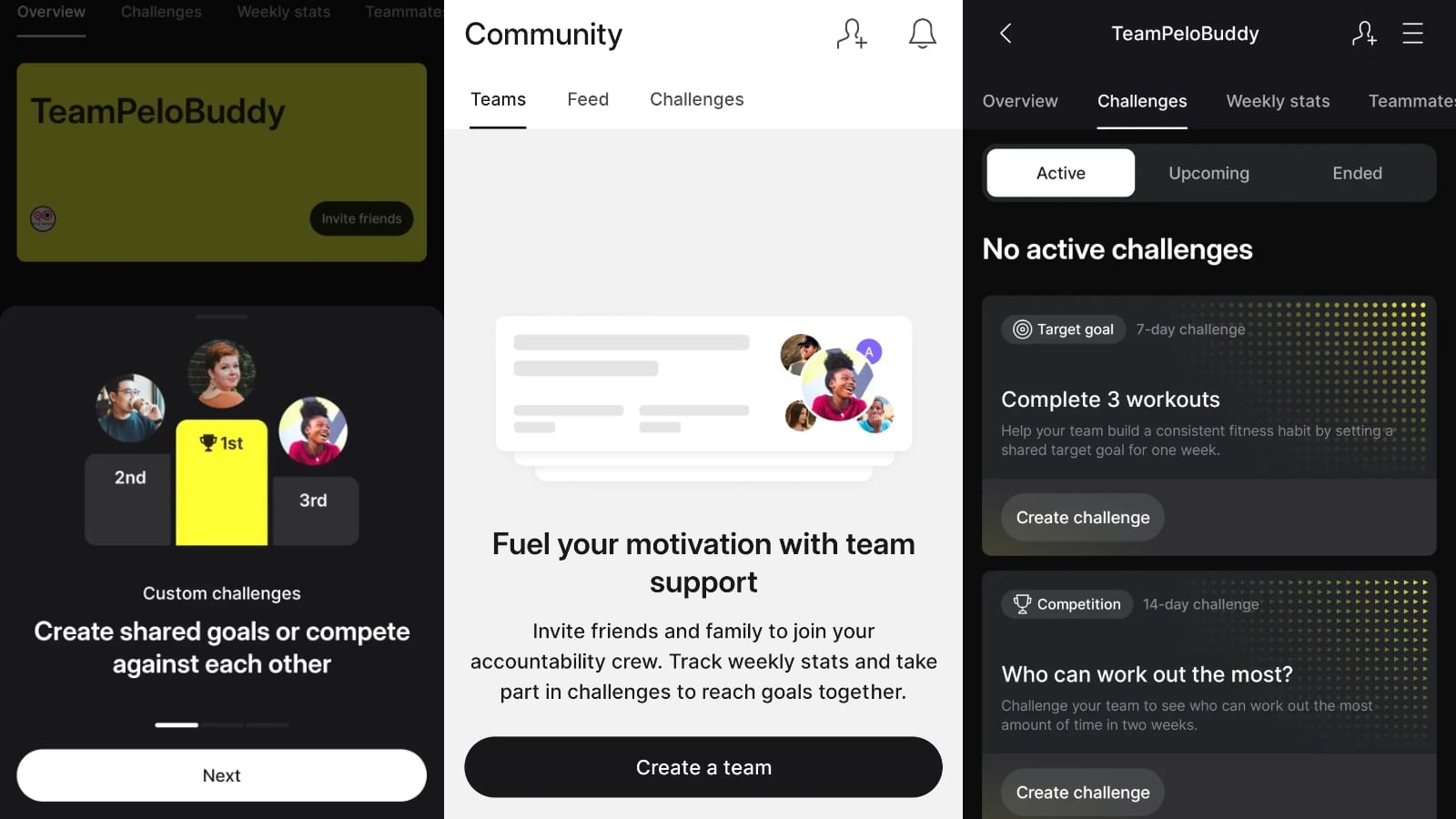
You have the ability to create challenges to compete with your friends. Teams are invite only, and then once people have joined your team, they can compete in any of your challenges. Keep in mind that you invite people to join your teams, not a challenge. They have to accept an invite to join your team, and then from there, manually opt into any of the challenges.
Said another way – you can not create, or join, a challenge without being in a team first. So the first step in this process to to create or join a team.
Even if you don’t join a challenge – you’ll still show up on a Weekly Leaderboard (or “Weekly Stats”) for the team where you can compete based on weekly minutes, number of workouts, or number of days.
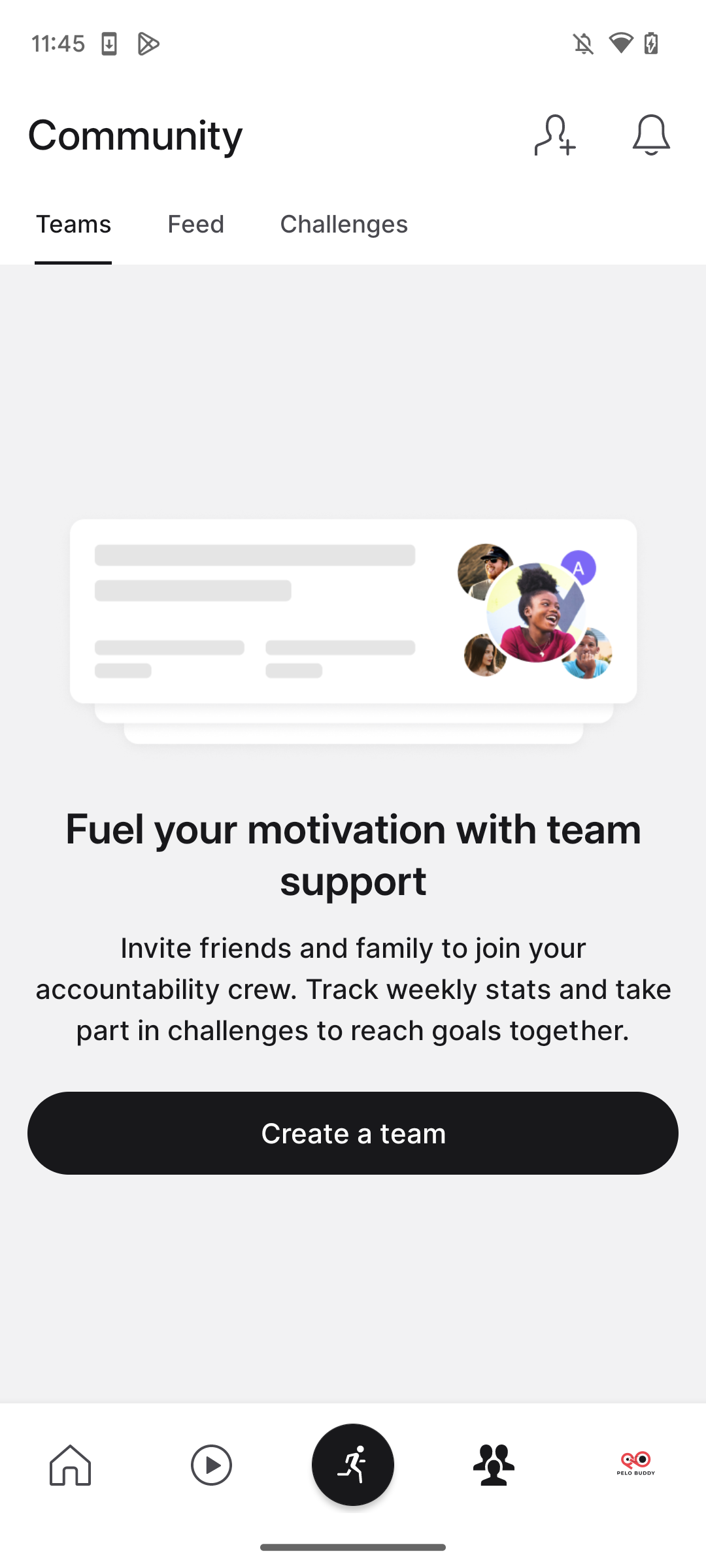
The new Peloton Teams feature is within the Community section of the Peloton app (at the bottom of your screen, the silhouette of three people), where the regular monthly Challenges and member Feed are also found. There will be a new tab at the top of your screen that says “Teams” when you have the feature within the Community area.
Peloton Teams is currently available on both iOS and Android – at this time it is not available via the Peloton website or on Peloton hardware. If you do not yet see the Teams tab, see if your Peloton app has an update available, or try completely closing and reopening the Peloton app on your phone. As always, new features like this can sometimes take a few days to roll out to everyone.
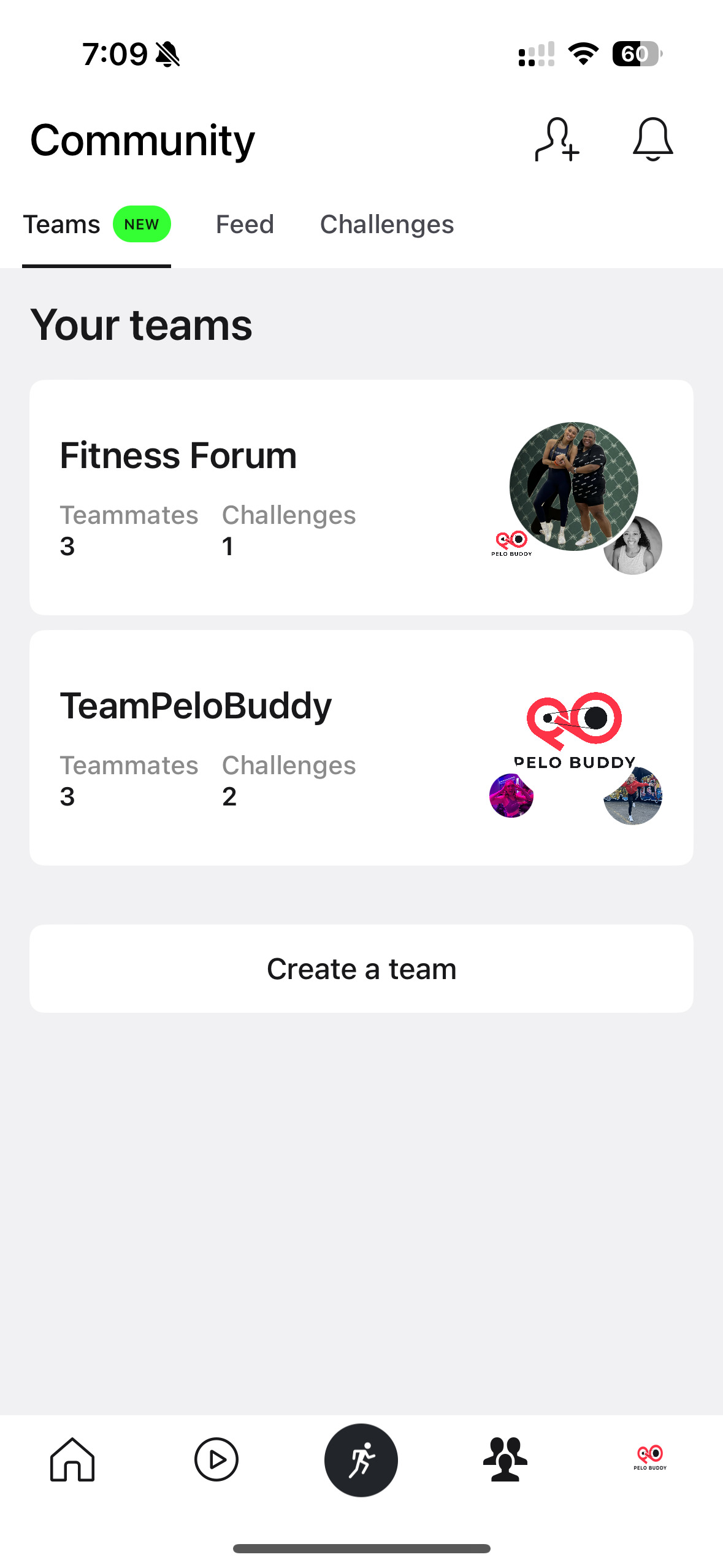
On the new teams tab within your app, you will see a list of Your Teams that you are a member of as well as the button to Create a Team.
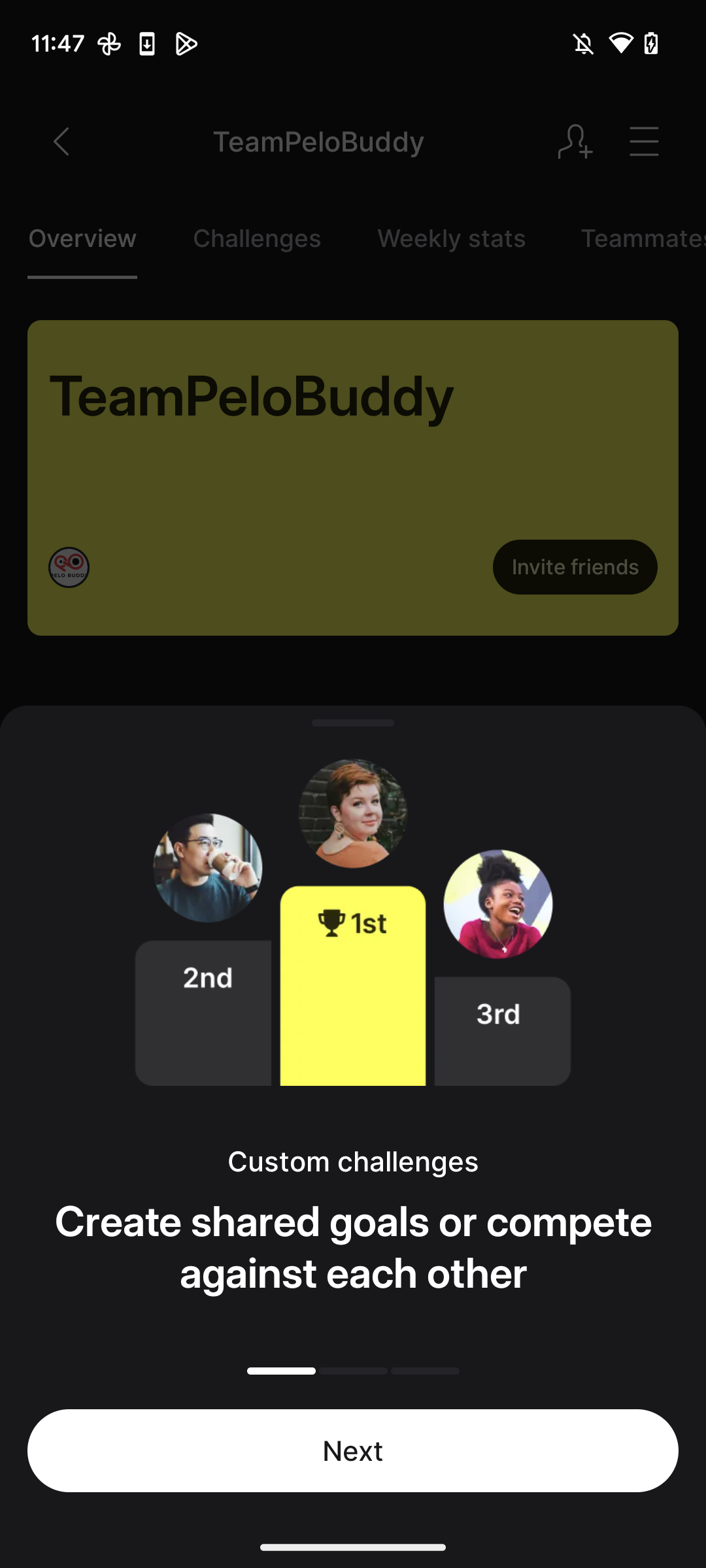
When you first go through the Teams screens, you will see “Welcome to teams on Peloton!” and a button to Get Started. As you navigate through the slides, you will learn more about the new Teams feature.
If you wish to create a team, you will use the large “Create a Team” button on the bottom of the Teams tab. There, you can name your team, give it a description, and pick a team color.
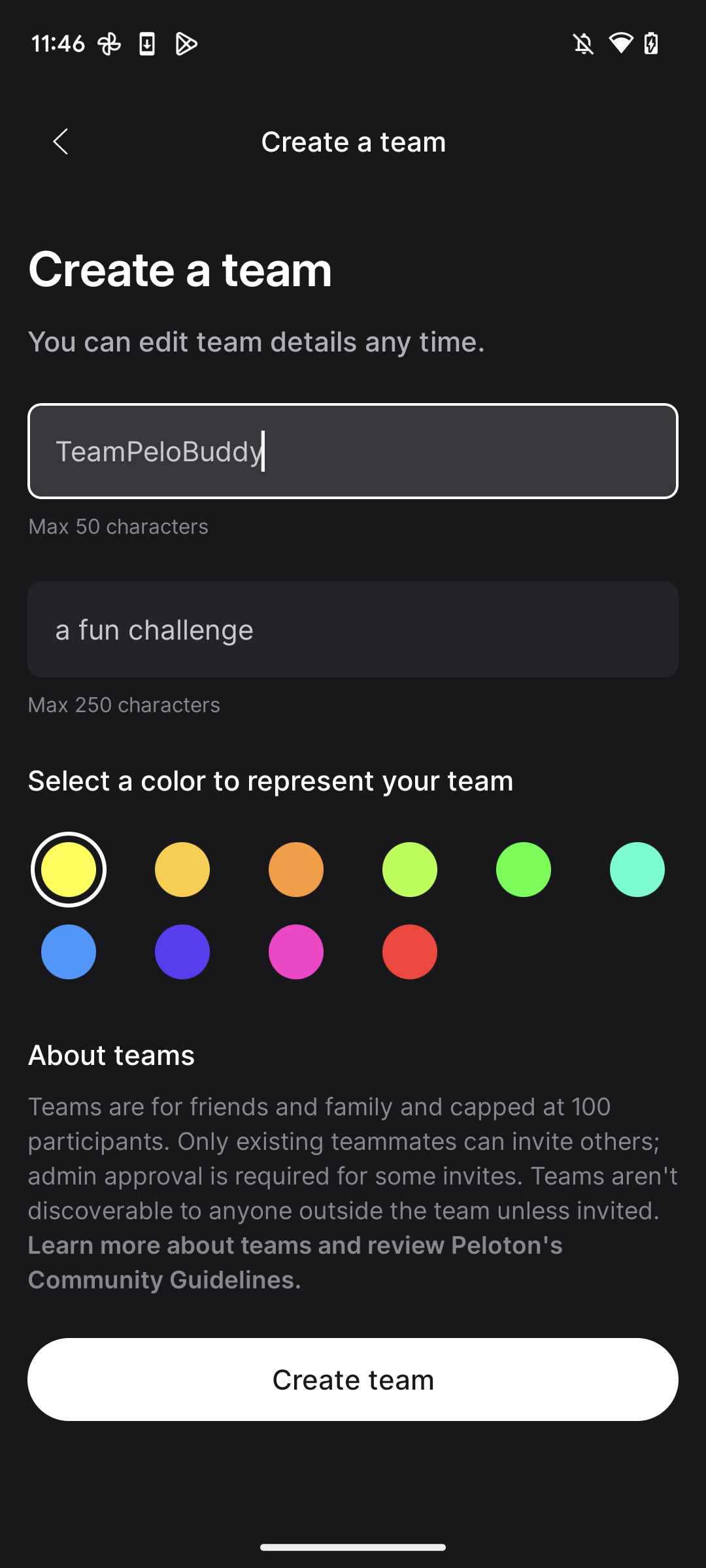
This page describes the feature a little bit more, including the fact that each Peloton Team is limited to only 100 people. And currently – all teams are private and require people to be invited. There is no public list of teams, and no way to allow people to browse and find your team. The message on this page says:
“Teams are for friends and family and capped at 100 participants. Only existing teammates can invite others; admin approval is required for some invites. Teams aren’t discoverable to anyone outside the team unless invited.”
Once you create or join a team, it will display at the top of your Teams tab. After you select one of your teams, a banner of tabs will display within your team for Overview, Challenges, Weekly Stats, and Teammates. This replaces the regular Peloton app navigation at this point.
The overview tab for a team lists who is in the team, what challenges are available, and a weekly leaderboard.
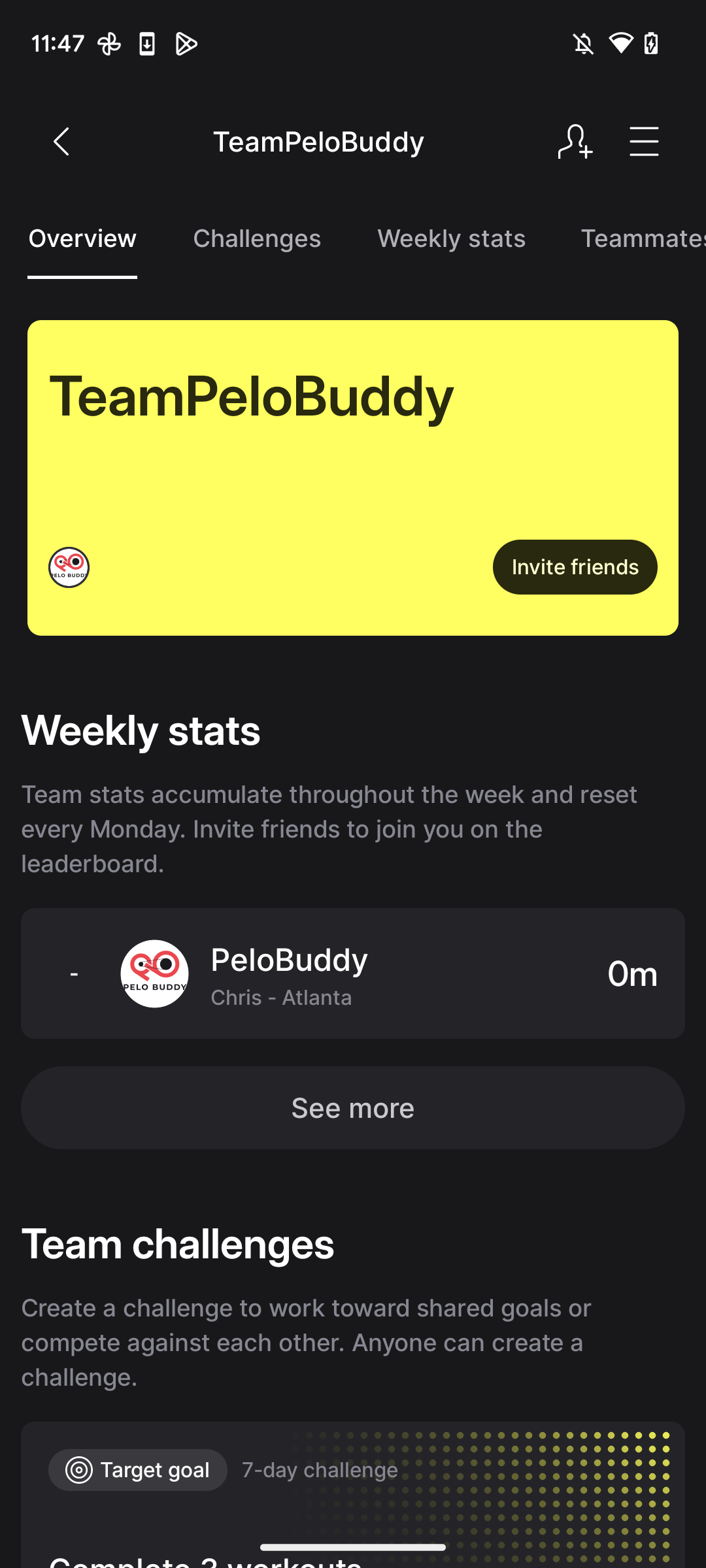
The challenges tab lists all current, active, and past challenges (and is where you create new challenges). There is also a Weekly Stats feature where you “See updated stats each week to stay motivated.” Lastly, you can invite friends and family – “Add your friends on Peloton or invite other contacts to join.”
You can invite friends to join your team directly from the team Overview page, or by using the person icon at the top right of the app. Any member who is on a team can invite people to join the team. However, if anyone besides the admin sent out the invite, the admin will then have to approve new people joining. Again – there is also a 100 person limit per team.
There is also a link that you can use to invite friends. You will see “Share Invite Link” message towards the top of the page where you can invite friends. You can then email/text/post that link anywhere. Anyone who has access to that link can join the team – however, the admin will have to approve people who join via the link.
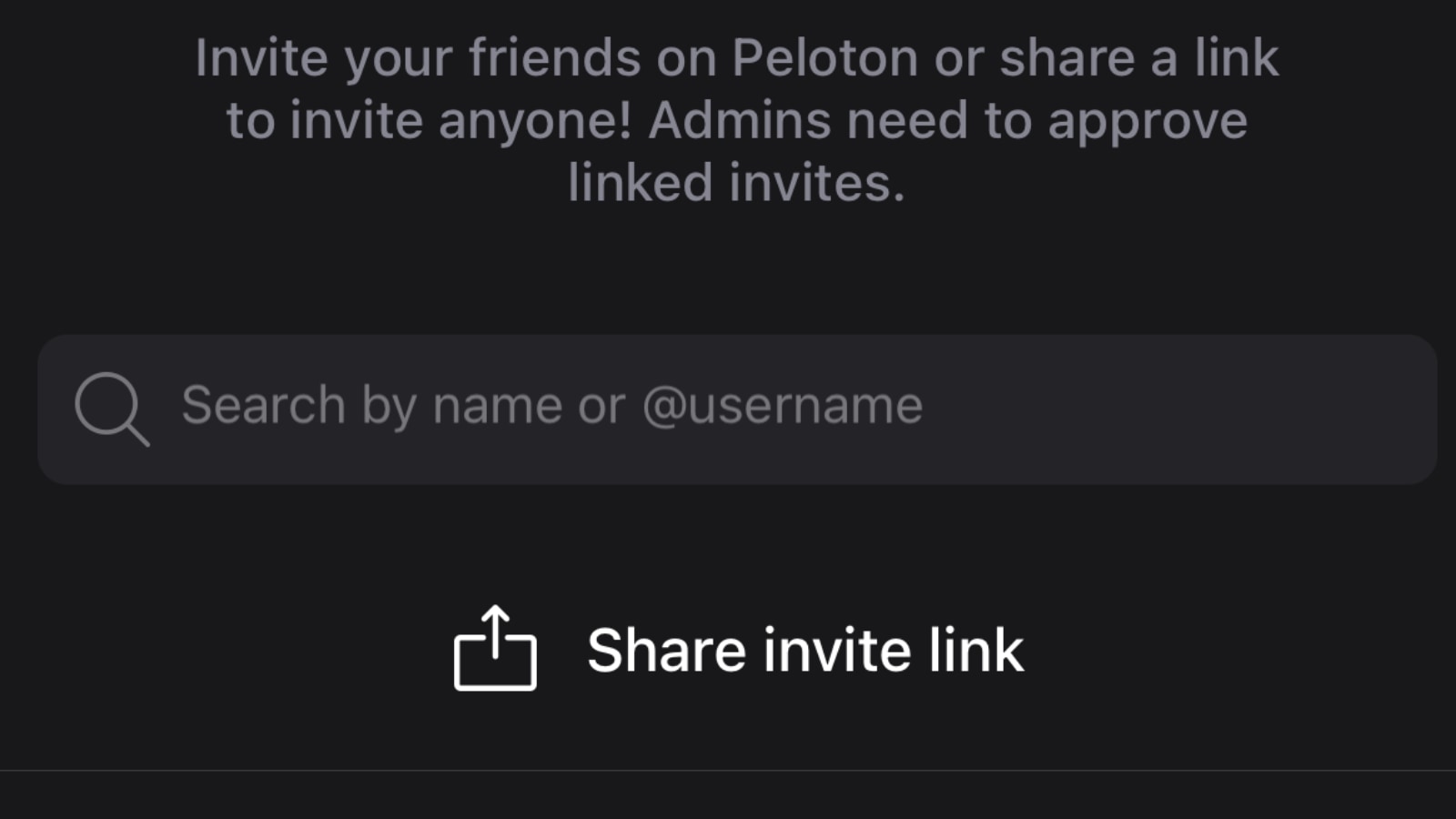
If you send the invite to someone who doesn’t have Peloton yet, they will be able to create an account and join. By using that link, they will also be granted an extended 60 day free trial (rather than the normal 30 day trial).
The other way to invite people is by searching their name, or by scrolling your friend list. At this time, the search feature was slightly buggy, and for some members, even if you typed in their exact leaderboard name, it would not show them in the search results – even if they were your friends.
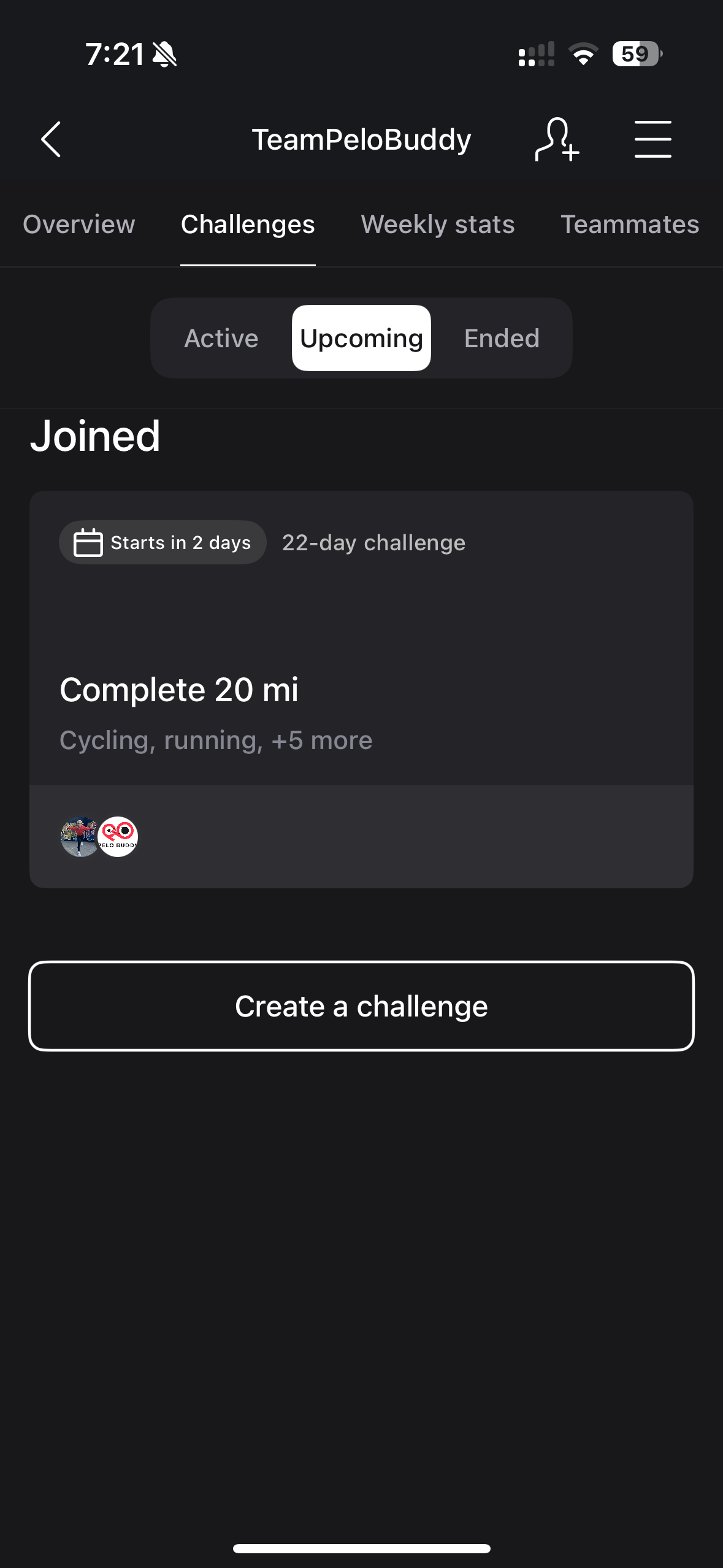
Under the Challenges tab, you will see a layout similar to the regular monthly Peloton challenges (Activity, Cycling, Strength, etc.) that you are used to with buttons for challenge that are Active, Upcoming, and Ended.
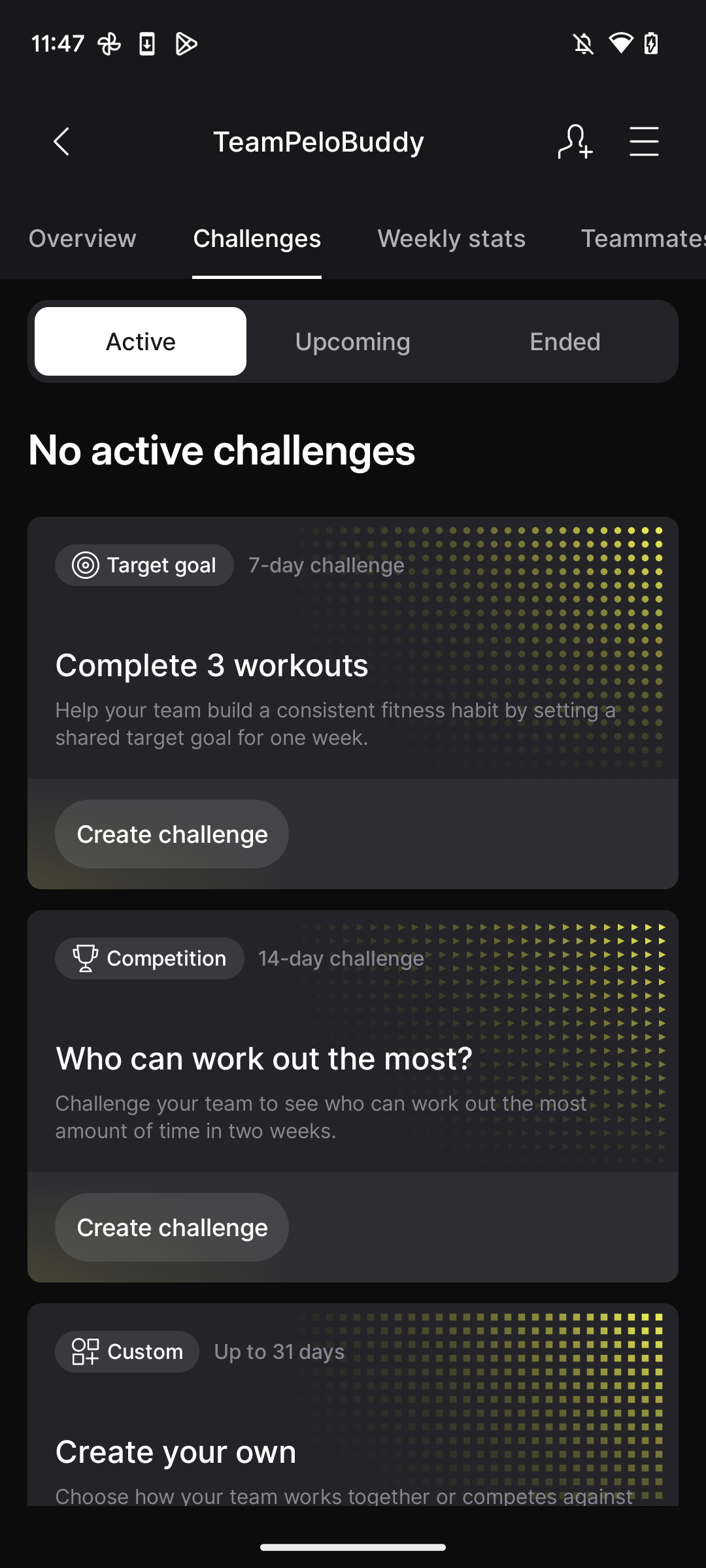
Your app will display “No active challenges” if you have not created or joined a challenge within your team. If there hasn’t been a challenge created yet, you will be able to pick from are a couple default challenge options. This includes completing 3 workouts within 7 days, or challenging your teammates to see who can work out the most amount of time within a 2-week period. There is also the option to create your own custom challenge that can last up to 31 days in duration.
It appears that any member is able to create a challenge for a team – not just the admin. At this time, it isn’t clear if there is a limit on the number of challenges that can exist in one team.
When you create a Peloton team challenge (by using the “Create A Challenge” button on the teams tab), you will move through several screens while you establish the challenge parameters. Keep in mind that once a challenge has been created, you are not able to edit it after the fact. So if you want to change the target goals, or include different class types – you would have to create an entirely new challenge.
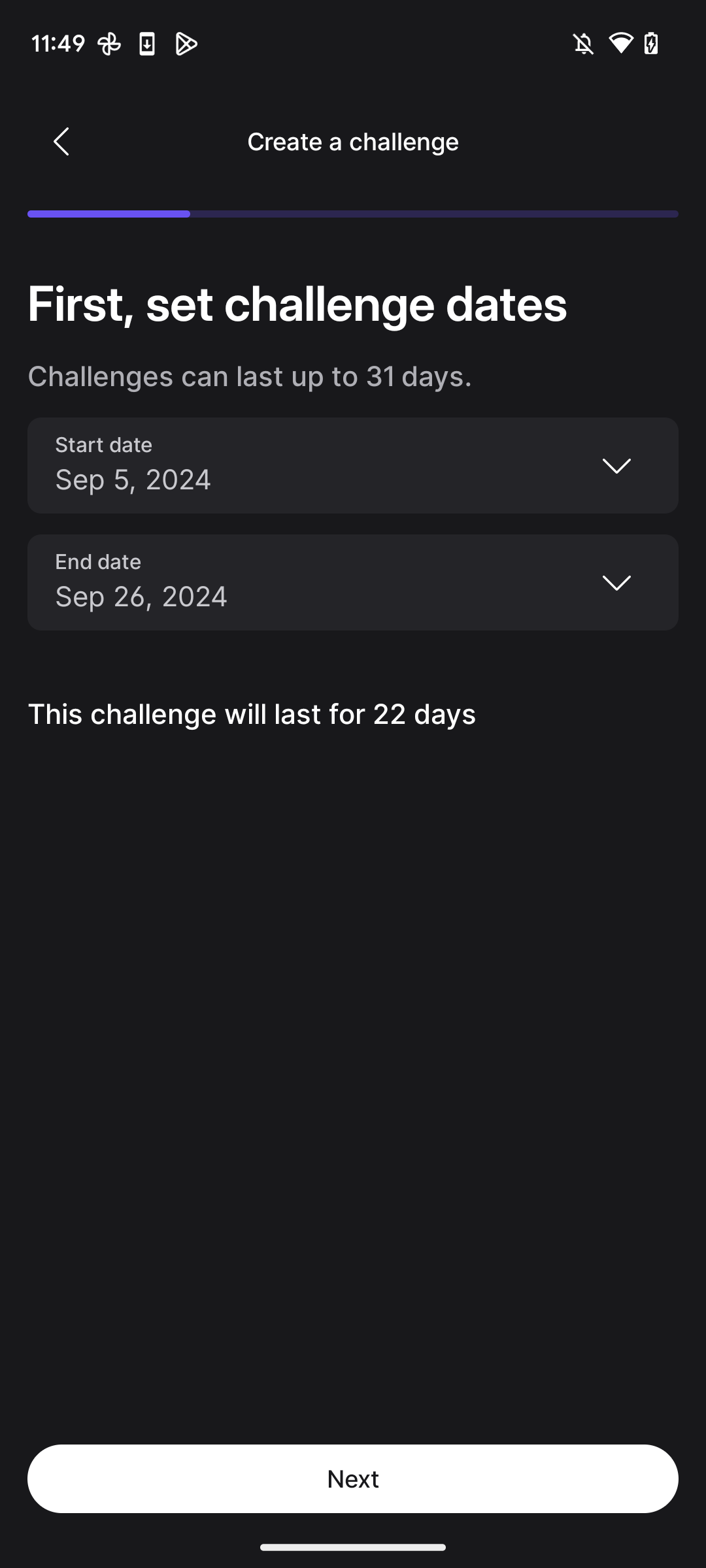
First you will set the challenge start and end dates. Next, you select between two challenge types: Target Goal (“Train on your own, aiming for the same goal”) or Competition (“Go head-to-head to see who can do the most”).
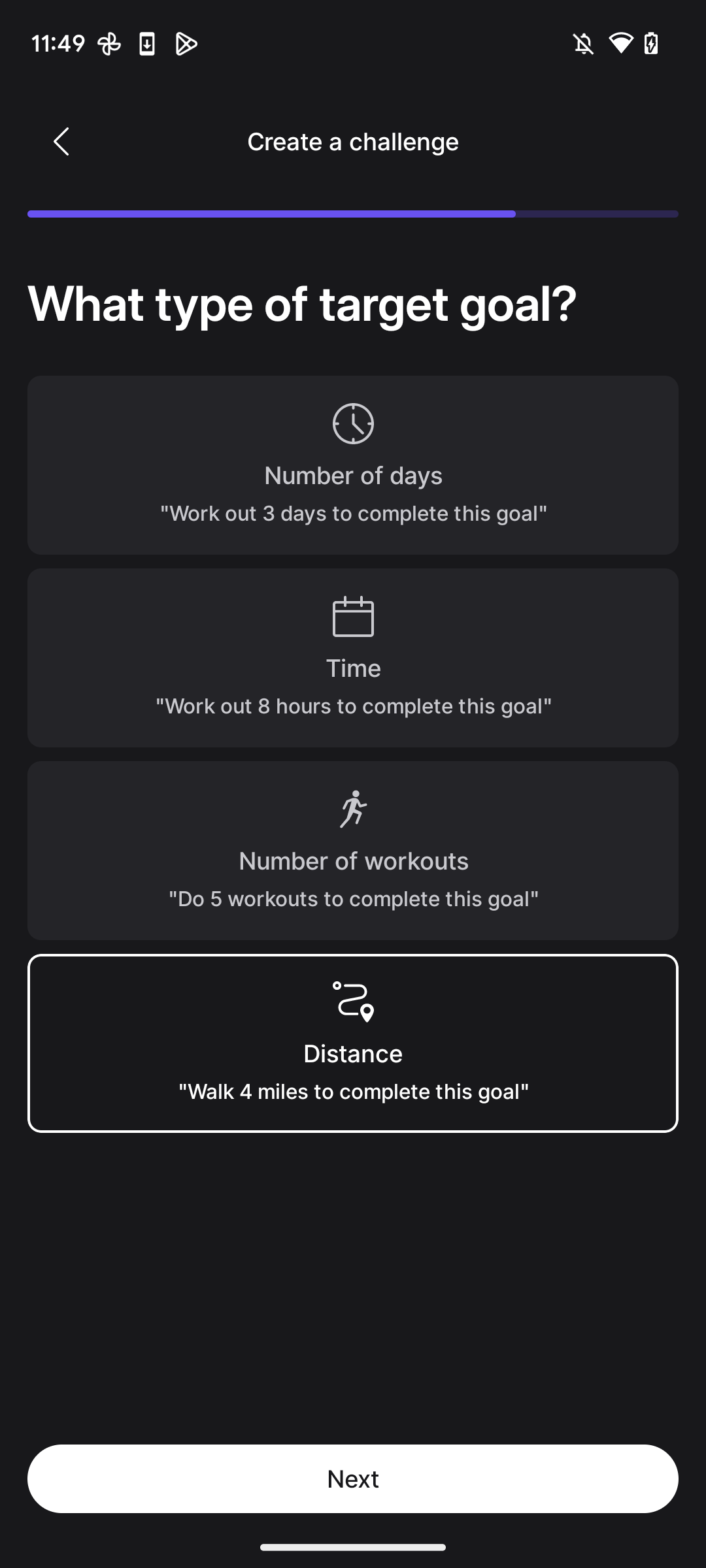
If you choose Target Goal, you then would select between several target goal options:
- Number of days: “Work out 3 days to complete this goal”
- Time: “Work out 8 hours to complete this goal”
- Number of workouts: “Do 5 workouts to complete this goal”
- Distance: “Walk 4 miles to complete this goal”
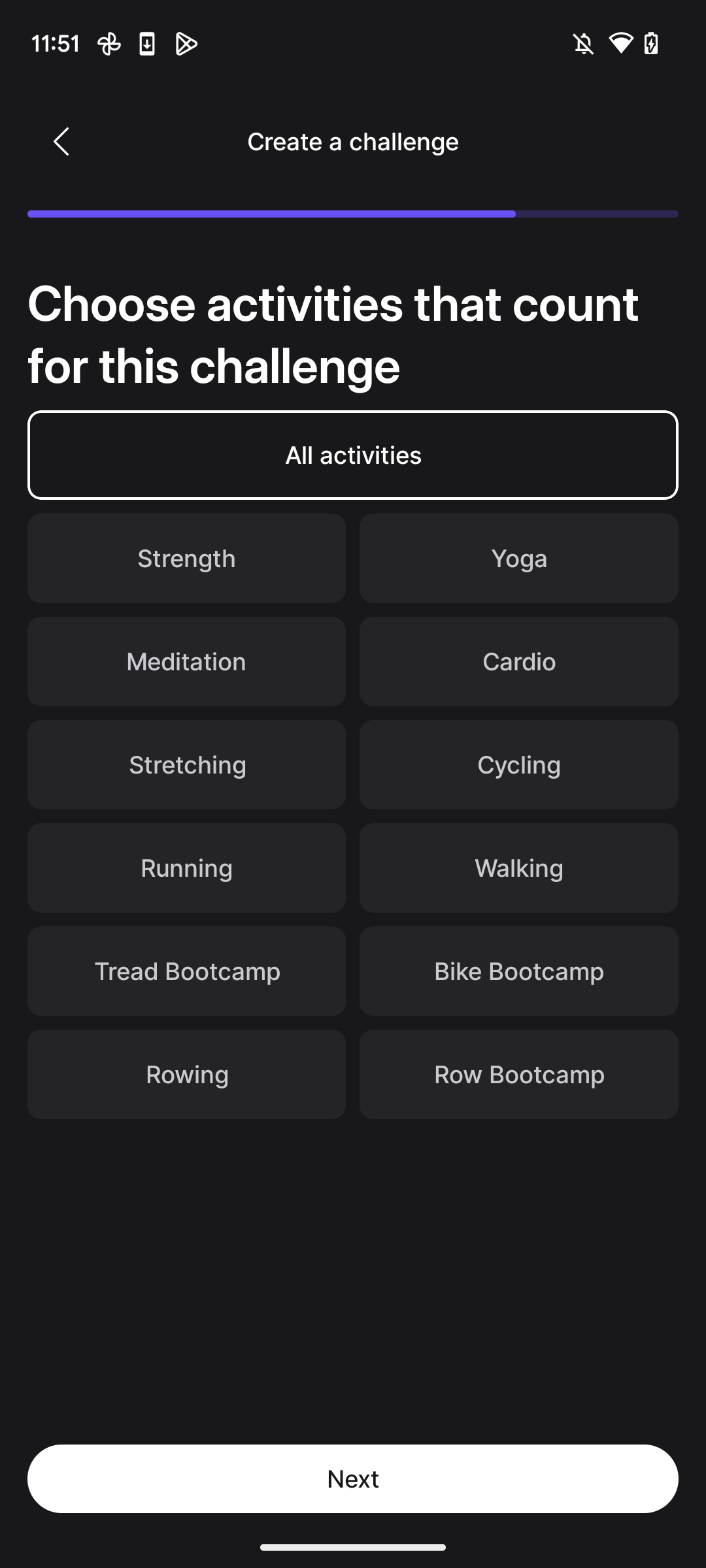
If you select a Distance-based goal, you would establish the goal distance and unit (miles, kilometers, or meters) as well as which activities count towards the challenge (“All distance activities,” or select any of Cycling, Running, Walking, Tread Bootcamp, Bike Bootcamp, Rowing, and Row Bootcamp).
If you create a Number of Workouts challenge, you would select which Peloton workout modalities would count towards the goal number (e.g., Cycling, Yoga, Stretching, etc.).
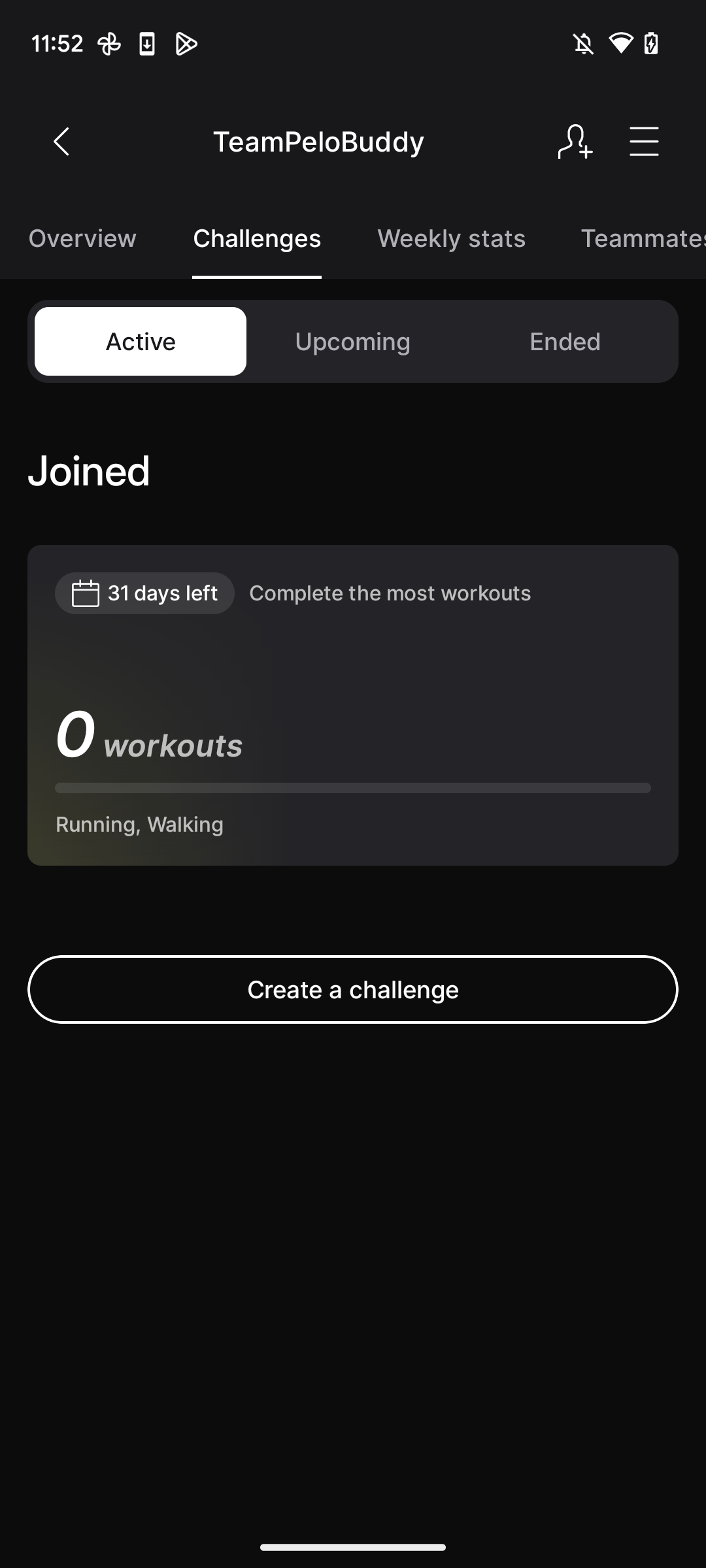
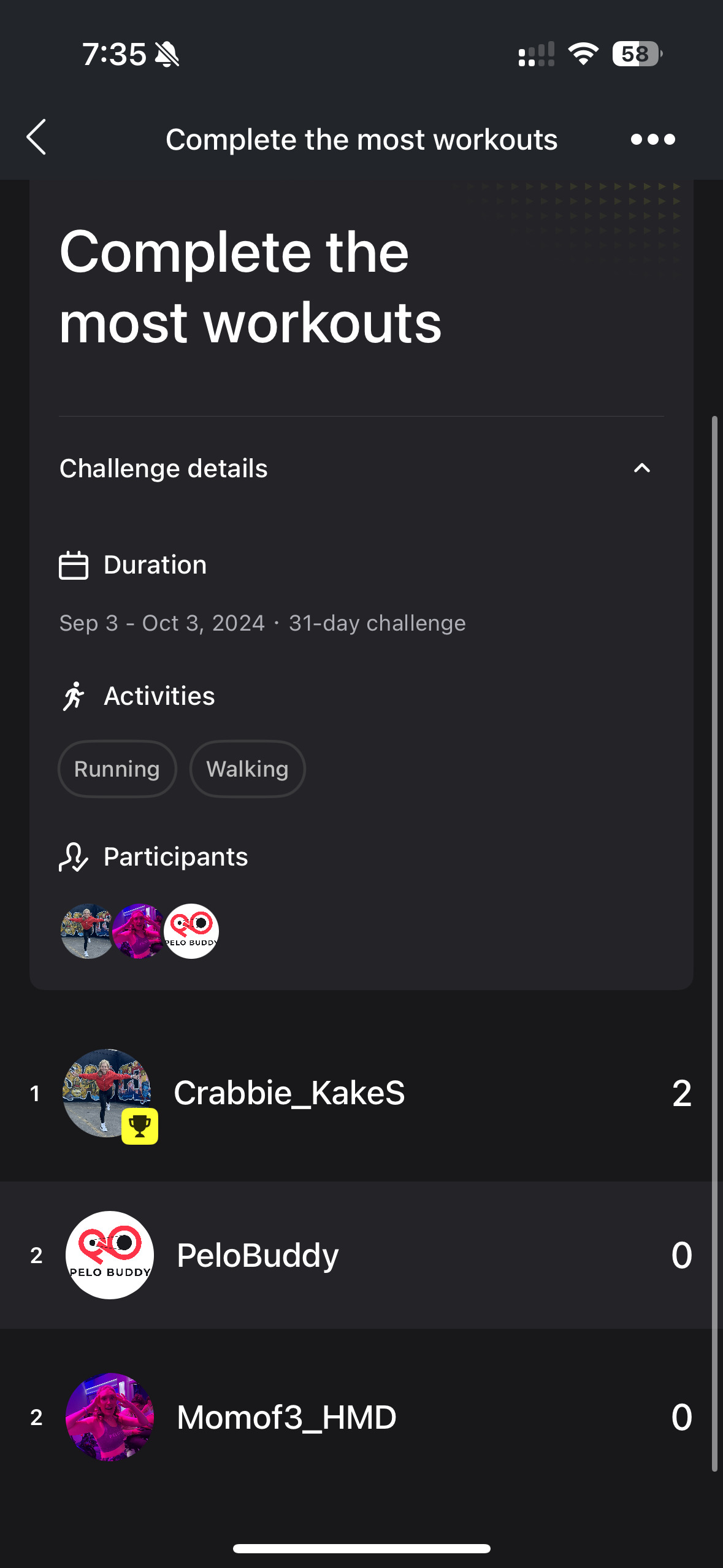
If, for example, you create a team challenge to complete the most Running or Walking workouts in the next 31 days, this is how your challenge would display under your Active Team Challenges:
If you are invited to a Peloton team, you will get a popup notification in your Peloton app – where you can accept the invite for the team. In our testing so far, invites didn’t show up immediately – but could take up for a few hours to show up for the members you invite.
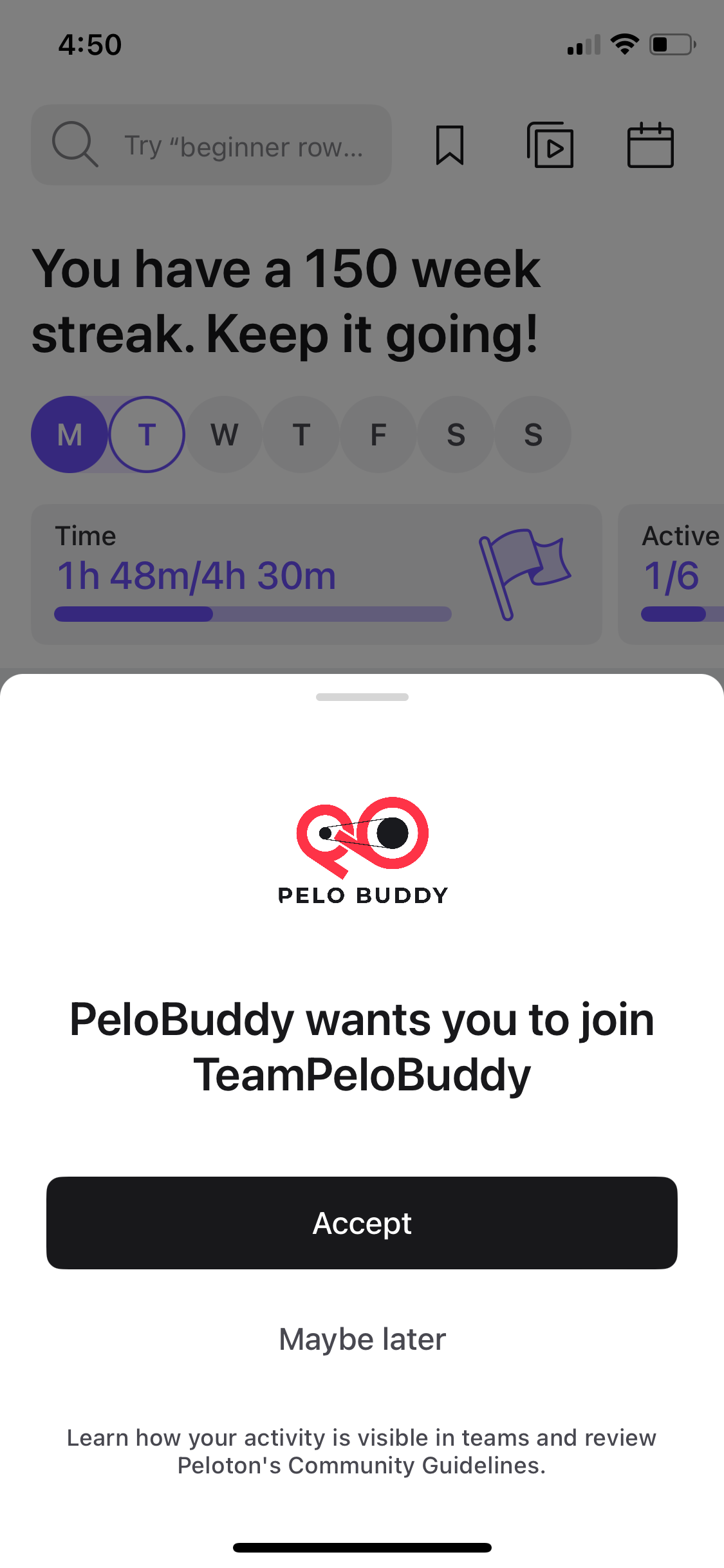
It’s worth noting again that just by joining a team, you are not automatically added to any existing team Challenges. If you want to participate in a team Challenge, you need to manually select Join.
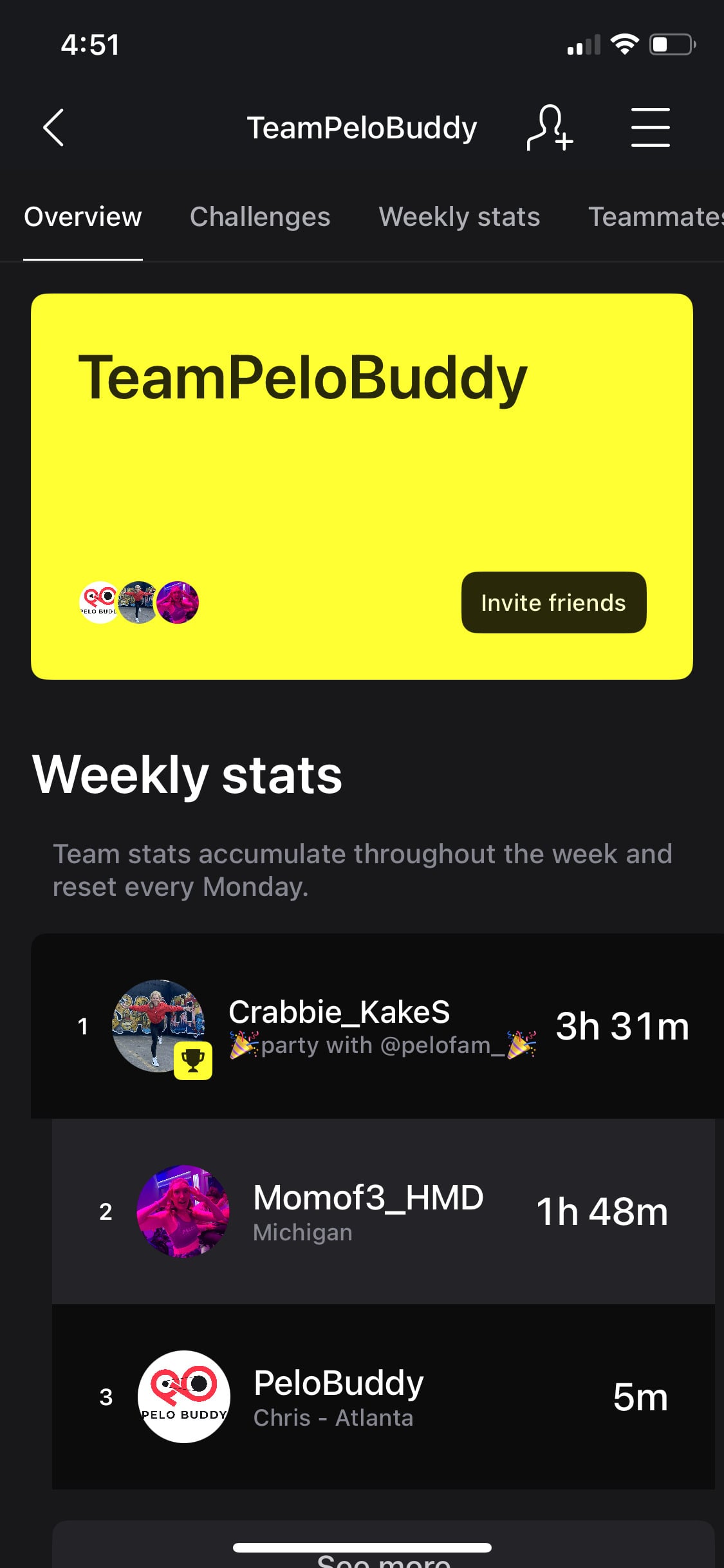
Once you join a team, you will be directed to the team Overview tab, with the team name, color, and team member profile pictures. Underneath that is the Weekly Stats with team members ranked for that week (Monday through Sunday).
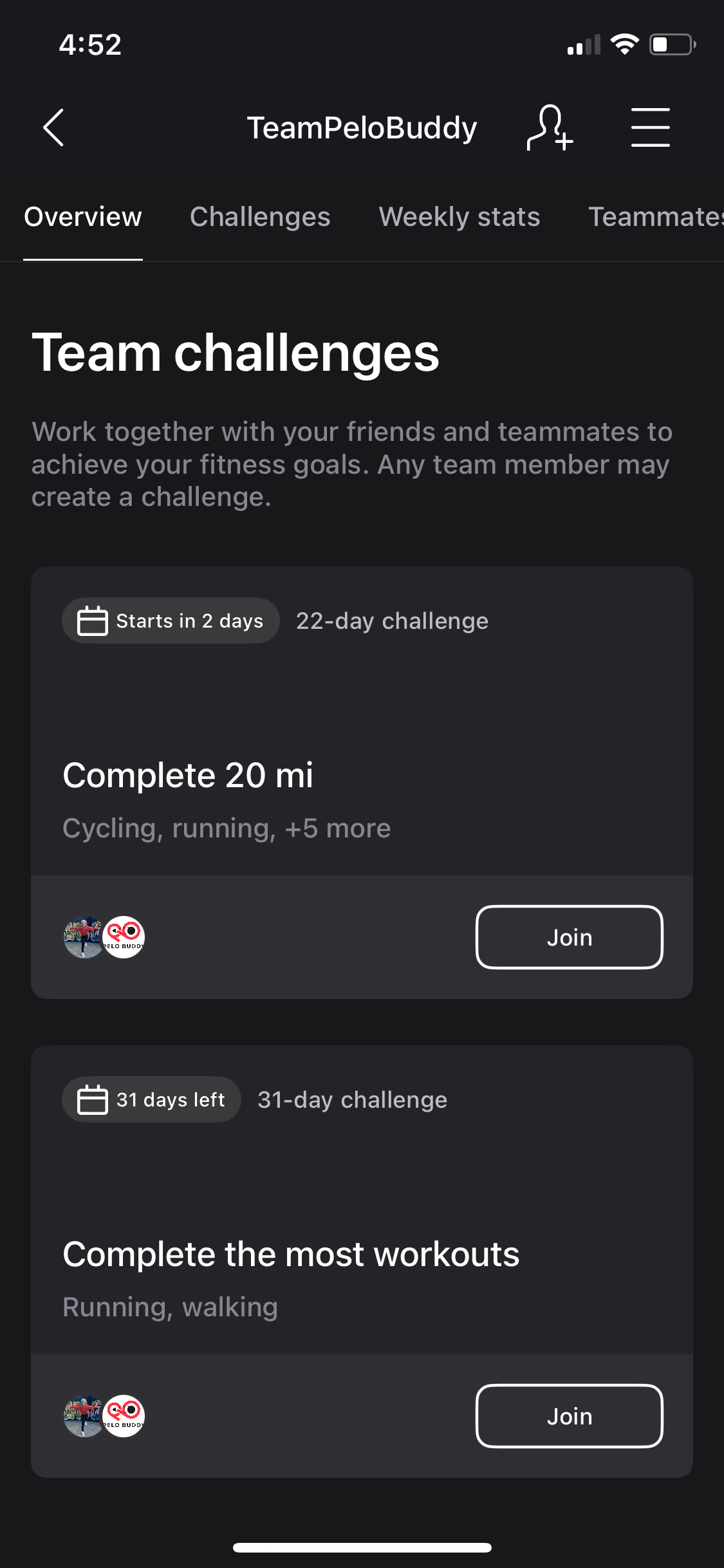
Once you are under the Challenges tab, it will differentiate between challenges Joined and Not Joined, as well as which are active, upcoming, or already ended.
Going into any challenge will show you the leaderboard for that challenge. By default, the information about the challenge is collapsed, but you can expand it. In this example, it is only counting running & walking classes – so you might have a “0” for your total workouts for that challenge, even if you’ve done other workouts during that challenge timeframe, but no running or walking classes.
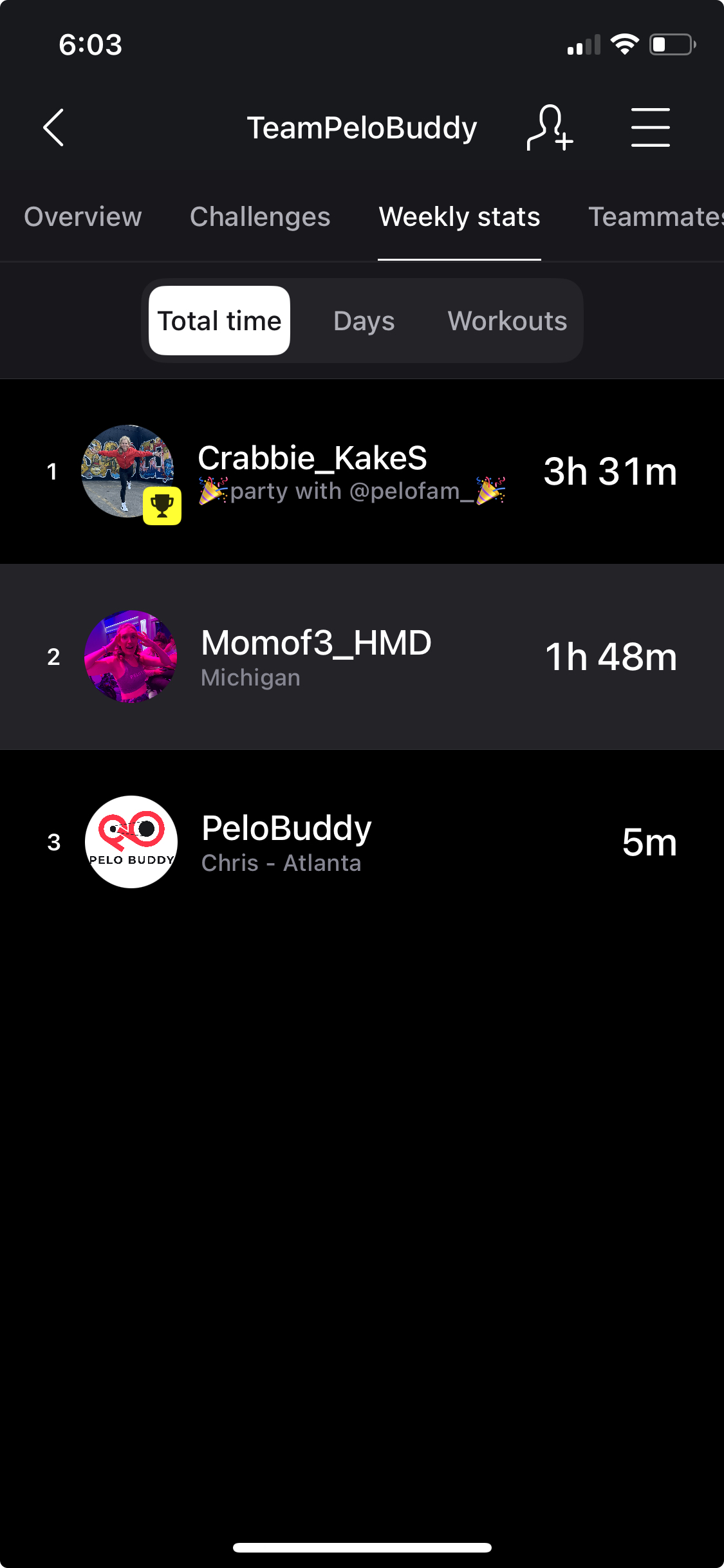
Under the team Weekly Stats tab, you can display the team member ranking based on Total Workout Time, Number of Workout Days, and Total Number of Workouts. This is essentially a team leaderboard. The stats will reset weekly – and you are part of this weekly stats leaderboard even if you don’t join any of the challenges.
Lastly, in the Teams Settings menu (the 3 horizontal lines at the top right of your app), if you are the person who created the team you will have the option to Delete Team. If you were invited to a team, you will see the option to Leave Team.

However, if you were the person who created the team, if you decide to leave the team for some reason – the team & all challenges within it will disappear and be deleted, even for anyone else still left on the team.
Peloton also has a new FAQ page dedicated to the Teams feature on the Peloton App, including how to create teams, invite friends, and create challenges, what’s visible in a team, and team admin status.
What do you think about the new Peloton Teams feature? Will you create your own teams and challenges? Will this help motivate you to move more?
Support the site! Enjoy the news & guides we provide? Help us keep bringing you the news. Pelo Buddy is completely free, but you can help support the site with a one-time or monthly donation that will go to our writers, editors, and more. Find out more details here.
Get Our Newsletter Want to be sure to never miss any Peloton news? Sign up for our newsletter and get all the latest Peloton updates & Peloton rumors sent directly to your inbox.

All of this is great information! However, after creating my first team, I went back to create another team and every time I tried to create it I get an error message from Peloton. So I think the feature has crashed or there’s some sort of glitch.