

Peloton has added the features to enable customized pace targets to the Peloton app for walking classes. This is now available on both the Peloton Android and Peloton iOS app.
About a month ago, Peloton expanded the pace target classes to include walks, hikes, and Tread bootcamps. However, while the classes could be taken on the app – app users could not see their walking pace targets, or set them via the app. These features were only available on the Peloton Tread.
Over the past 24 hours, Peloton has begun rolling out the pace target walking features on the app. This means that if you take a walking pace target class on the Peloton app – it will allow you to set your walking pace target level, and then see your customized speed range you should be going for each effort.

As a reminder – while Peloton’s running pace target classes have 7 effort levels, walking classes have 5. (You can read more about pace targets for Peloton running classes here). Peloton’s walking pace targets include:
- Recovery Walk
- Easy Walk
- Brisk Walk
- Power Walk
- Max Walk
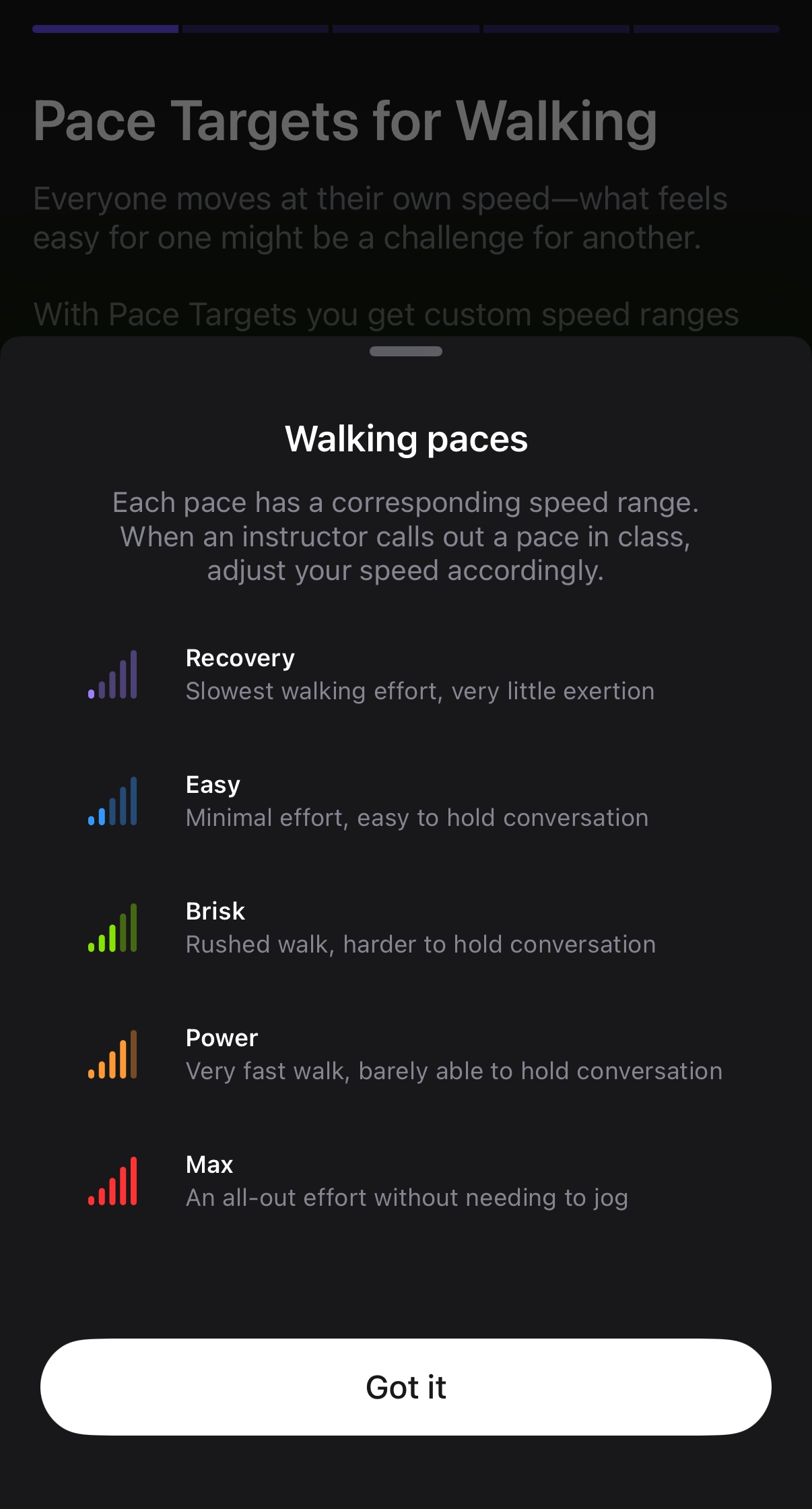
Even if you’ve set your pace targets before for a running class – you’ll have to set them again for walking classes, as you can have different difficulty levels for each.
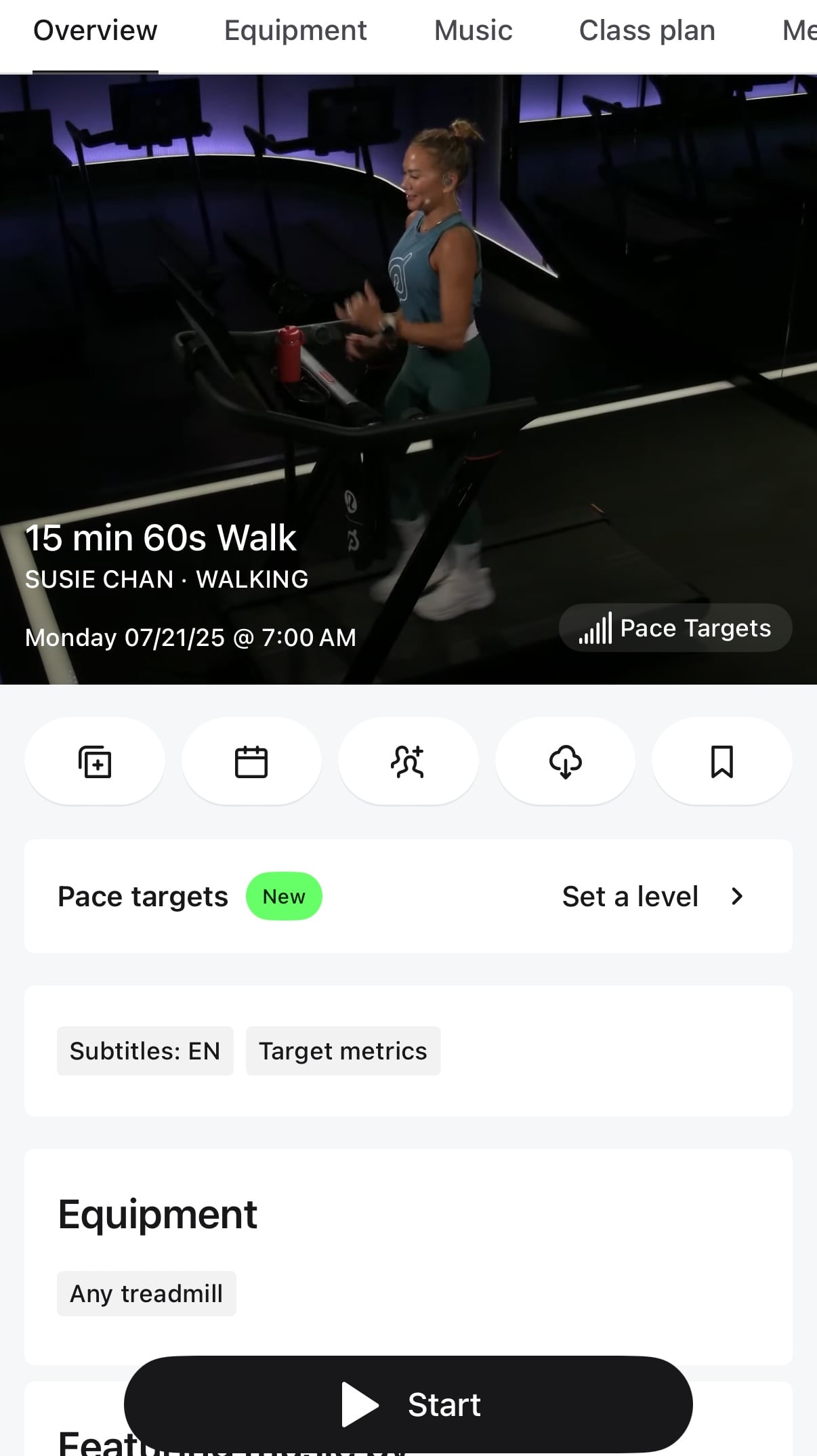
If you do not have a Peloton Tread – you should see a banner when viewing the details of a walking pace target class, notifying you of the new feature.
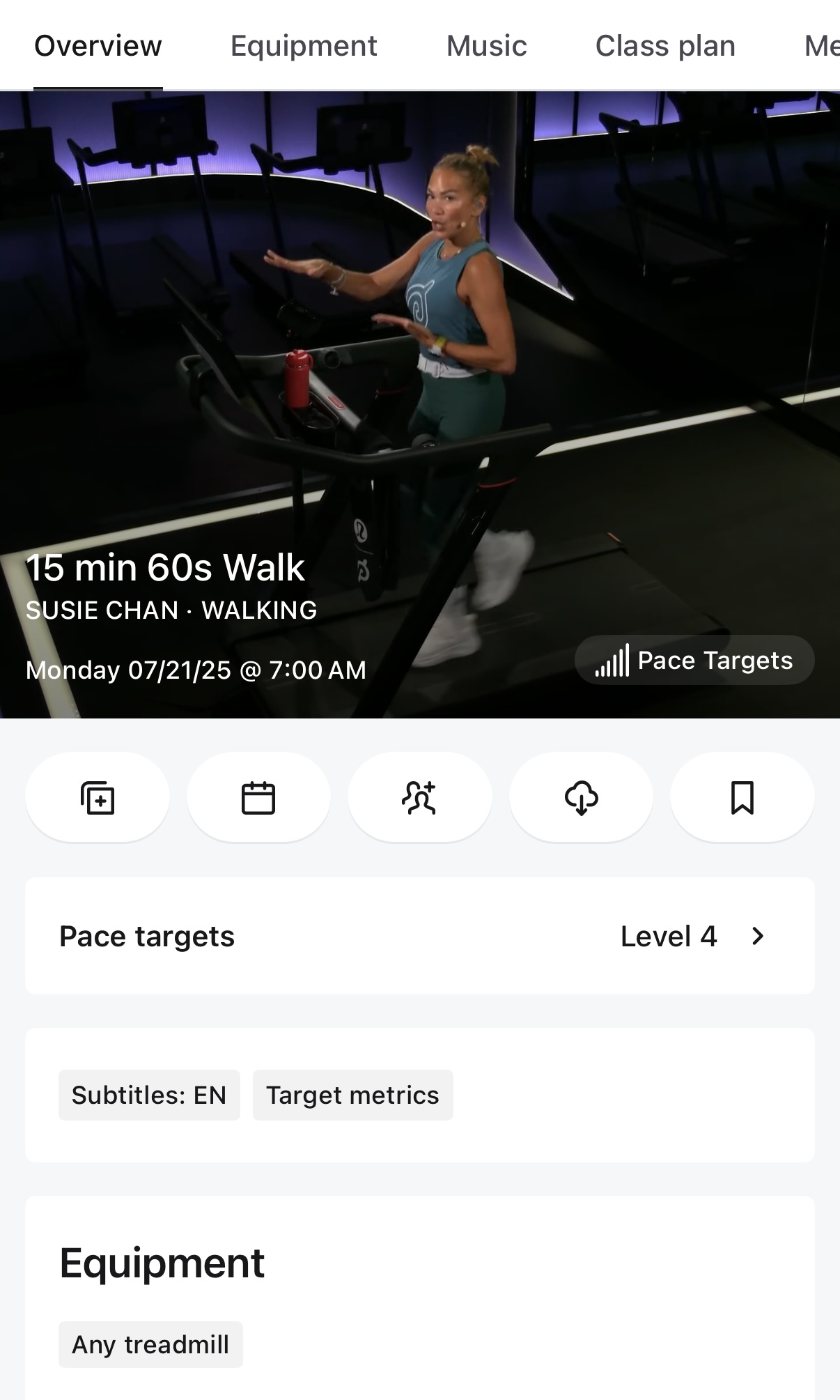
If you have a Peloton Tread, and have already set a walking pace target level – you’ll find it is already set for you when you open the Peloton app and view a walking class.
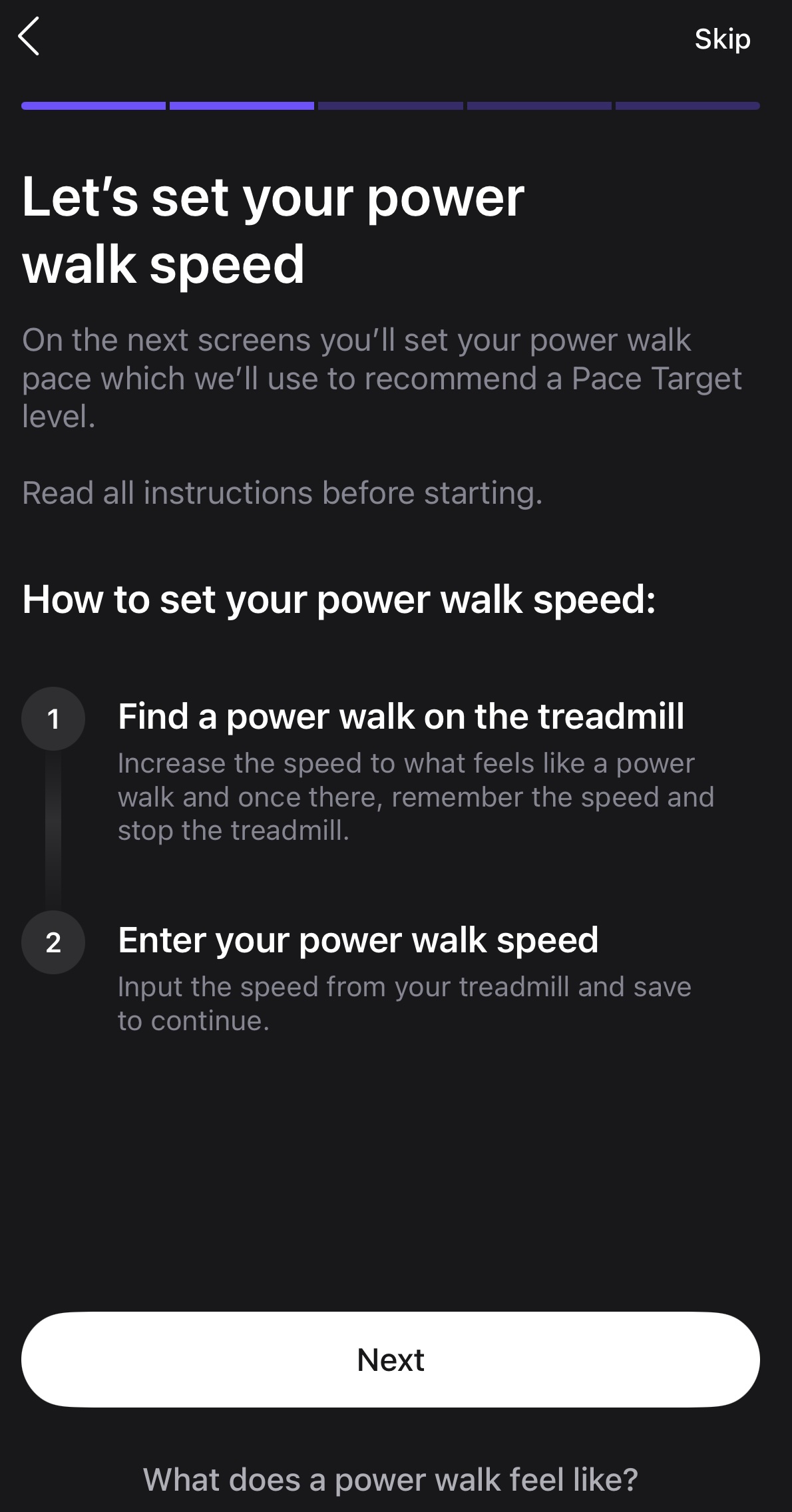
Pressing the pace target info area will open a few screens explaining what pace targets are. The screens will then guide you to go to speed on your treadmill that feels like a power walk (and if you’re not familiar with what that should feel like, it has some explanation as well).
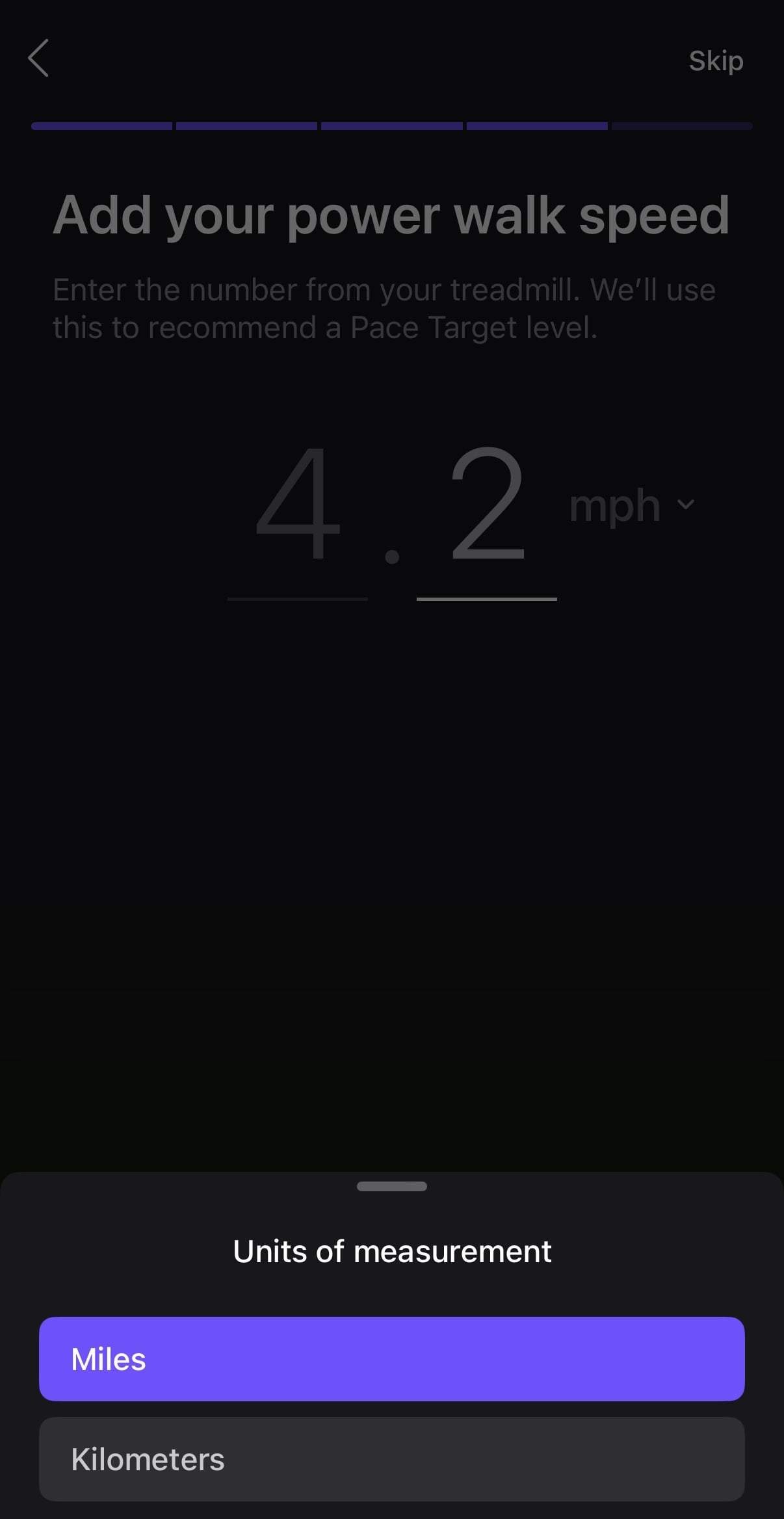
Once you’ve hit what feels like a power walk, it asks you to input that speed (with the ability to change from mph to kmh).
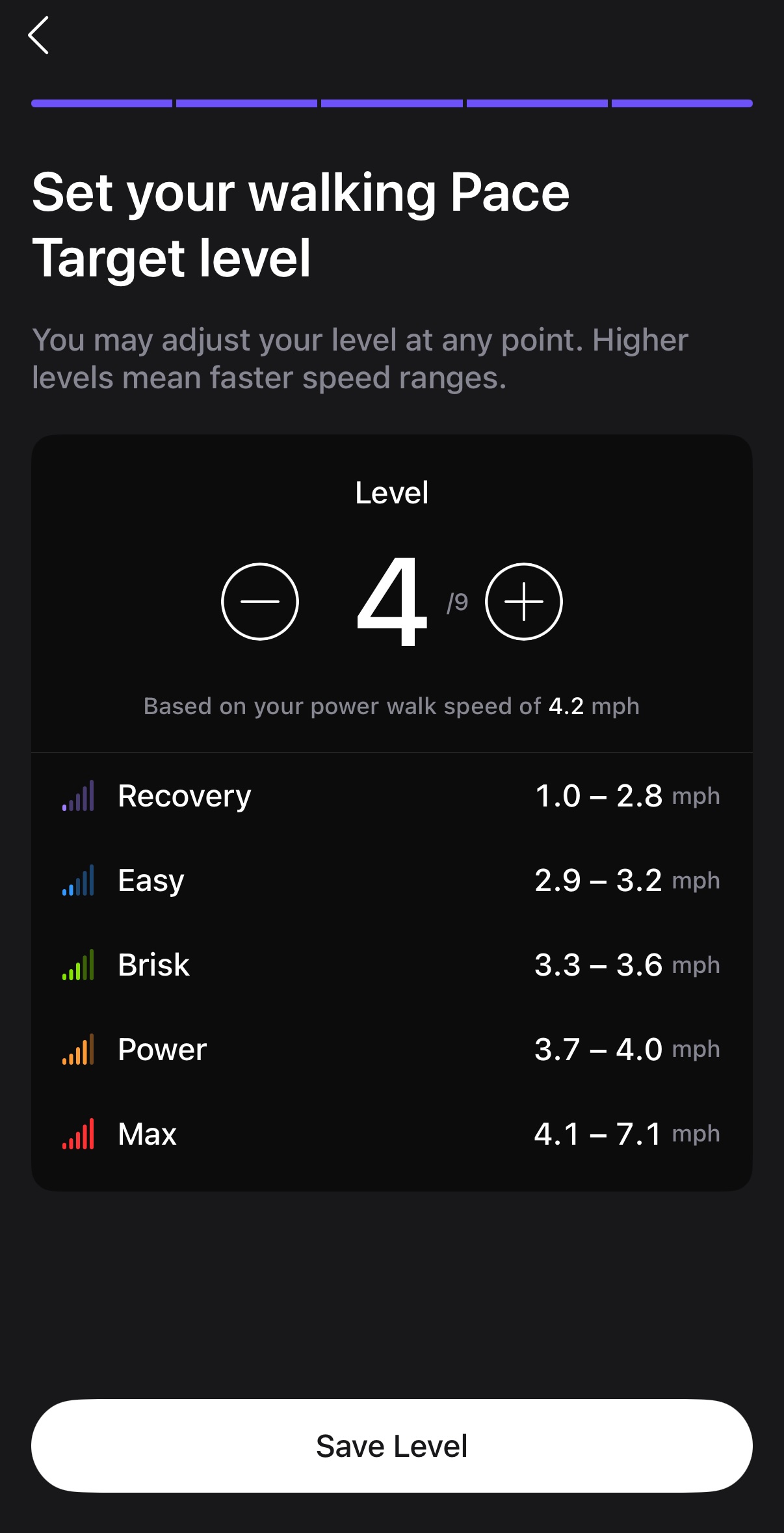
Based on whatever that speed is – it will then suggest what difficulty level to use.
After that, you are able to start your first walking pace target class.
Now that your difficulty level has been set – the Peloton app will display specific speed ranges for each effort level, based on what difficulty level you set. For example, if you set your difficulty level for 4, when the insructor calls out a power walk, you’ll go somewhere from a 3.3 – 3.6mph. If you had set your difficulty level for 5 – the app would tell you to go from 3.8 – 4.1mph.
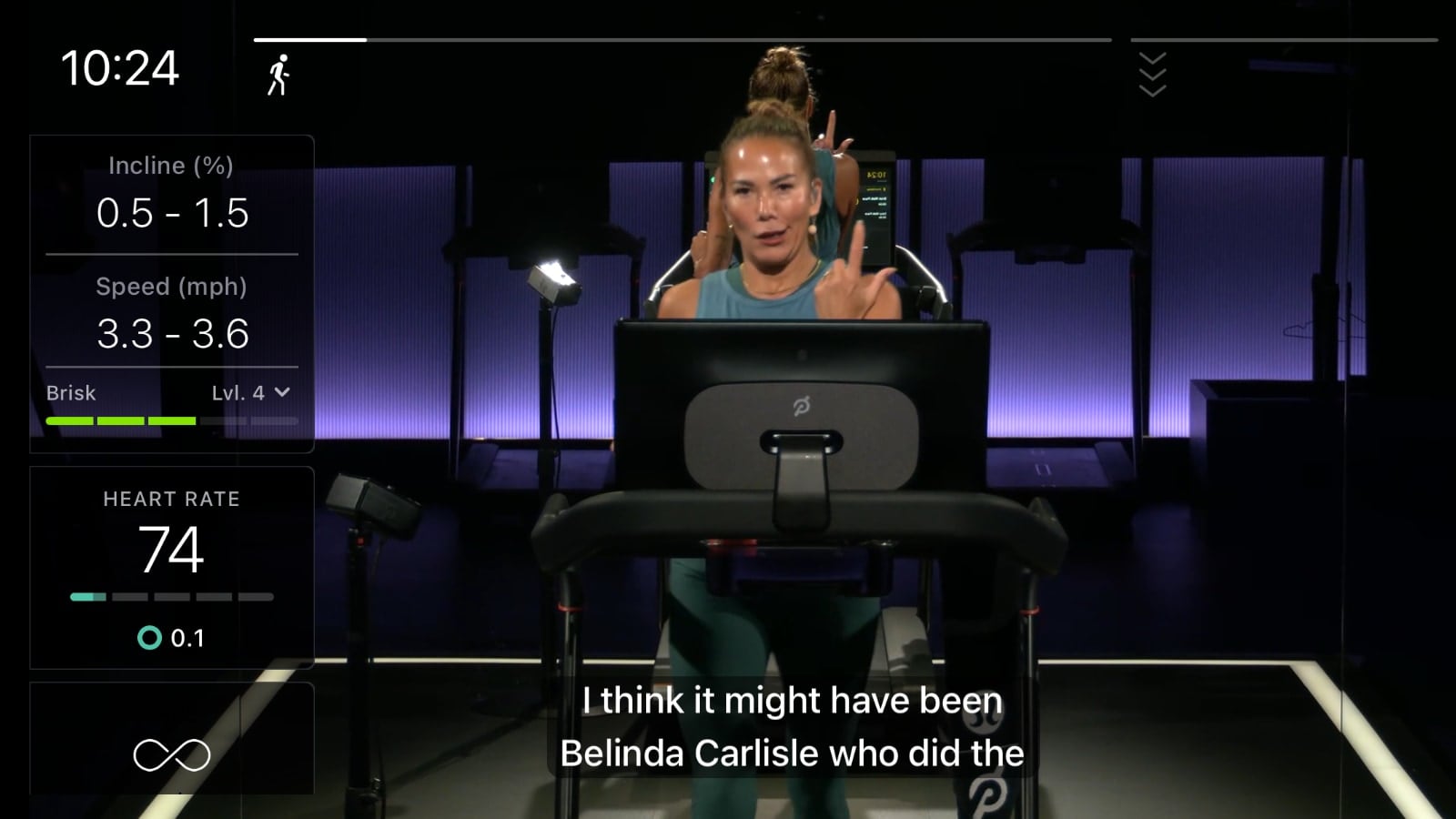
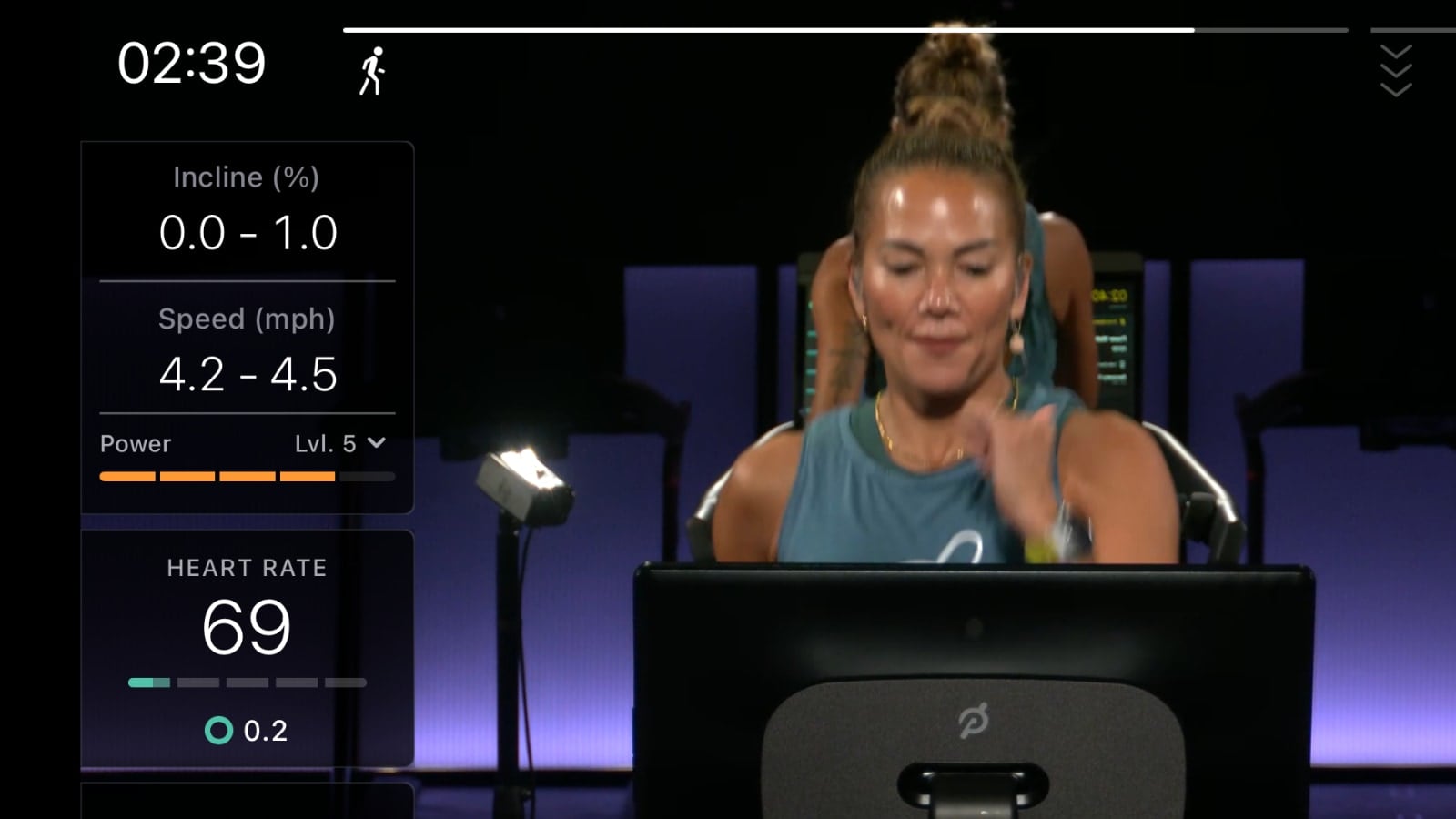
The app will show the suggested paces in both portrait and landscape mode – so you always see what pace you should be going at.
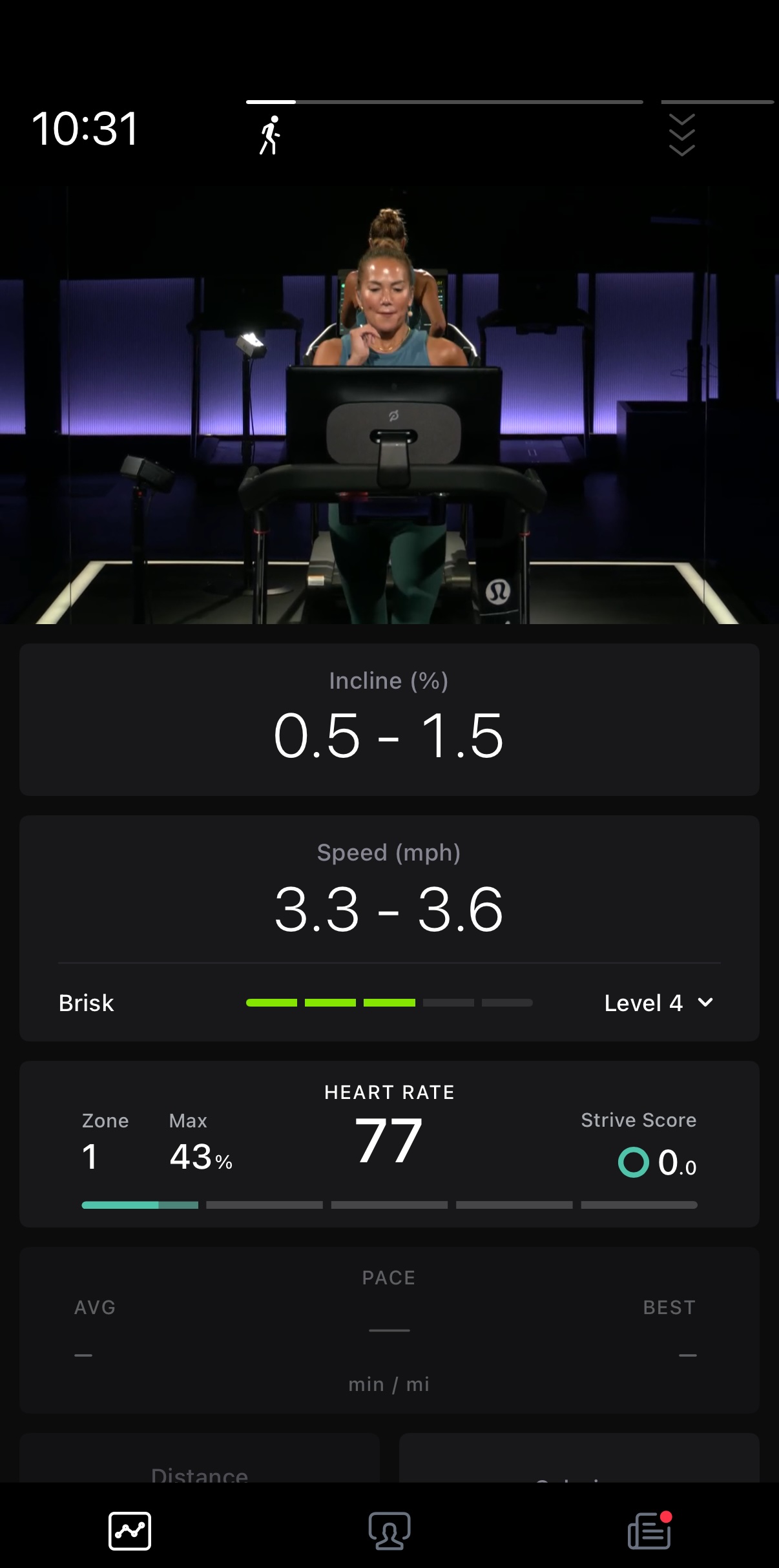
If you find the difficulty level isn’t where you need it to be for whatever reason in a class – you can change it mid-class. Just press on level (there is a down arrow next to it) and you can pick a different difficulty mid-class.
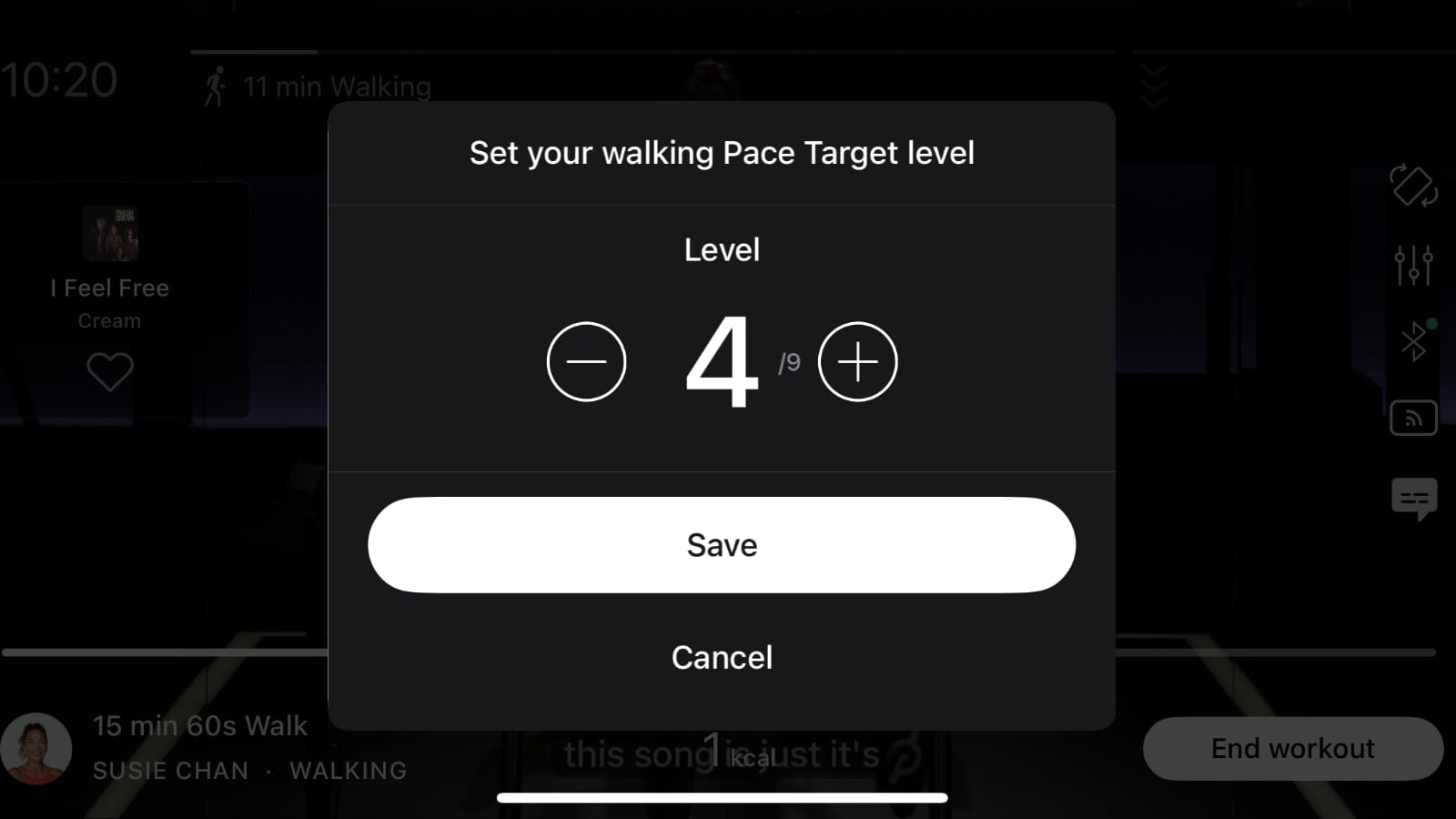
The suggested speeds will immediately change after saving your new difficulty level.
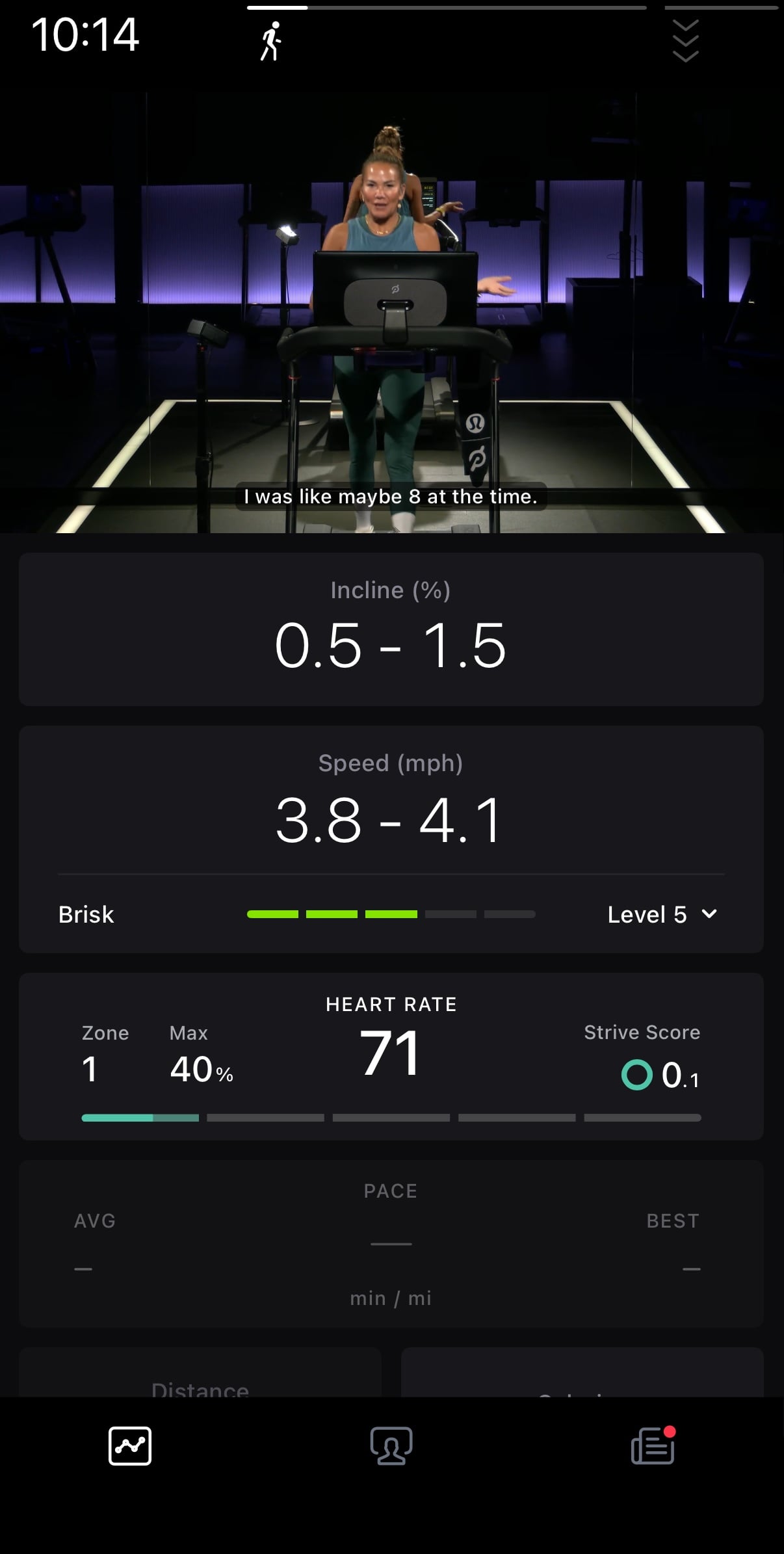
As the instructor calls out different effort levels – the app will then show you what your speed should be in the new effort level called out.
As Peloton has just started releasing walking pace target classes – not every class will have this feature. Over time, more and more classes are expected to utilize pace targets for walking classes (as well as hiking & tread bootcamp).
Support the site! Enjoy the news & guides we provide? Help us keep bringing you the news. Pelo Buddy is completely free, but you can help support the site with a one-time or monthly donation that will go to our writers, editors, and more. Find out more details here.
Get Our Newsletter Want to be sure to never miss any Peloton news? Sign up for our newsletter and get all the latest Peloton updates & Peloton rumors sent directly to your inbox.

Leave a Reply