

Peloton has updated the speed shortcuts on the Tread so they can now follow your pace targets and what the instructor calls out. They can also now automatically pop up the shortcuts as the instructor calls out new effort levels to make it easier to change speeds.
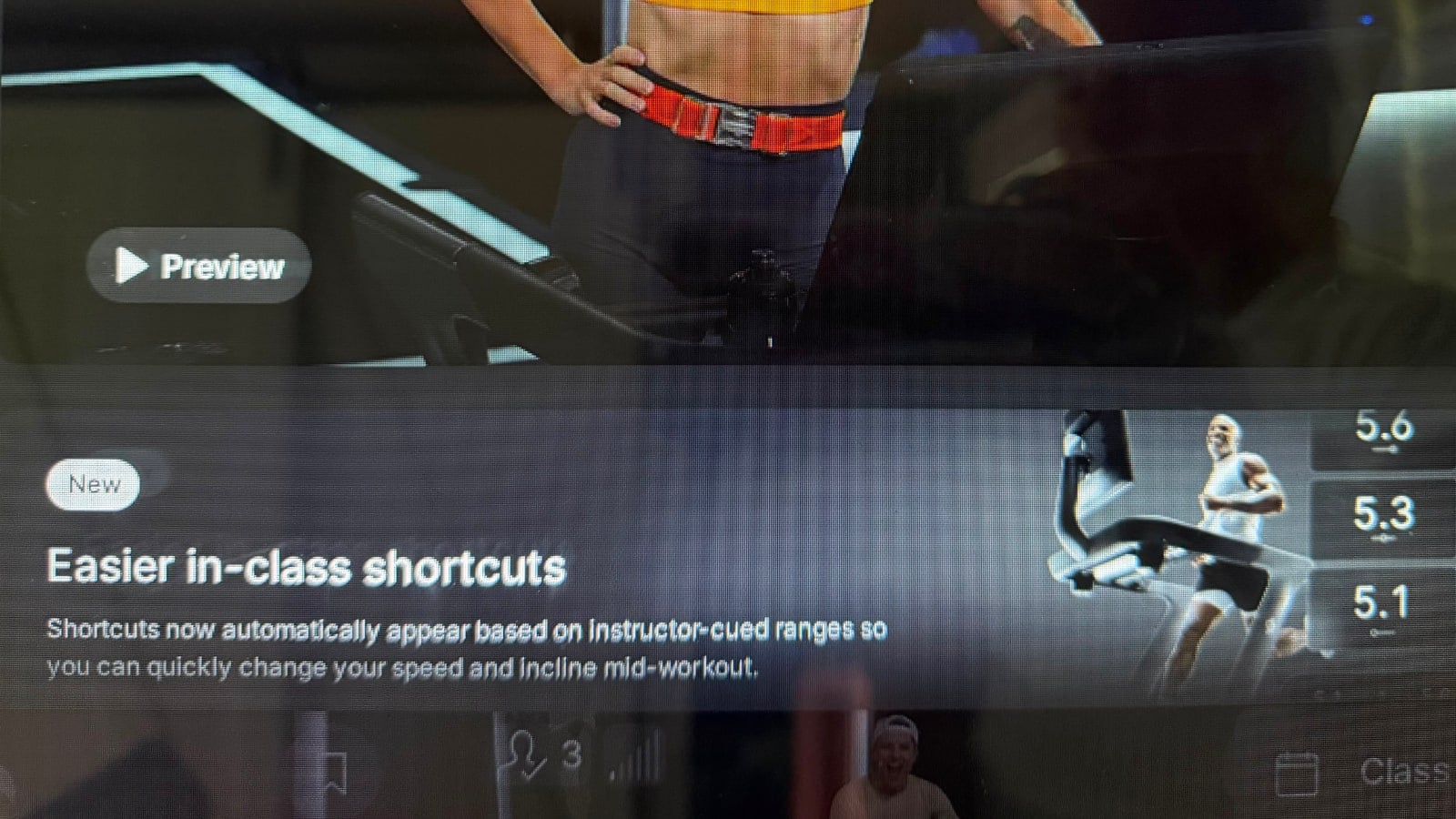
Peloton announced the change with a pop-up on Tread devices, under the heading “Easier in-class shortcuts”:
“Shortcuts now automatically appear based on instructor-cued ranges so you can quickly change your speed and incline mid-workout.”
The Tread has had a shortcuts feature for a long time. Tapping the speed display brings up three preset speeds, letting you jump straight to one of them by tapping one of the three shortcuts on the screen, rather than spinning the dial to get there. Those three values were either chosen by default or set manually by you, so you might have had something like 2.5, 6.0, and 7.5 saved.
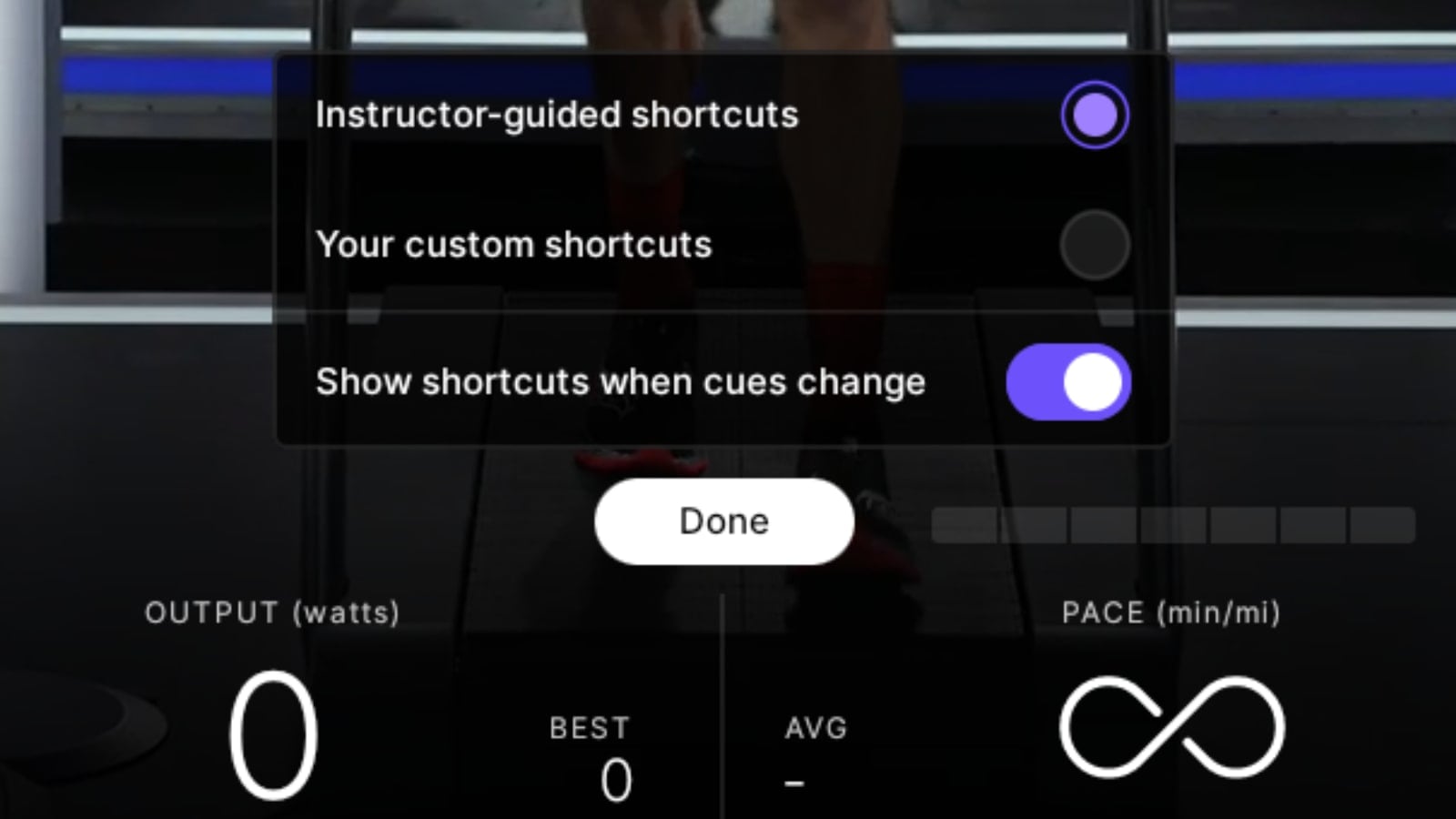
That is still an option, but there is now a second one. The shortcuts settings now let you choose between “Instructor-guided shortcuts” and “Your custom shortcuts.” A separate toggle, “Show shortcuts when cues change,” controls whether the shortcut buttons appear on their own whenever the instructor calls out a new effort.
The instructor-guided option is built on pace targets, which launched on the Tread and Tread+ in 2024. In pace target classes, instructors never call out a specific speed. They call out one of seven efforts, ranging from Recovery up to Max, and the Tread translates that into a personal pace range based on the difficulty level you have selected. A member on level 2 might see 4.1 to 4.5 mph for a “Hard” effort, while a member on level 9 sees 8.2 to 9.0 mph for the same call.
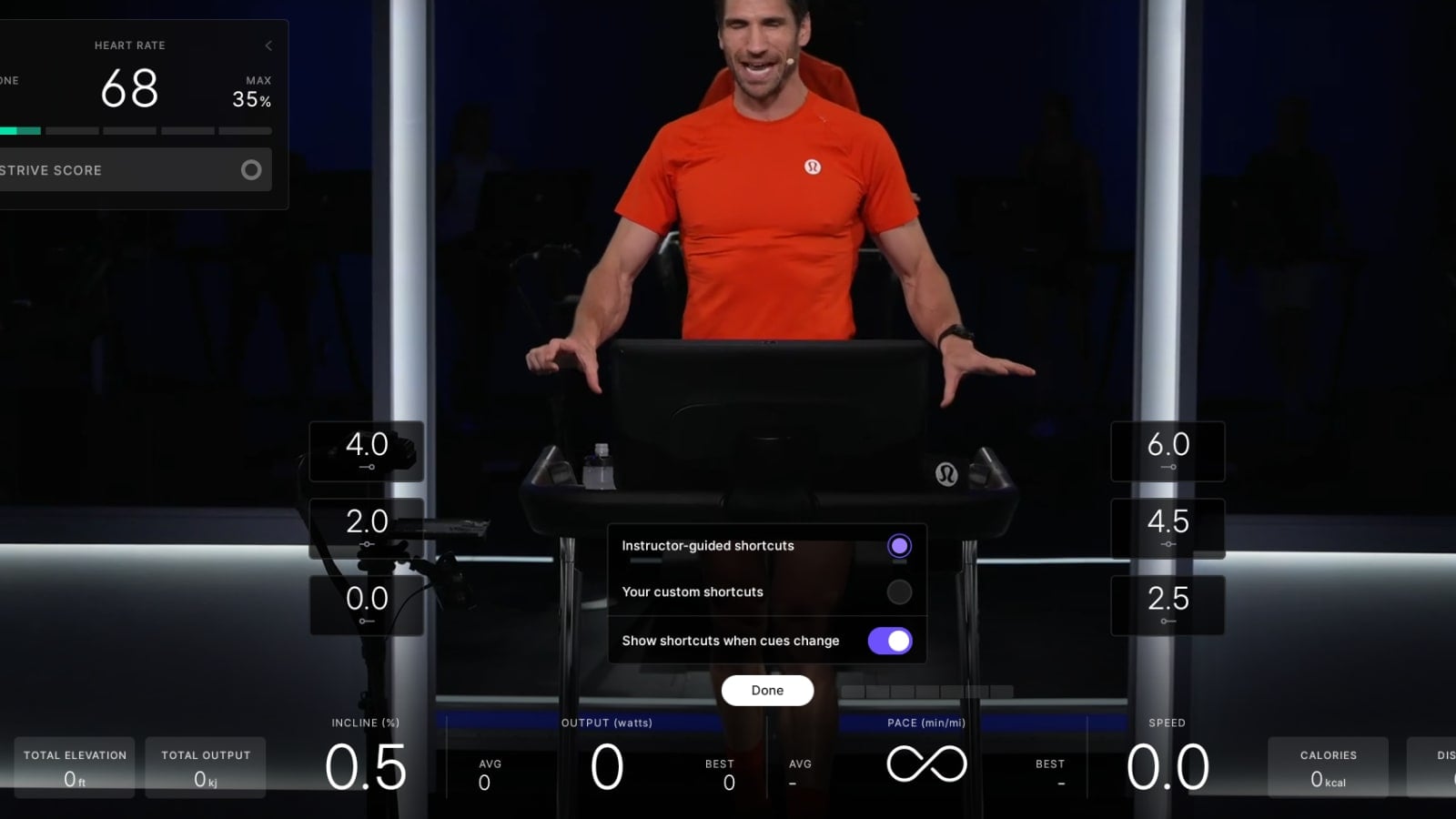
With instructor-guided shortcuts enabled, the three shortcut buttons now follow what the Tread is recommending for you for a pace range. When the instructor calls out a new effort level (i.e. “Moderate”), the shortcuts pop up offering the bottom of your range, the middle, and the top. This means that if your Tread is saying you should be between a 4.2 and 4.5 for an effort level – your shortcut buttons would give you choices of 4.2 (the low end of the range), 4.3 (the middle of the range), or 4.5 (the top end of the range). Someone with a different difficulty level set would have their shortcut buttons set to the top/middle/bottom of their recommended speeds for that effort.
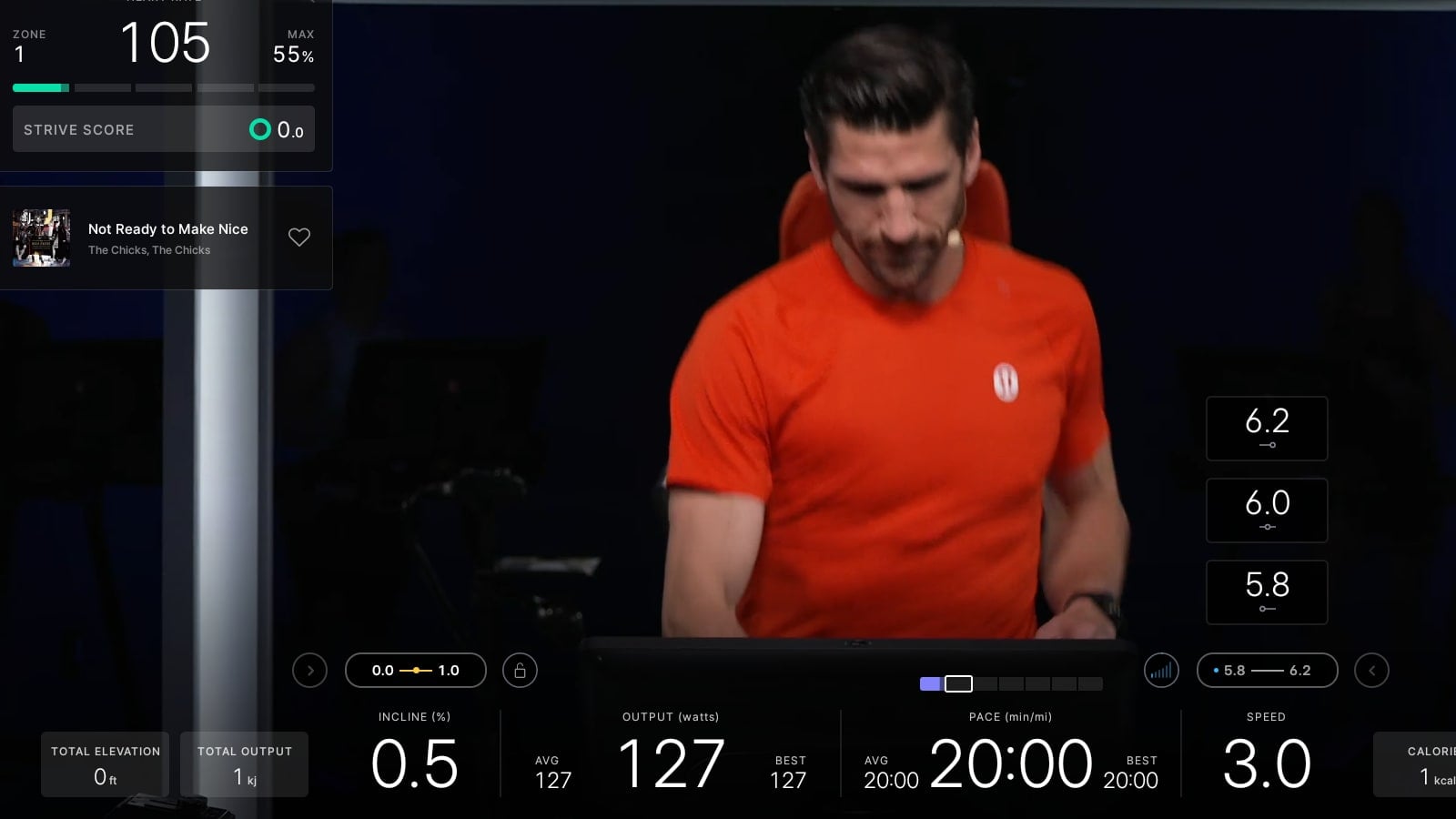
The main benefit is fewer spins of the speed dial, and a more targeted / direct way to jump to the correct new speed – based on your pace targets. The Tread already has auto-incline, which adjusts your incline automatically to match the instructor’s cues, but there is no equivalent auto-speed or auto-pace, most likely for safety reasons. A treadmill belt that speeds up on its own is a different proposition than a bike adding resistance. Shortcuts tied to your pace targets are the closest thing to it: you still make the change yourself, but it is one tap rather than hunting for the number on the dial.
It will not cover every situation. In HIIT and interval classes, some instructors cue you to start building speed before the interval actually begins, so that you are at pace the moment it starts. That still means working the dial. For most classes and most effort changes, though, it removes a step.
Both pieces are configurable. If you prefer your own saved speeds, you can switch back to custom shortcuts, and if you would rather the shortcuts not appear on their own when a new effort level is called out, you can turn off the automatic pop-up.
Will you be using the new instructor-guided shortcuts on your Tread?
This article was updated with higher resolution images.
Support the site! Enjoy the news & guides we provide? Help us keep bringing you the news. Pelo Buddy is completely free, but you can help support the site with a one-time or monthly donation that will go to our writers, editors, and more. Find out more details here.
Get Our Newsletter Want to be sure to never miss any Peloton news? Sign up for our newsletter and get all the latest Peloton updates & Peloton rumors sent directly to your inbox.

Leave a Reply