

Peloton has rolled out a brand new feature for the Peloton Tread & Tread+ today: pace target classes.
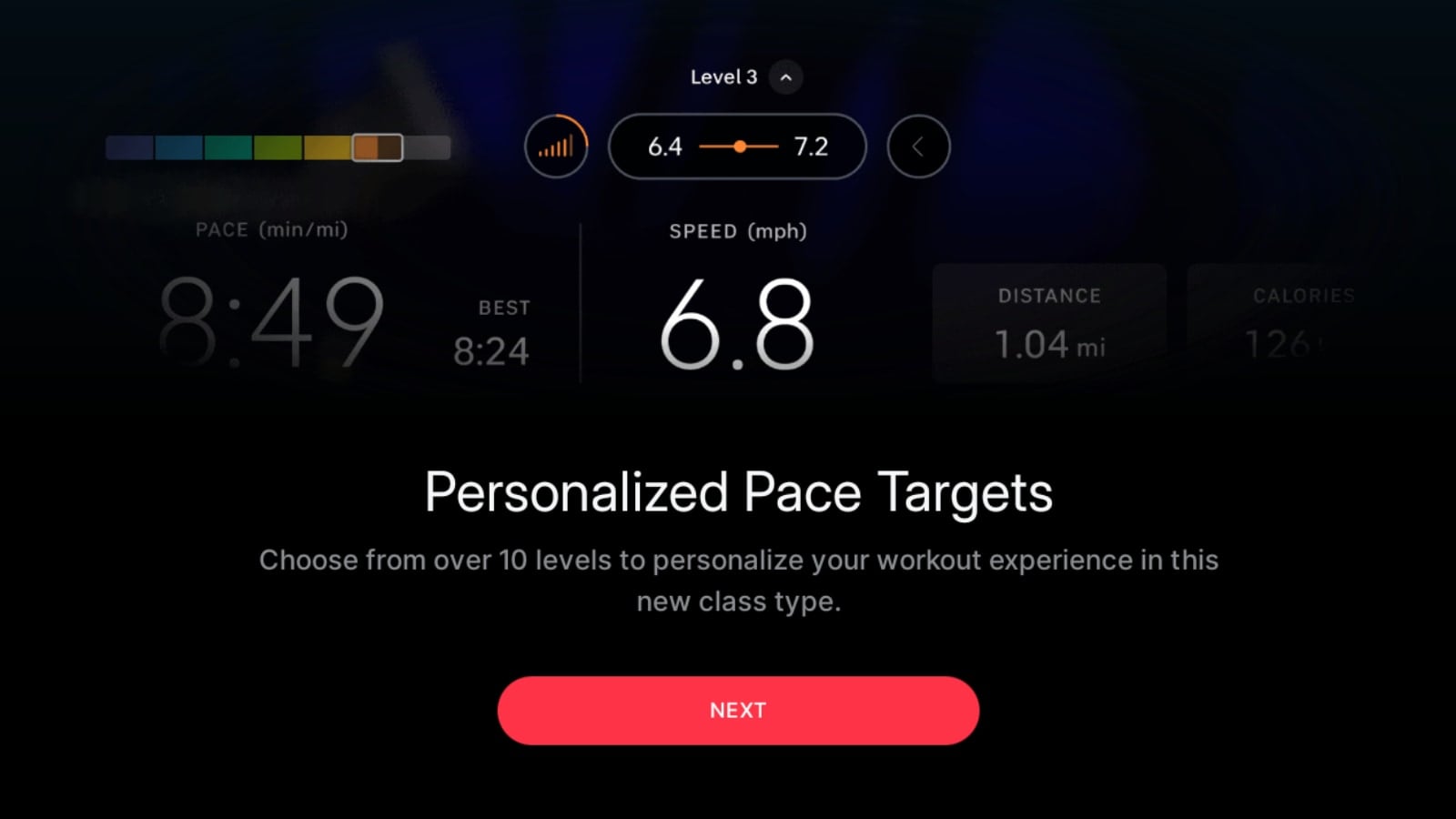
In these classes, rather than the instructors calling out an actual pace, they call out one of 7 intensities. This, combined with members selecting one of 10 different difficulty levels, will then automatically map those intensities, or effort levels, to a goal pace.
Update – Peloton has also added walking pace target classes, which use 5 intensity levels instead of 7.
On the day of launch, there are 14 pace target classes available on Peloton. There are some in both English, and German – there are not any Spanish language pace target classes at this time.
Update – You can find a list of Peloton’s pace target running classes here.
Now, rather than an instructor calling out “We’re going to run between 6 – 9”, the instructor would instead say “We’re going to go ‘Hard'” (hard is one of the seven pace target levels, or intensities). They will never call out an actual pace. The Tread will then pick a suggested pace range for that user, based on what difficulty level they have selected. So a user who picked a difficulty level of 2 will have a pace target of 4.1 – 4.5 mph, while a more advanced runner who picked a difficulty level of 9 would have a pace target of 8.2 – 9.0 mph for the same effort level.
This creates a more personalized experience for the user. As the runner improves, or gets more fit, they can choose to increase their difficulty level to a higher number – giving them faster paces for each of the intensities.
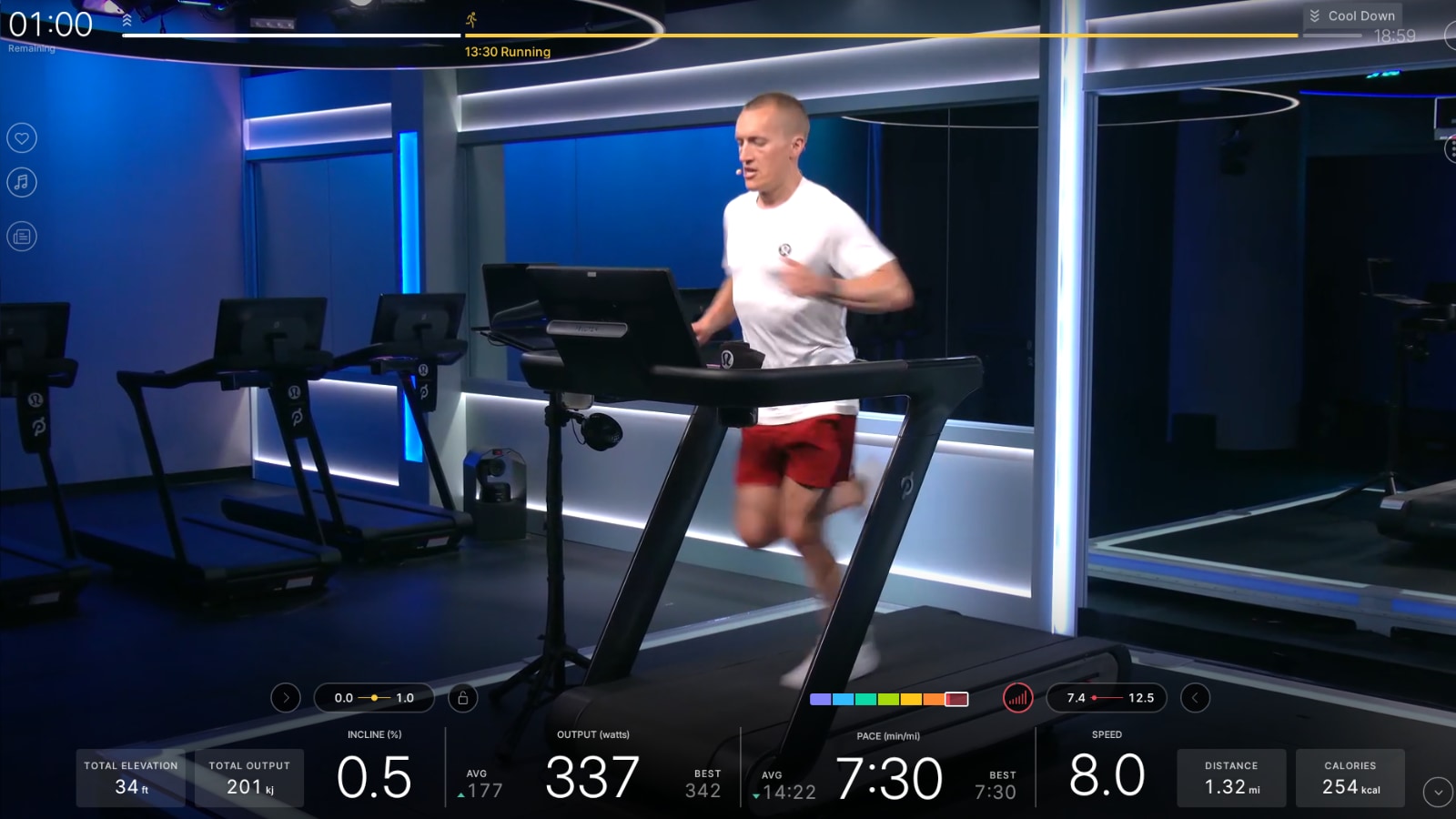
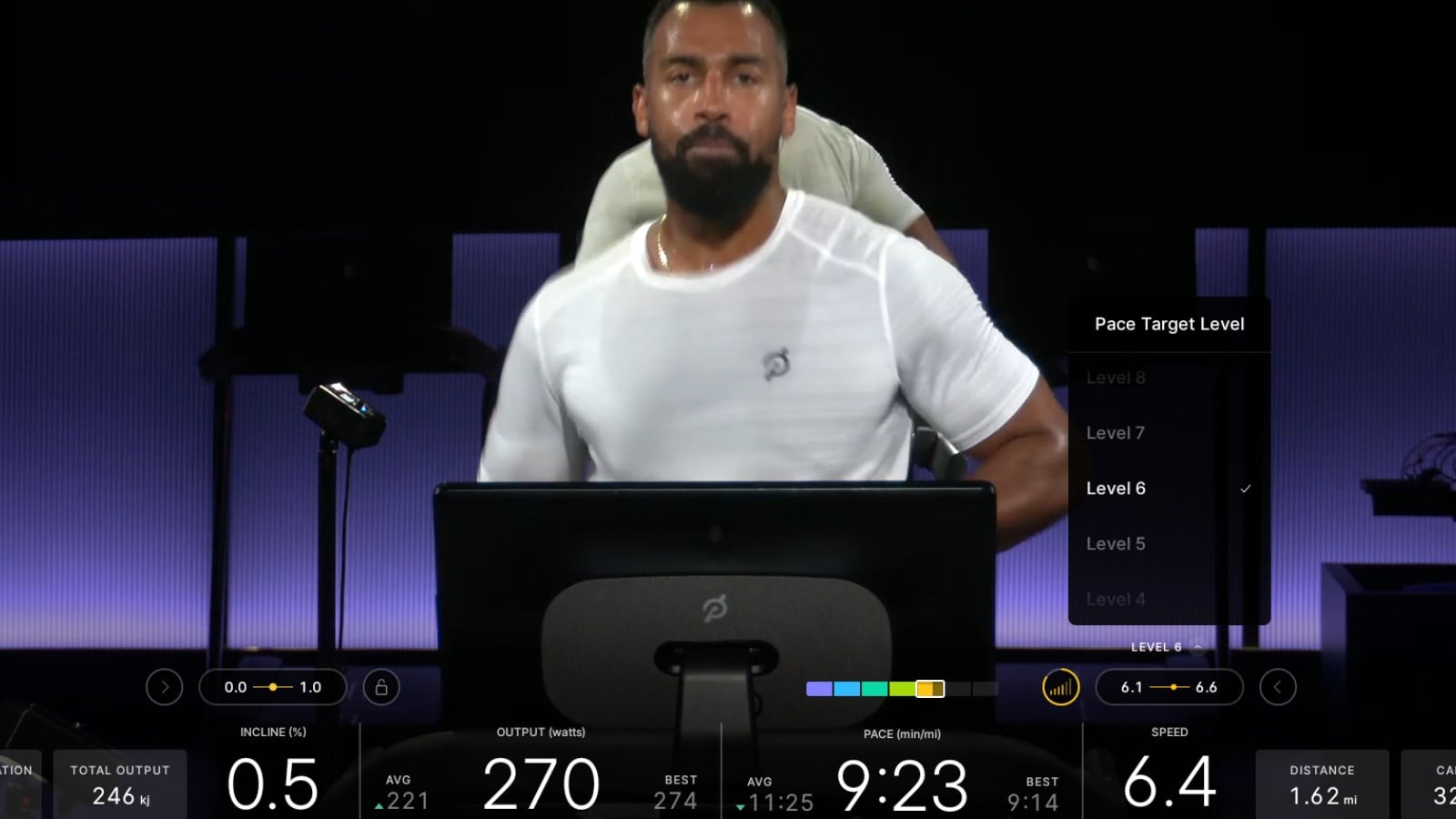
The Tread has been updated with some extra user interface components for this. Now, over your pace, you will see a bar with seven segments. This is a visual indicator for which pace target you are currently in (this looks very similar to power zone bar on the Bike). The white box indicates which pace target the user is currently supposed to be in.
Then, next to the target speed shown over your speed, you’ll see a new icon to the left. This circle shows you a visual indicator of how long you have left in your current pace target before the next change.
We shared in March that Peloton had been quietly beta testing these classes.
For anyone who has tried out a Peloton row class, the Peloton Tread pace target classes work the exact same way – except that rather than there being only 4 intensities, or pace targets, on the row, there are 7 on the Tread/Tread+.
The different pace targets an instructor will call out include:
- Recovery
- Easy
- Moderate
- Challenging
- Hard
- Very Hard
- Max
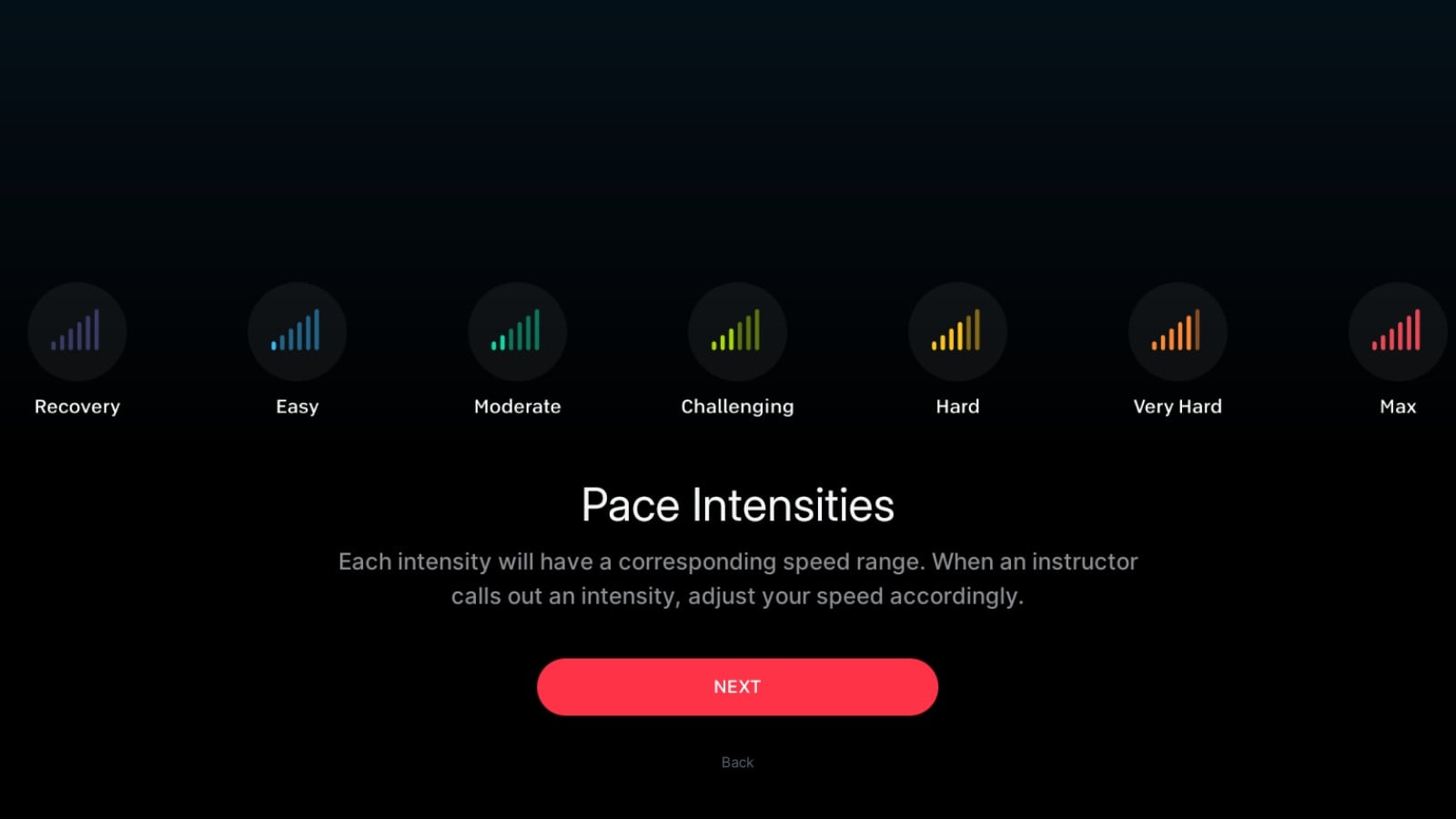
Note that at this time, there are only specific classes that have pace targets enabled. They are not (currently) adding this feature to old classes. That is likely because in older classes, the instructor would call out a specific pace range (i.e. run between a 6-9 pace). In the pace target class – you will never hear them call out a specific number. Instead, they would only call out one of 7 pace targets above. They might give some fine tuning within those, and say “go the high end of hard” or “stay on the lower end of challenging”.
You can find classes that have pace targets enabled through the new “Pace Targets” collection on the Tread or Tread+.
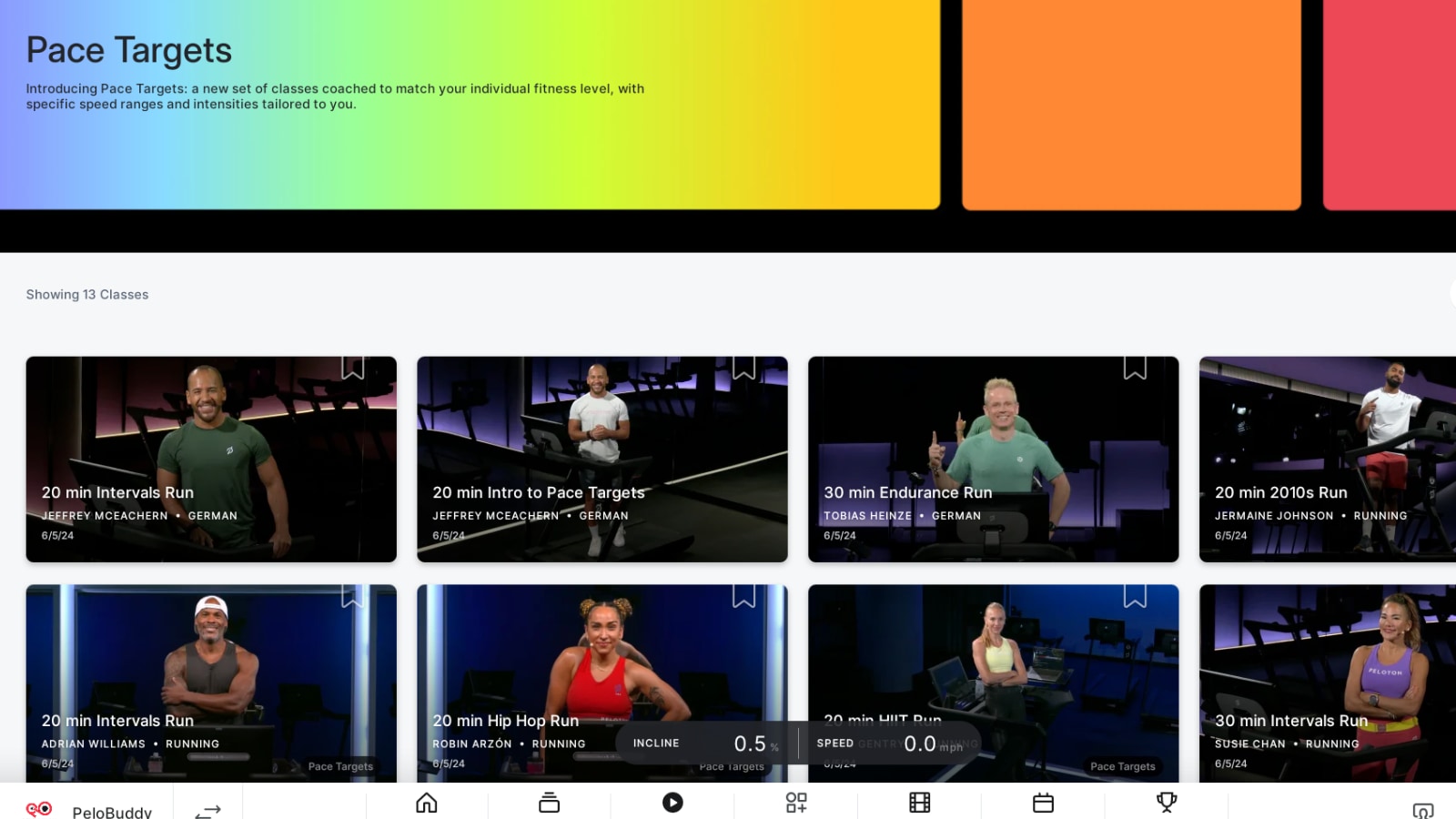
There is also a new “Pace Targets” label on the class preview for any classes that have pace targets. There has not yet been a filter added to the search to make searching for them easier, though we imagine this will be added in the future.
At time of publishing – pace target classes are only available on the Peloton Tread & Tread+. They are not available through the Peloton app.
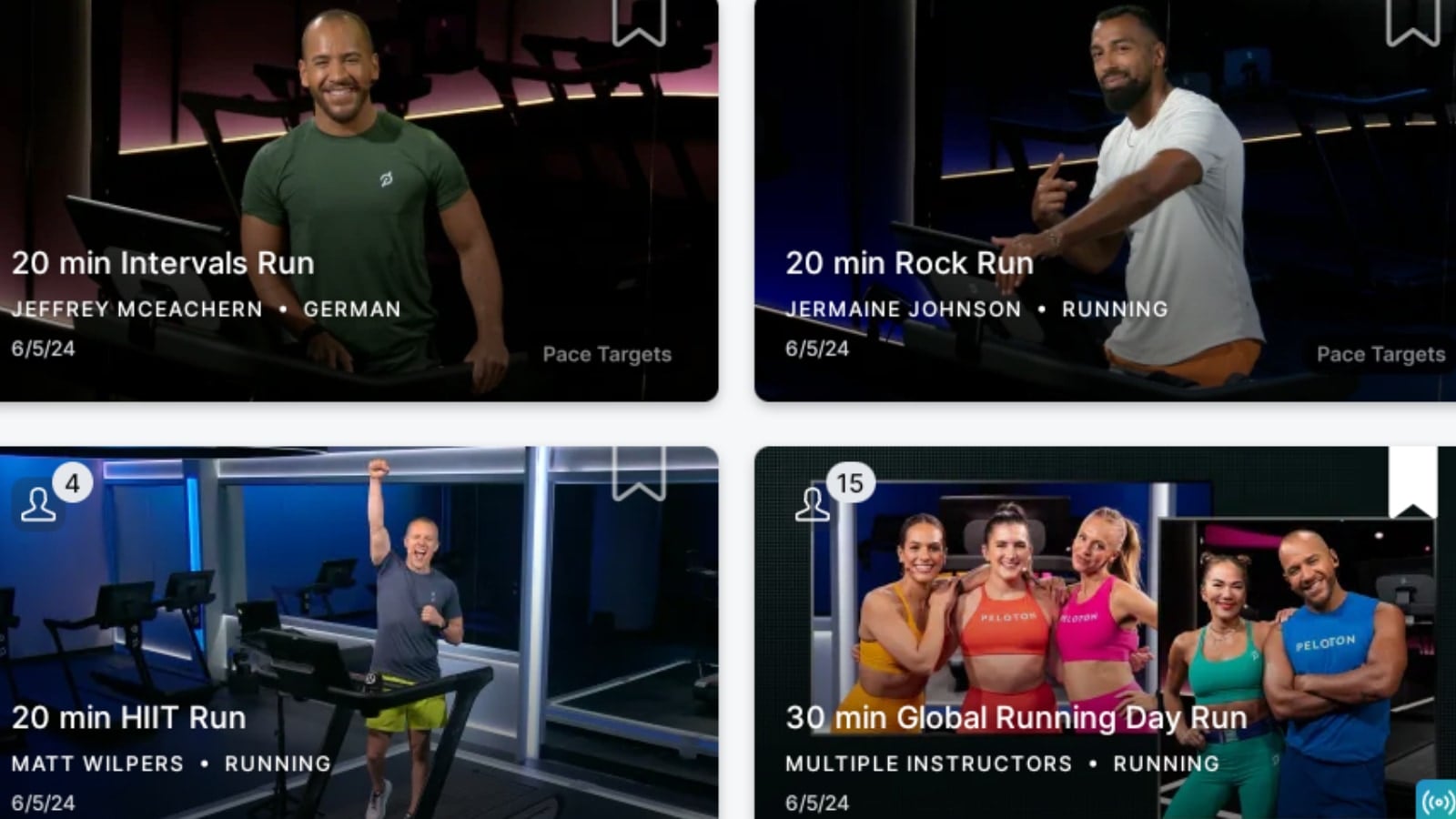
This seems likely to be a short time limitation – and those classes will later be available on the app. In one of the classes, Matt Wilpers even talks about how some people will be taking the classes on Tread, and others will be on the app.
Pace Target classes are more personal to the member, but not quite as personal as power zones on the Bike. So while you might hear people refer to pace targets as Peloton power zone for Tread – it’s not quite the same. That’s because on power zone classes, your zones are based on a single number: your FTP. Based on this number, there are thousands of different variations of what the zone numbers can be.
For the pace target classes – you are simply picking between one of 10 difficulty levels. So at most, there are 10 different variations for the pace range for each of the different pace targets.
When you take your first pace target class, your Tread or Tread+ will show you a quick introduction. Then, it will “suggest” what pace target level you should pick. It does this by automatically using your running history. It knows what the fastest mile you’ve done before is (on the Tread), and uses that fastest mile time to suggest a level.
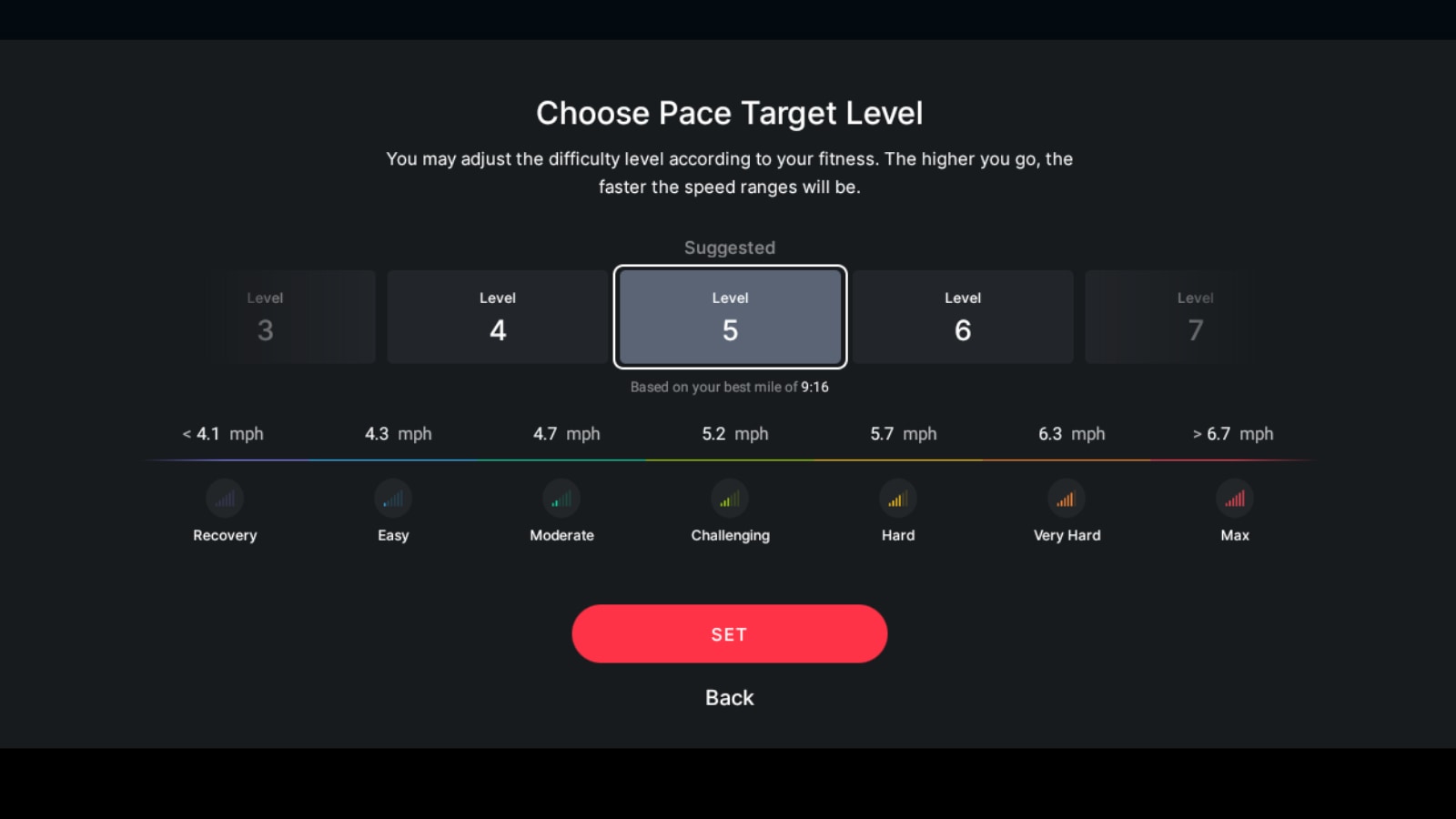
If you are taking a pace target class as your first class, the Tread will instead ask you to input your fastest mile time – and will then suggest a target level based on your manual input.
Peloton has a specific “Intro to Pace Targets” intended for beginners to this type of training. It is taught by Matt Wilpers. In addition to giving you an overview to the style, you will also run for at least 30 seconds in each pace target during the class.
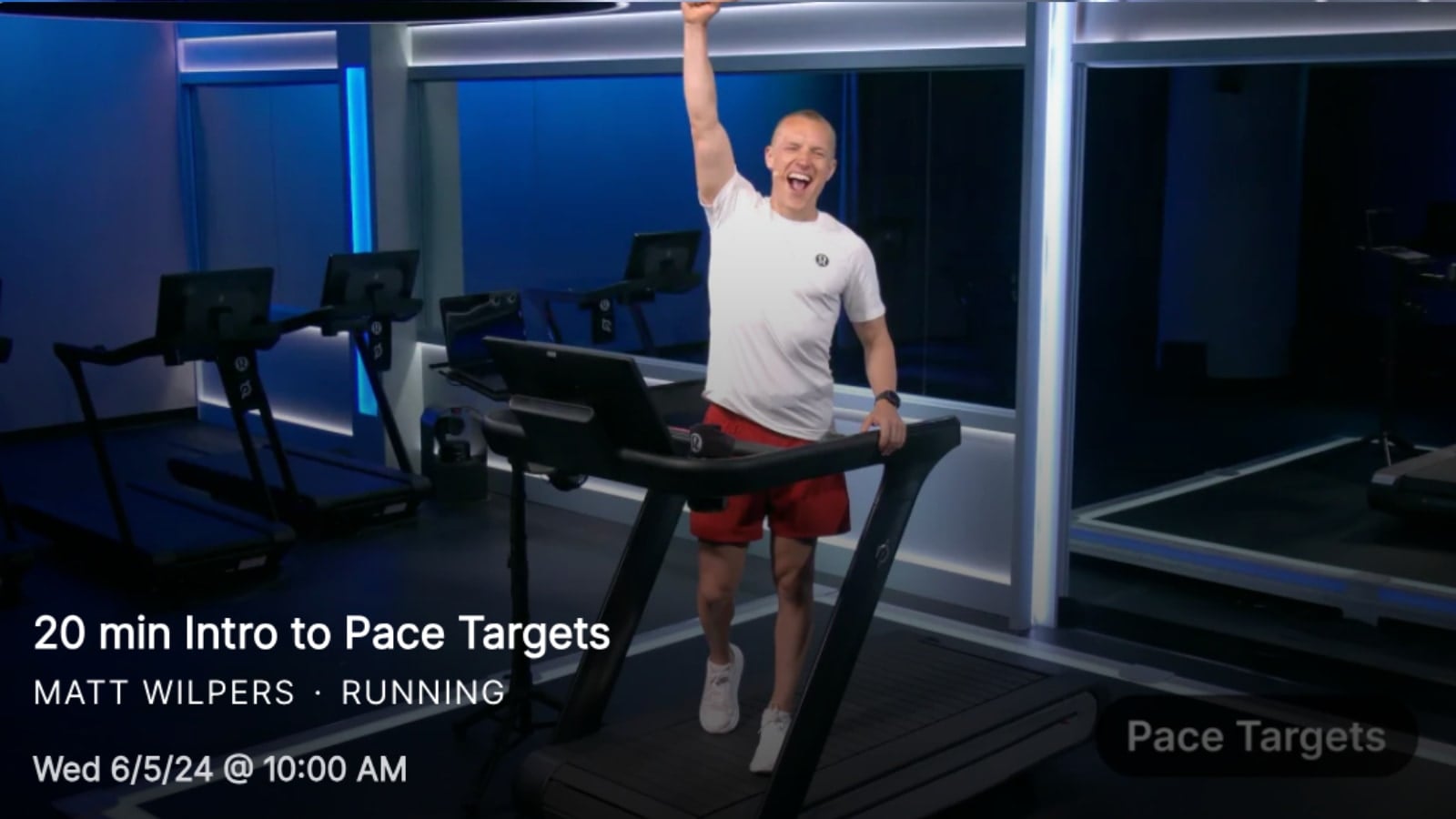
This will give you a good feel for each pace target for you to see how sustainable it is. If you find it is too easy, or too hard, you can adjust and try again – or just try the new level in a different class.
Matt talks about how some runners tend to want to go harder than they should in easier paces, and not quite as fast as they might should in harder targets. Using pace targets, this will force those users to go at a pace range closer to what their coach intends. Matt mentions that there should be a “pull”, such that when you are at the right target level – you might feel like you can go faster during the easier segments, but feel like you are being pushed during the toughest segments.
As you take the class, you will be able to tell what pace target you should be in in one of three ways. First – the instructor should call out your target level as they change (just as they would call out a pace change normally). Secondly – the target level bar will have a white box around the target level you are supposed to be in.
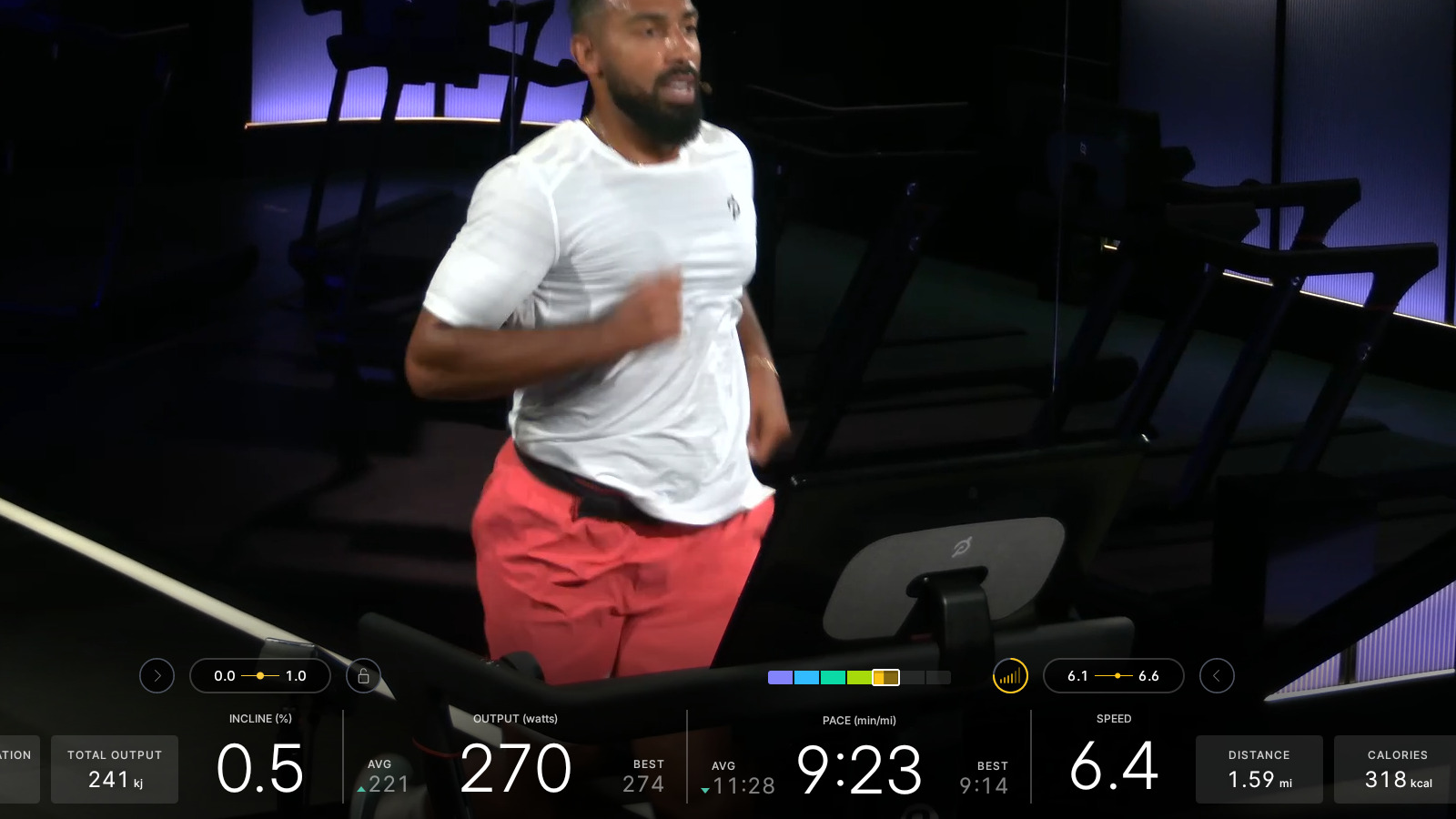
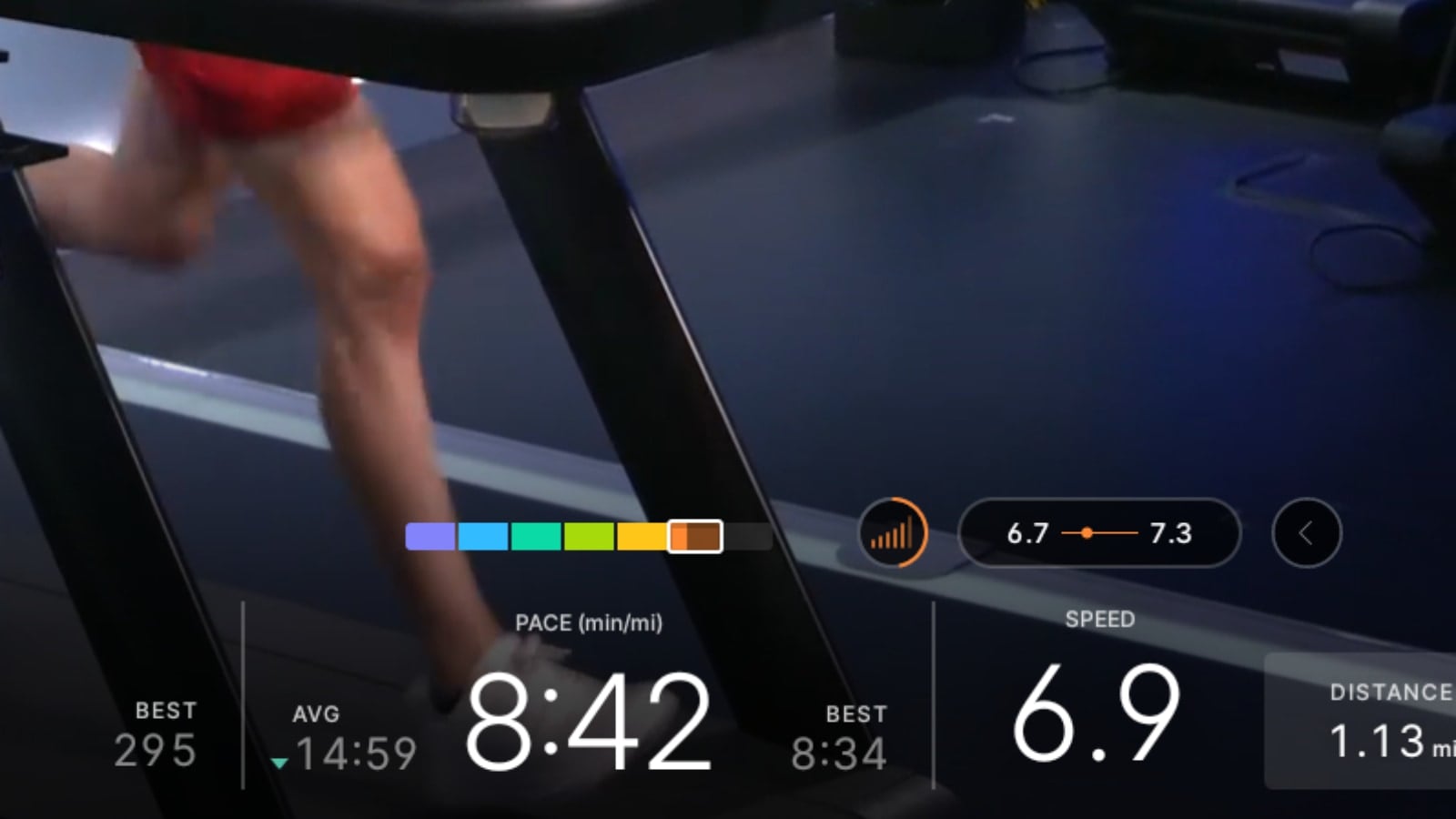
Finally – there is a small dot shown in the section showing your pace targets. If you are in the correct pace target range, the dot will be shown in between the two numbers. If you are running to slow – the dot will be shown to the left of the numbers. If you are running too fast (as seen below), it will be shown to the right of the numbers.
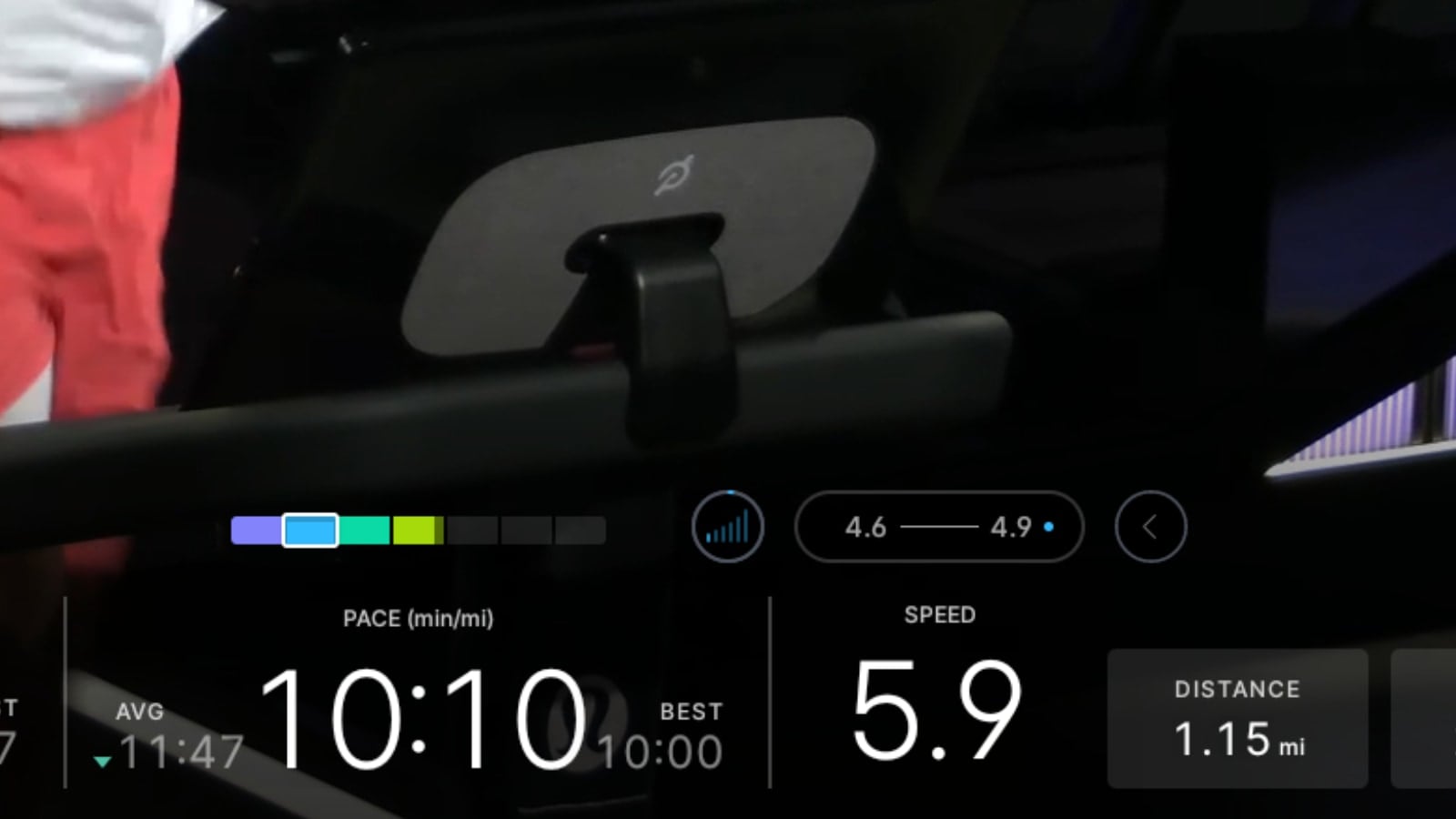
When a pace target level changes – the target pace numbers will briefly show the word of the new target effort level you are supposed be in, before changing back to the pace target range.
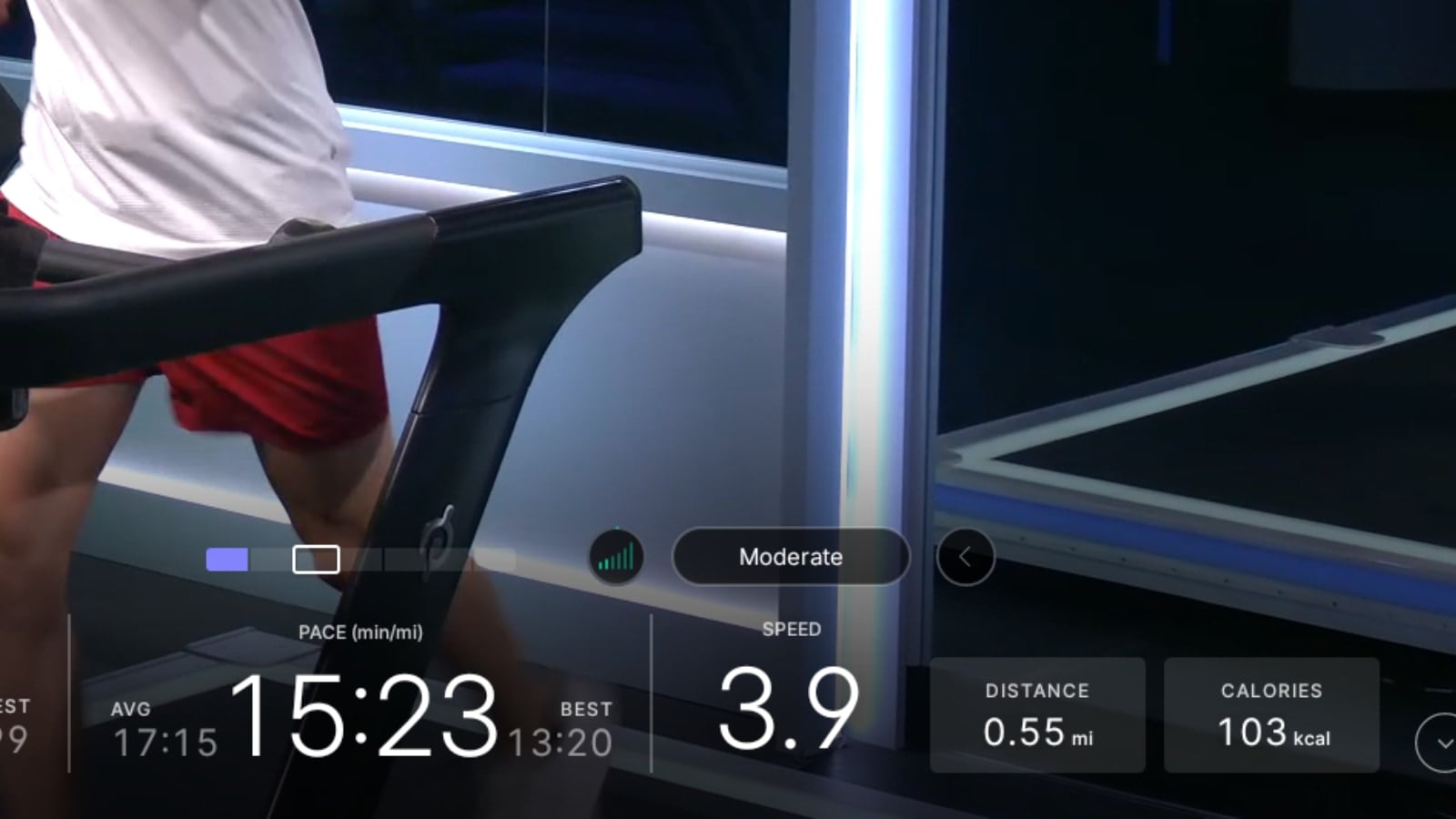
Members are able to change their pace target difficulty level at any time. When starting a class, it shows you what your current pace target level is – and you can change it right then before starting class.
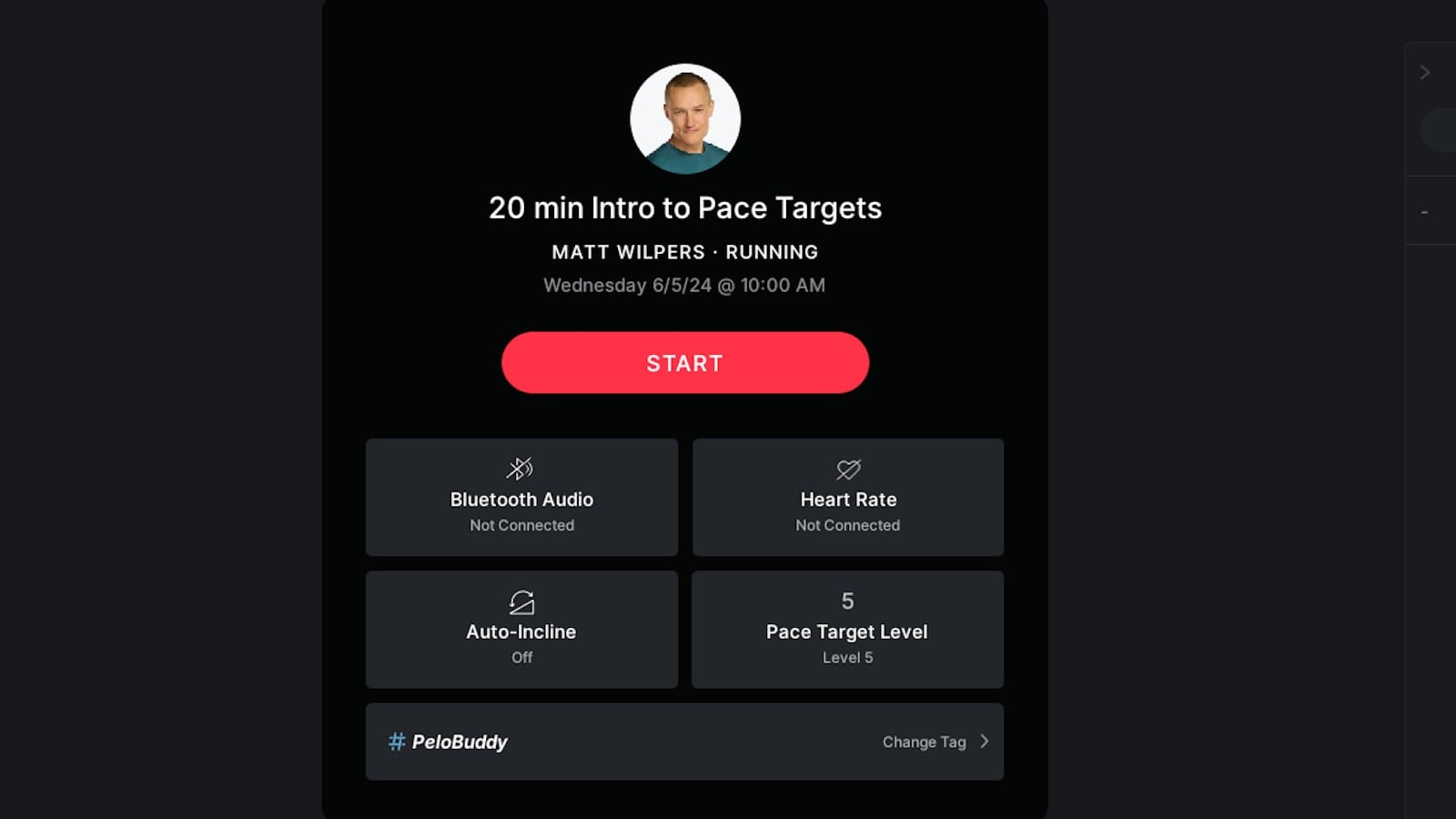
If you change your pace target level before class, it will show you exactly what the pace range will be for each effort level as you adjust the levels.
You are also able to change it in the middle of class. If you click on your speed, it will pop up a scrolling list of all the different target levels – with your current level selected. You can click on any other level, and it will immediately adjust your goal pace targets based on the new level. You can do this as many times as you want during class.
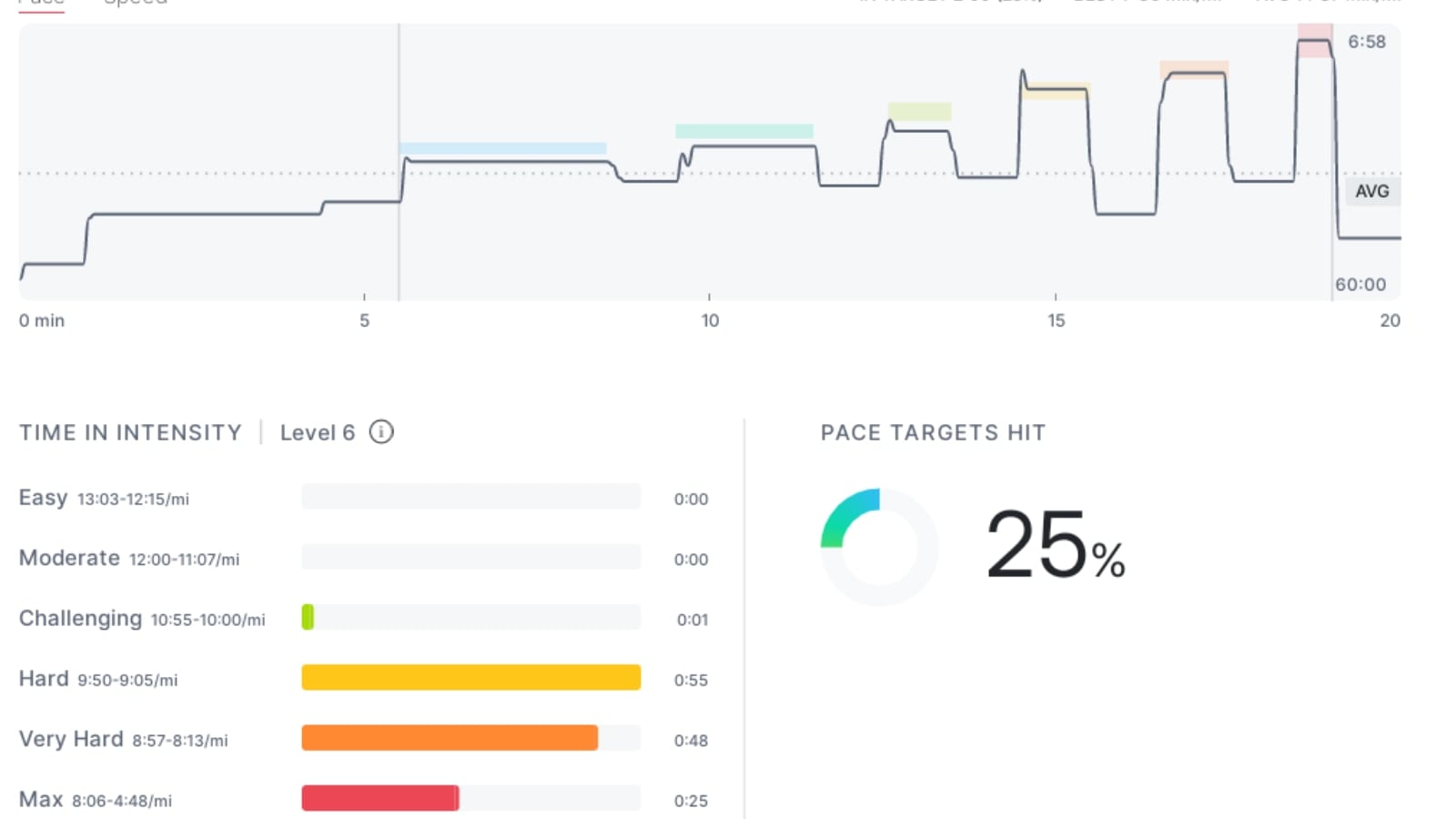
There is one quirk to be aware of. After you take a class, if you view your completed workout on the Tread, there is a new graph that shows you your pace targets, and how long you stayed in each target.
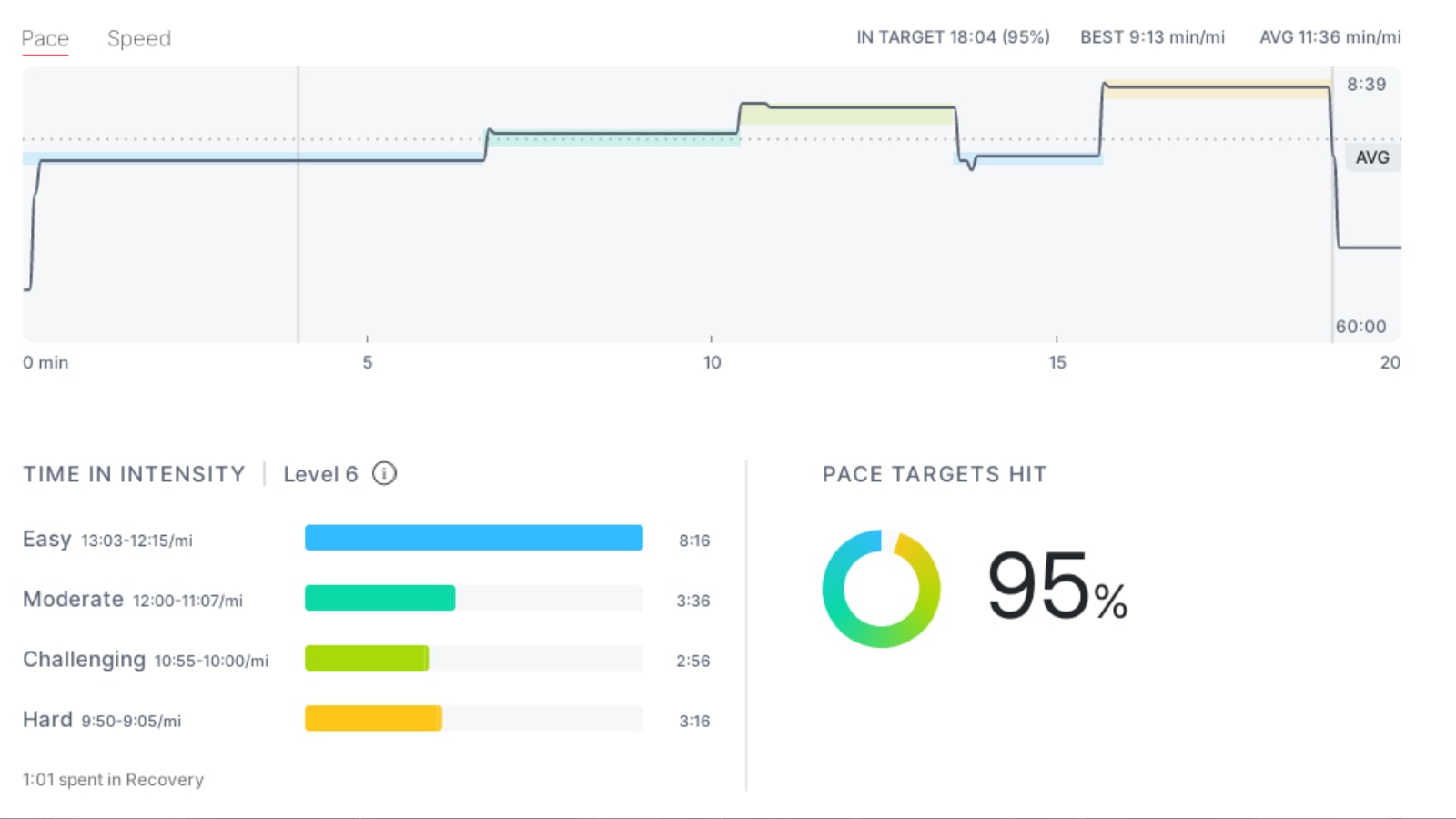
If you decide to change target levels in the middle of class – the graphs will be based on the very last target level you used. This means if you used a level 5 for most of the class, and then decided at the end it was too easy, and changed to a level 6 at the end – the graph will show all of your efforts based on it being level 6. So even if you had been “in target” for the majority of class at level 5, your post-workout graph won’t reflect that, as it will use the level 6 targets.
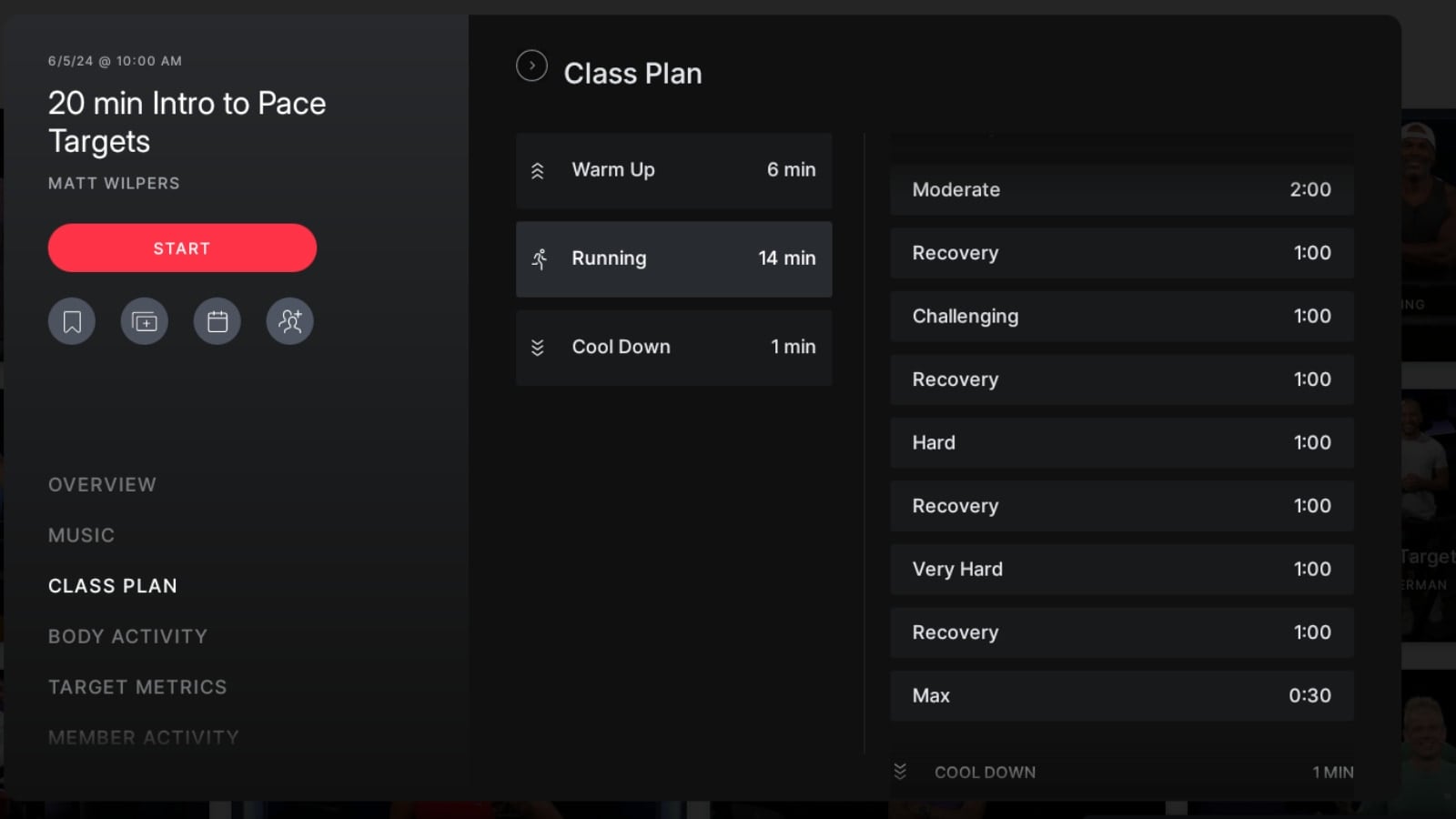
For any class that has pace targets enabled, the Class Plan section of the workout has been updated for this as well. When browsing the class, the preview will show you the break down based on the pace target levels.
We have heard reports that although the classes & collection might show up immediately, the pace target bar and UI might not show up. People have been able to fix this by rebooting their Tread. After a reboot, the pace targets were enabled in the pace target classes. Note that you won’t see them during the intro – only once the class actually begins. However, you should also be able to tell if they are enabled by seeing the Pace Target section in the class start popup.
Currently, only some Tread classes are being taught under the “Pace Target” feature – while others are still taught with traditional paces called out. There has been no official word yet as to whether Peloton will one day have all running & walking classes be taught using the Pace Target feature. Given that all Peloton Row classes use pace targets – it seems possible that Peloton could do the same with Tread classes one day.
What do you think of the new Peloton pace target classes for Tread? Is this a feature you will use?
Support the site! Enjoy the news & guides we provide? Help us keep bringing you the news. Pelo Buddy is completely free, but you can help support the site with a one-time or monthly donation that will go to our writers, editors, and more. Find out more details here.
Get Our Newsletter Want to be sure to never miss any Peloton news? Sign up for our newsletter and get all the latest Peloton updates & Peloton rumors sent directly to your inbox.

Well if they add it to the app…I hope they add the powerzone bar as well …
How do you reboot the tread? Unplug it?
When will the app show the pace targets? Its really hard to guess the pace you should be running at