

Peloton has just released an update that allows for completed Peloton workouts to be exported to the Garmin ecosystem via Garmin Connect.
Last fall, Peloton rolled out an initial integration with Garmin. However, that feature only allowed for Garmin workouts to be pushed to Peloton – it was not a two way sync, and Peloton workouts could not be pushed to Garmin.
That has changed this week with a new update to the Peloton app – that is available on both the Peloton iOS app as well as the Peloton Android app.
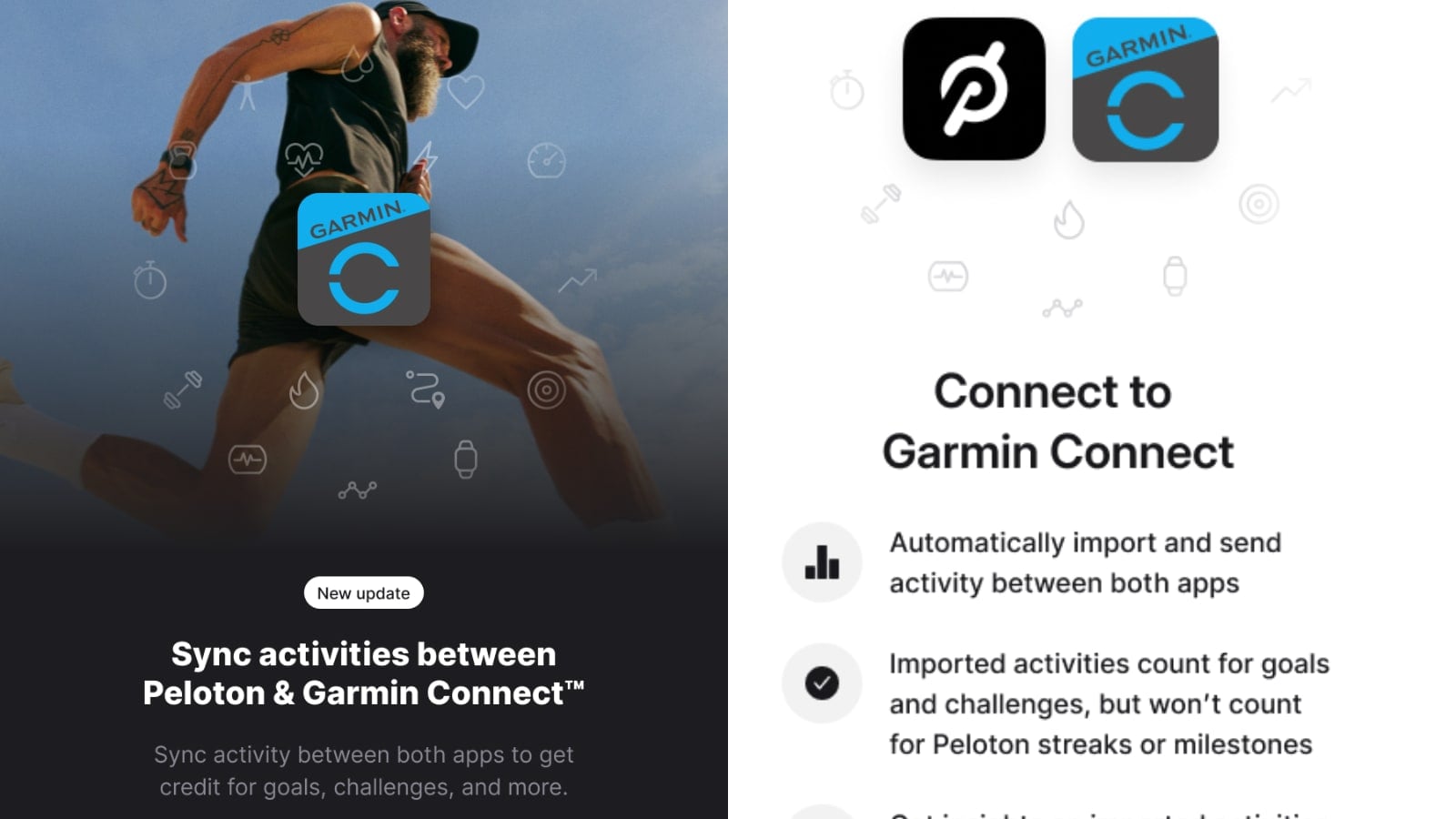
Now, users have the ability to have a two way sync between Garmin and Peloton. You can still choose to import Garmin workouts to Peloton, and now, to also export your Peloton workouts over to Garmin. Users can pick either option, or both – the toggles for these are independent.
With this, Peloton workouts will now count towards Garmin’s overall Training Readiness, Load, and Recovery metrics once the integration is set up and turned on without the use of third party tools or scripts. It will also calculate your training effect on individual workouts.
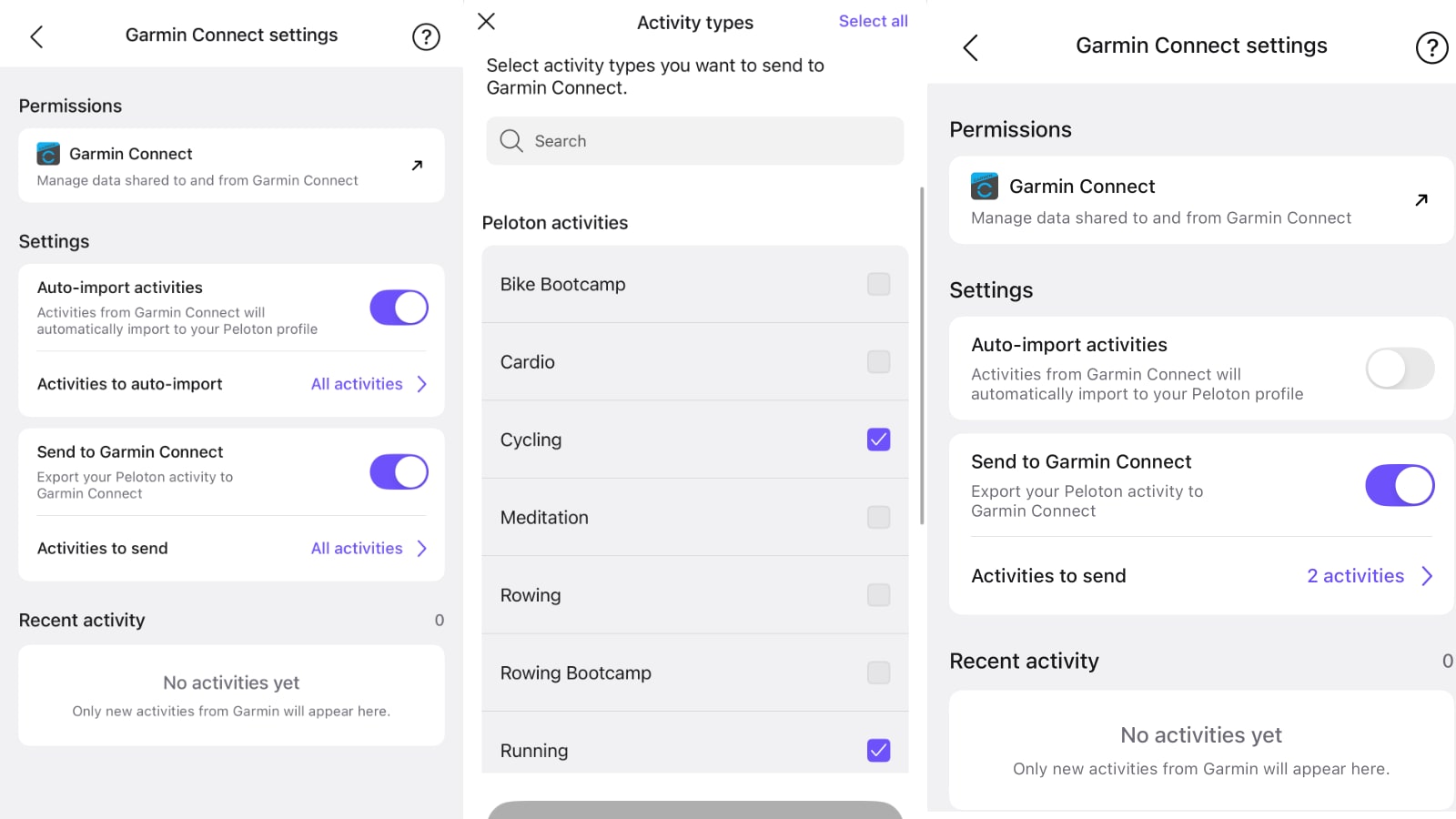
This new sync feature is enabled in the settings section of the Peloton app. Users will need to go to their Profile at the bottom right of the Peloton app, then use the menu icon at the top right. From there, select “Connected Apps & Devices”. Under the Apps section, select “Garmin Connect.”
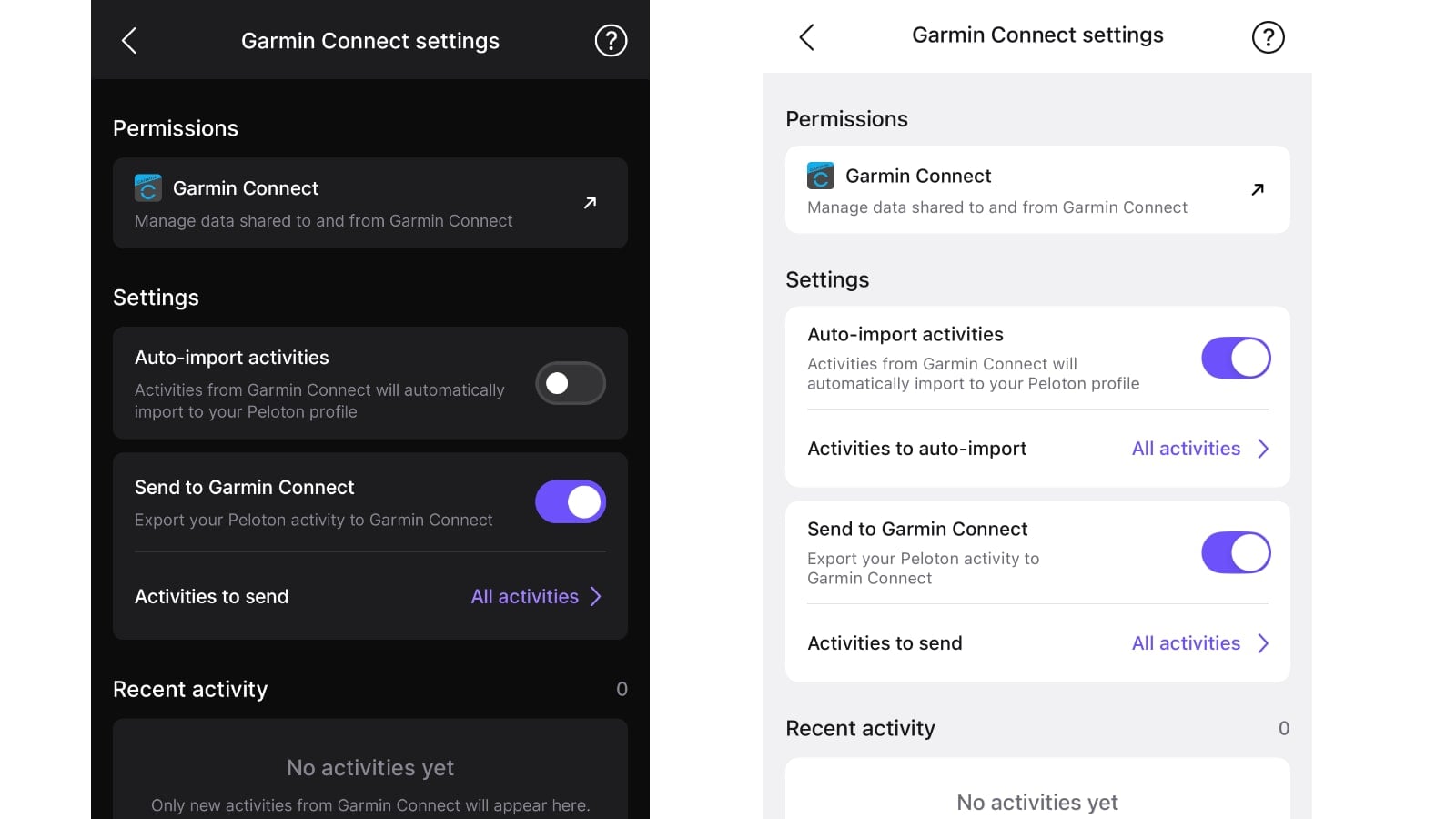
This is the same area that users would have originally setup the import from Garmin to Peloton. However, there is now a new option enabled “Send To Garmin Connect”, and this will, as the name implies, allow you to send your completed Peloton workouts over to Garmin connect. If you do not see this new option on the settings page, make sure you have downloaded the latest version of the Peloton app.
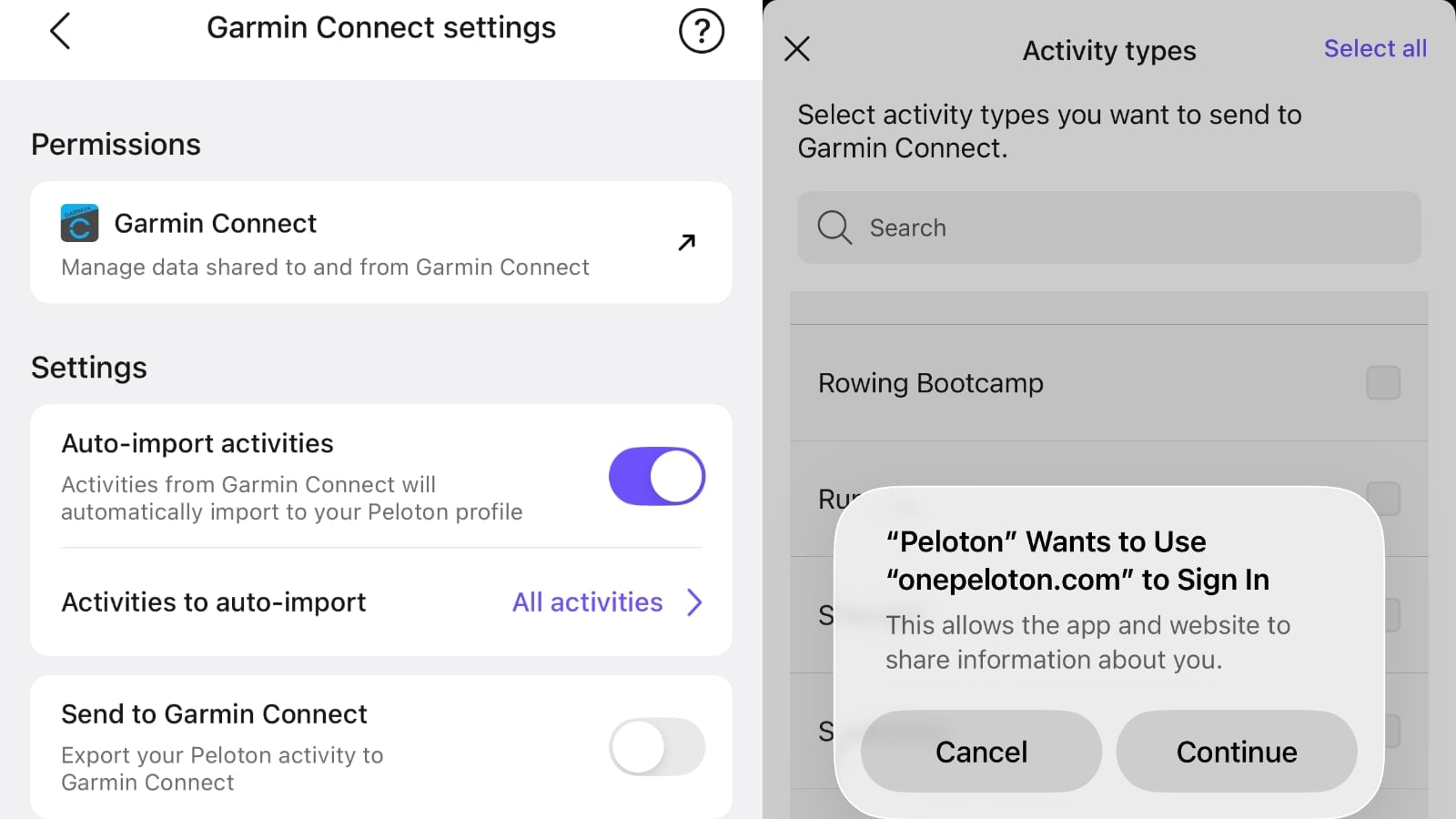
After turning this option on, you will be presented with an alert notifying you that you will need to login to enable the sync. You’ll then be presented with a screen of information, titled “Connect to Garmin Connect.”
The first section on this page clarifies that the sync is now bi-directional, saying “Automatically import and send activity between both apps”. After logging in, you’ll be directed to a section in the Garmin Connect app/website, re-confirming that you want to allow Sending Activities to Peloton.
Once you confirm, you will then be re-directed back to the Peloton App. There should be a message at the top of the screen noting “Activities will sync with Garmin Connect”
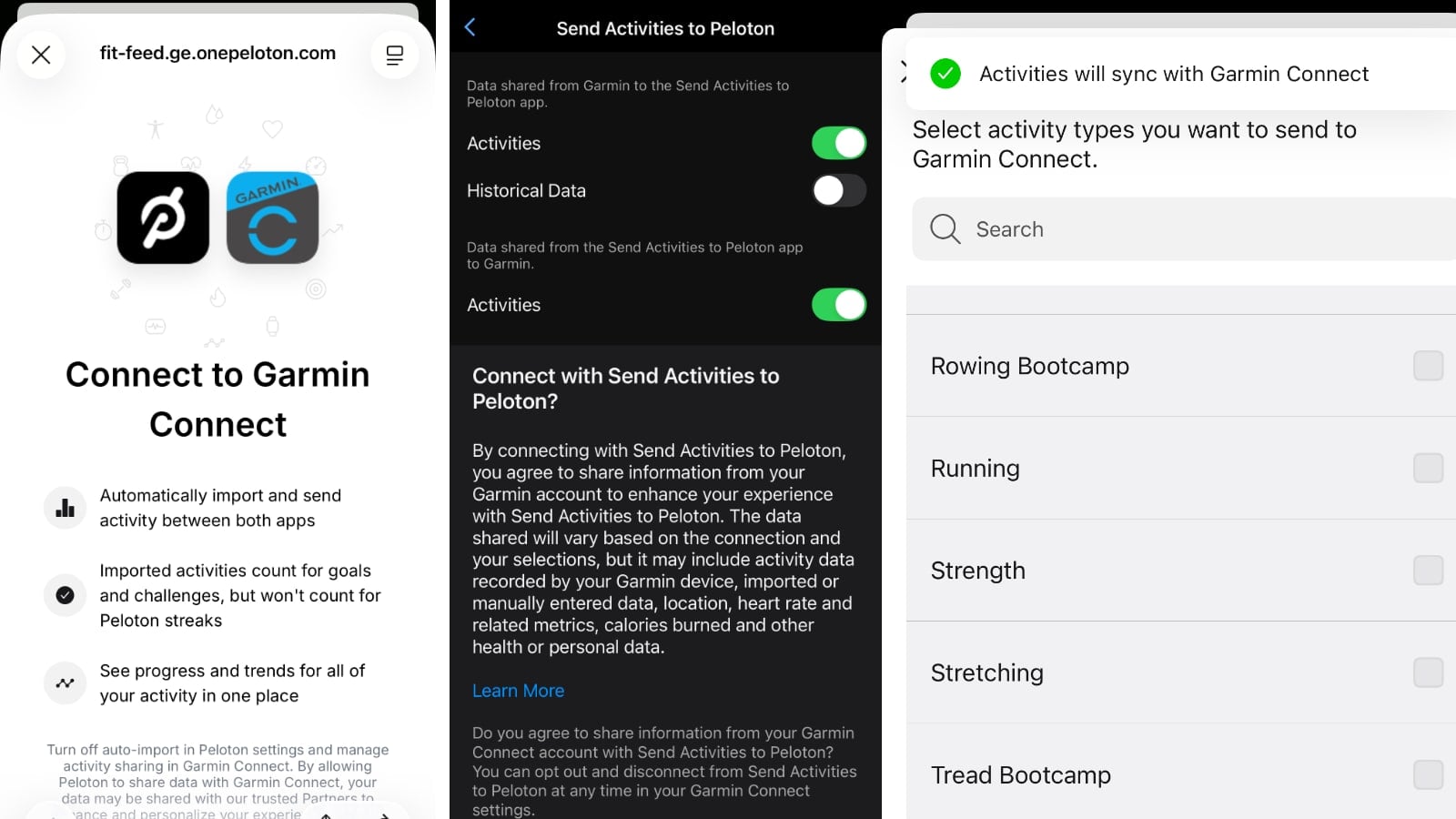
Here, you can select what workout types you want to allow to sync to Garmin. By default, it will sync all workouts – but you can specify and have it only sync certain types of workouts. The workout choices you can toggle include:
- Bike Bootcamp
- Cardio
- Cycling
- Meditation
- Rowing
- Rowing Bootcamp
- Running
- Strength
- Stretching
- Tread Bootcamp
- Walking
- Yoga
Once completed, you can easily turn off the import, or export, of activities to and from Garmin by using the toggle on this same page.
After doing this setup, the sync from Peloton to Garmin Connect will happen automatically in the background as soon as activities are completed.
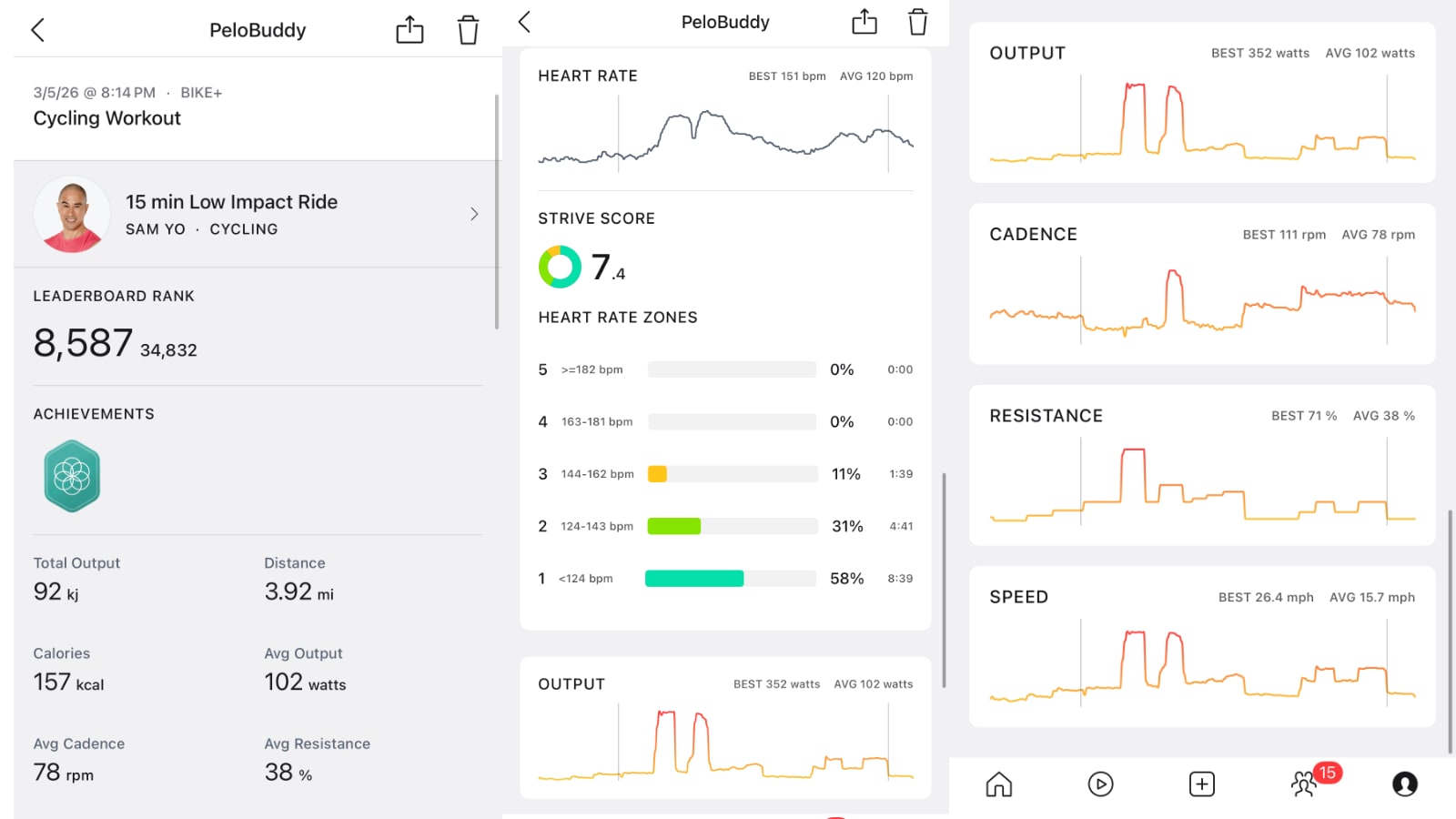
Activities are created in Garmin Connect with the workout name and instructor name as the title – for example “15 min Low Impact Ride with Sam Yo” (it does not include the date/time of the workout from the Peloton on-demand library).
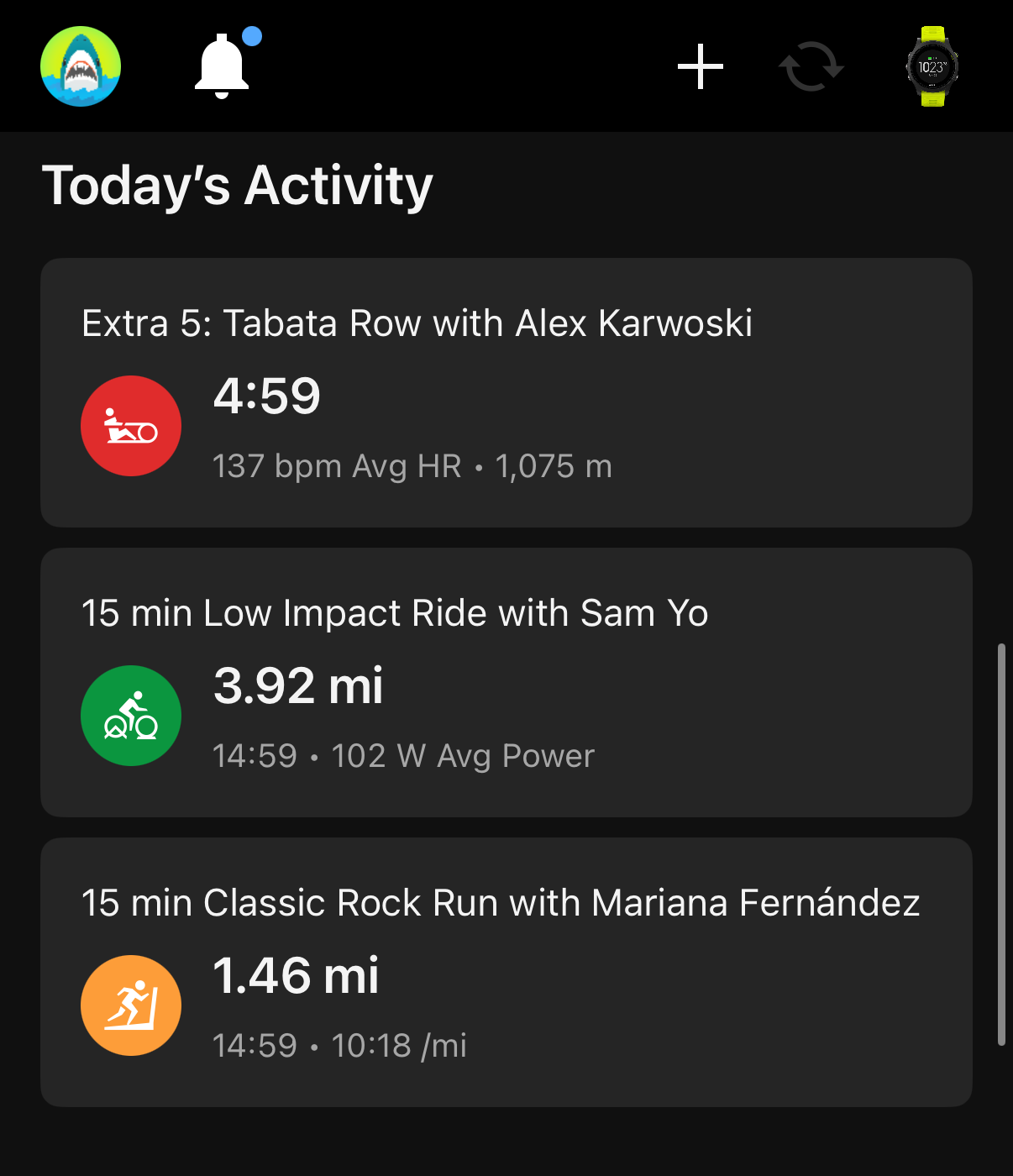
For cycling workouts, the exported data to Garmin Connect includes:
- Distance
- Time
- Speed
- Power
- Cadence
- Heart Rate
- Calories
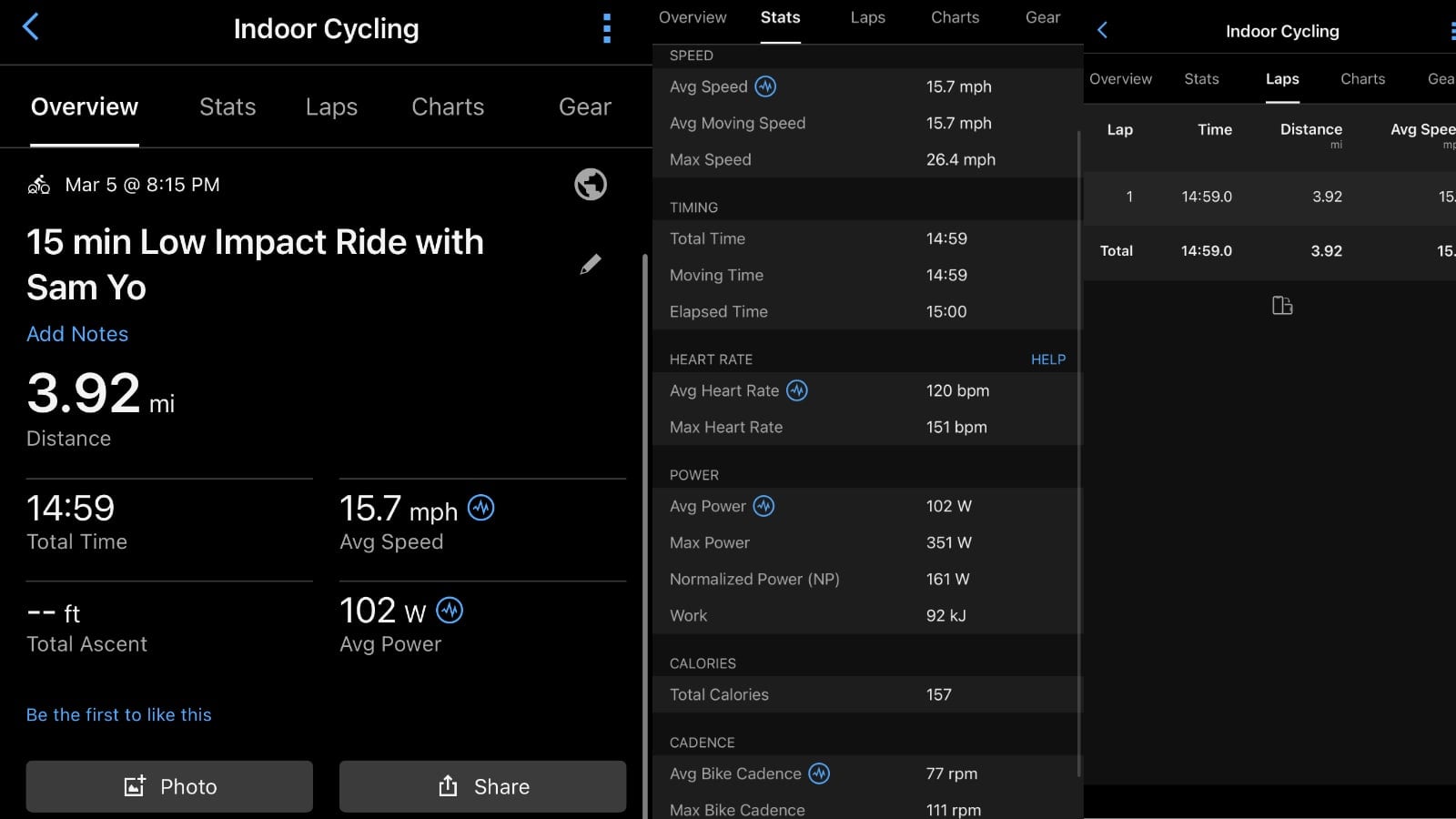
The “Total Ascent” value is left blank, as there is no concept of elevation on a Peloton cycling workout – so there are also no elevation charts or data available.
Data is available both on the stats page, as seen above, as well as the charts page, as seen below.
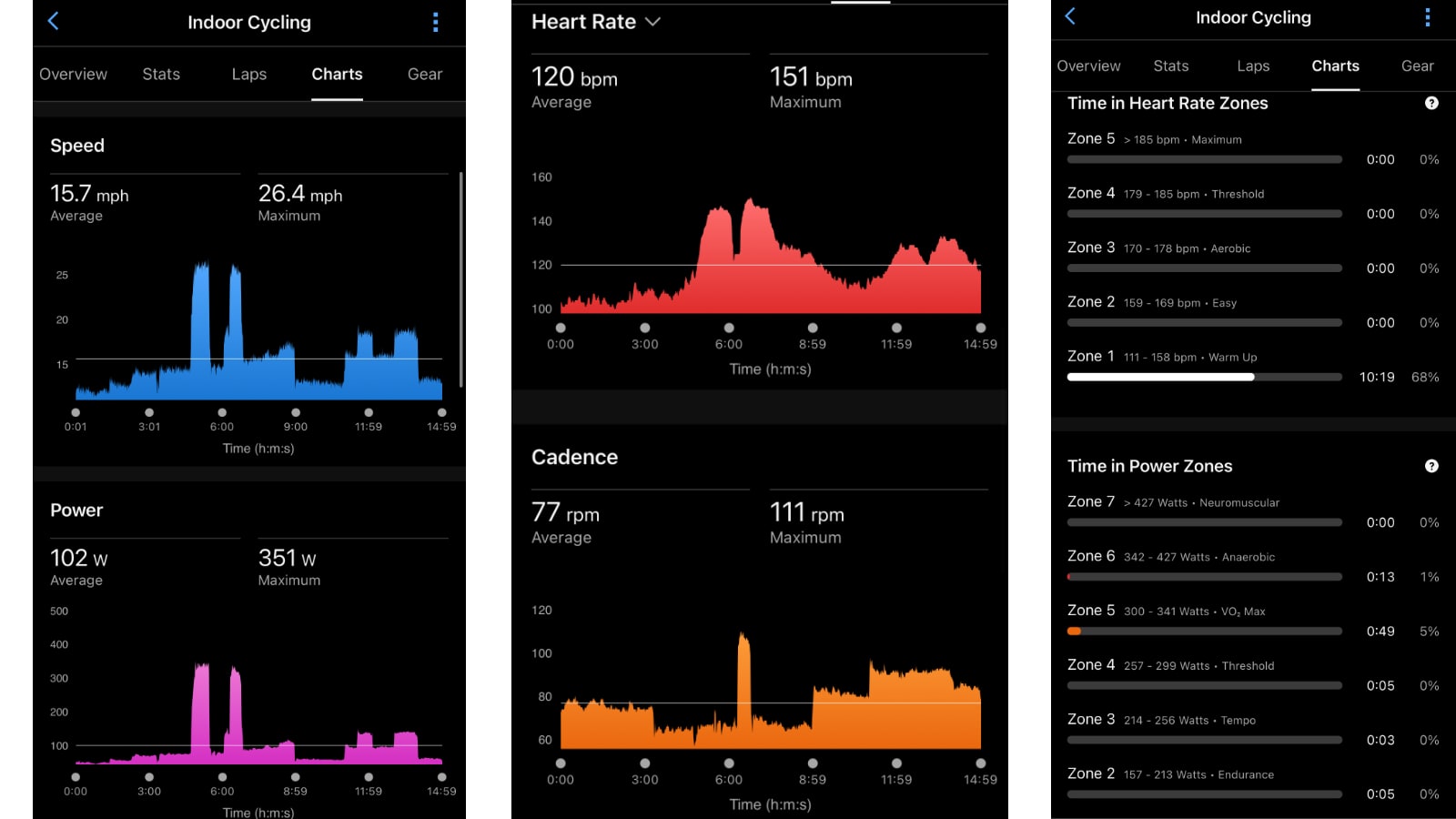
For cycling workouts, most of the data from Peloton maps to a value in Garmin Connect, besides the values & data for resistance (other than how it indirectly feeds into the power data).
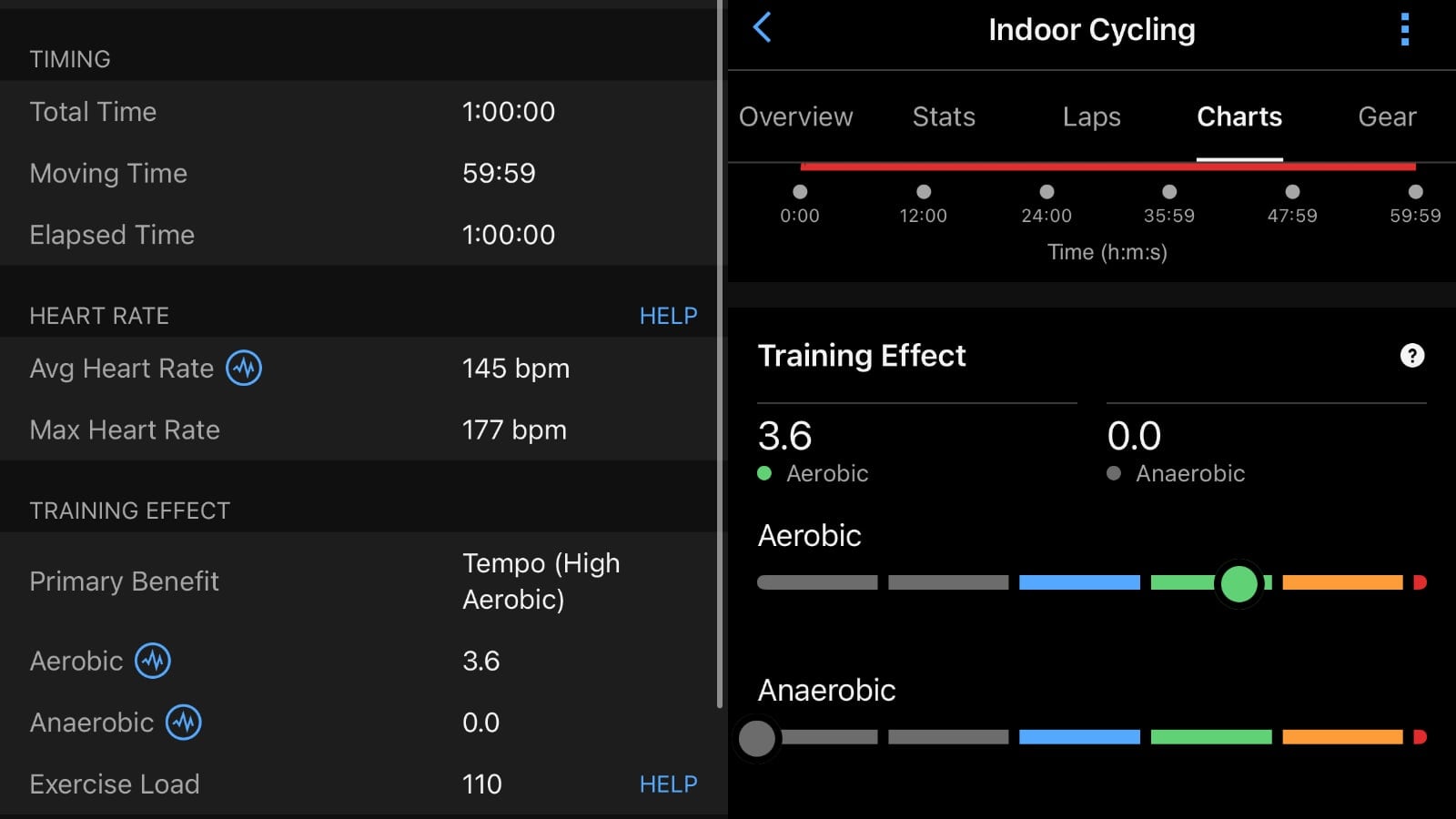
While the images above in Garmin Connect do not show Training Effects, those are in fact calculated and shown in the Garmin Connect data for Peloton workouts that are exported, as seen in the updated images below for a different workout.
Although Peloton’s power data is sent to Garmin – the data is nowhere near as comprehensive as it may be if you are used to riding with traditional power meters on an outdoor bike. The power stats for a Peloton workout sent to Garmin include only:
- Average Power
- Max Power
- Normalized Power (NP)
- Work
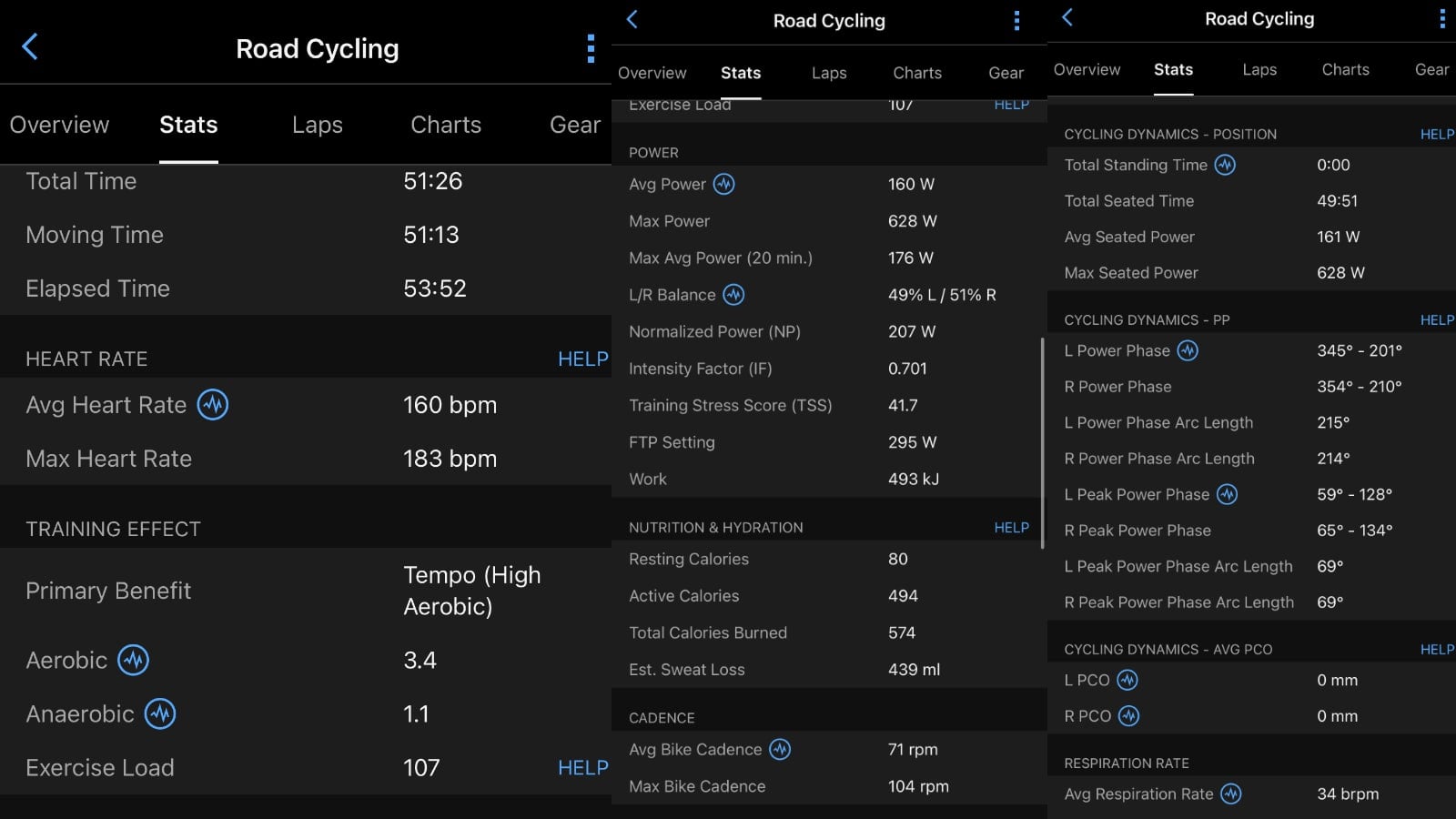
There is also only one power chart included in the workout in Garmin Connect. On a traditional outdoor ride with a power meter, the following data is presented in Garmin Connect – which is not the case with a Peloton exported workout.
- L/R Balance
- Intensity Factor (IF)
- Training Stress Score
- FTP Setting
- Cycling Dynamics – Position
- Cycling Dynamics – PP
- Temperature
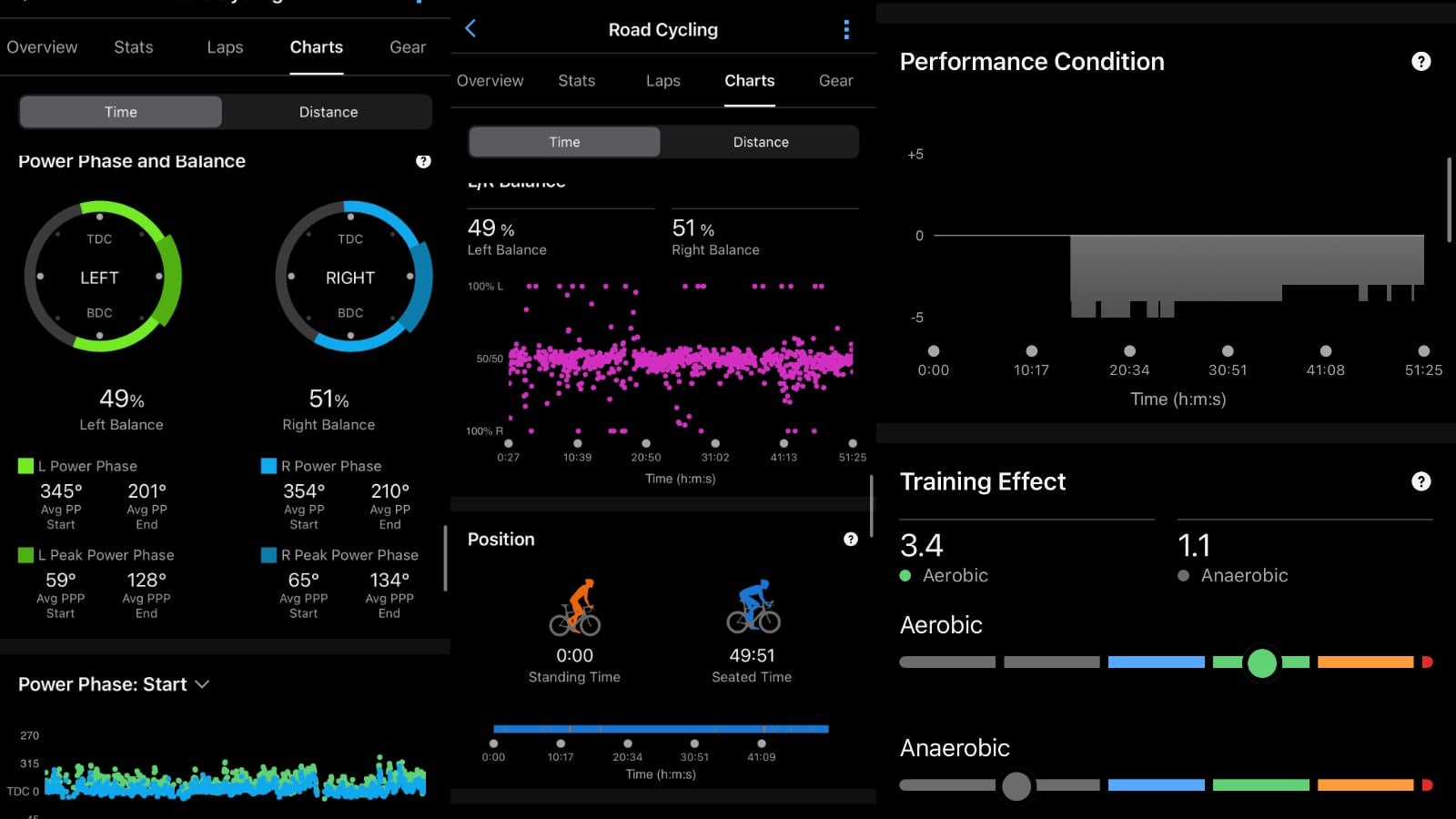
This also translates into some advanced charts that are also not shown for a Peloton workout.
Peloton Running & walking workouts present similar stats as cycling in Garmin, with exported data including:
- Distance
- Time
- Pace
- Speed
- Power
- Heart Rate
- Calories
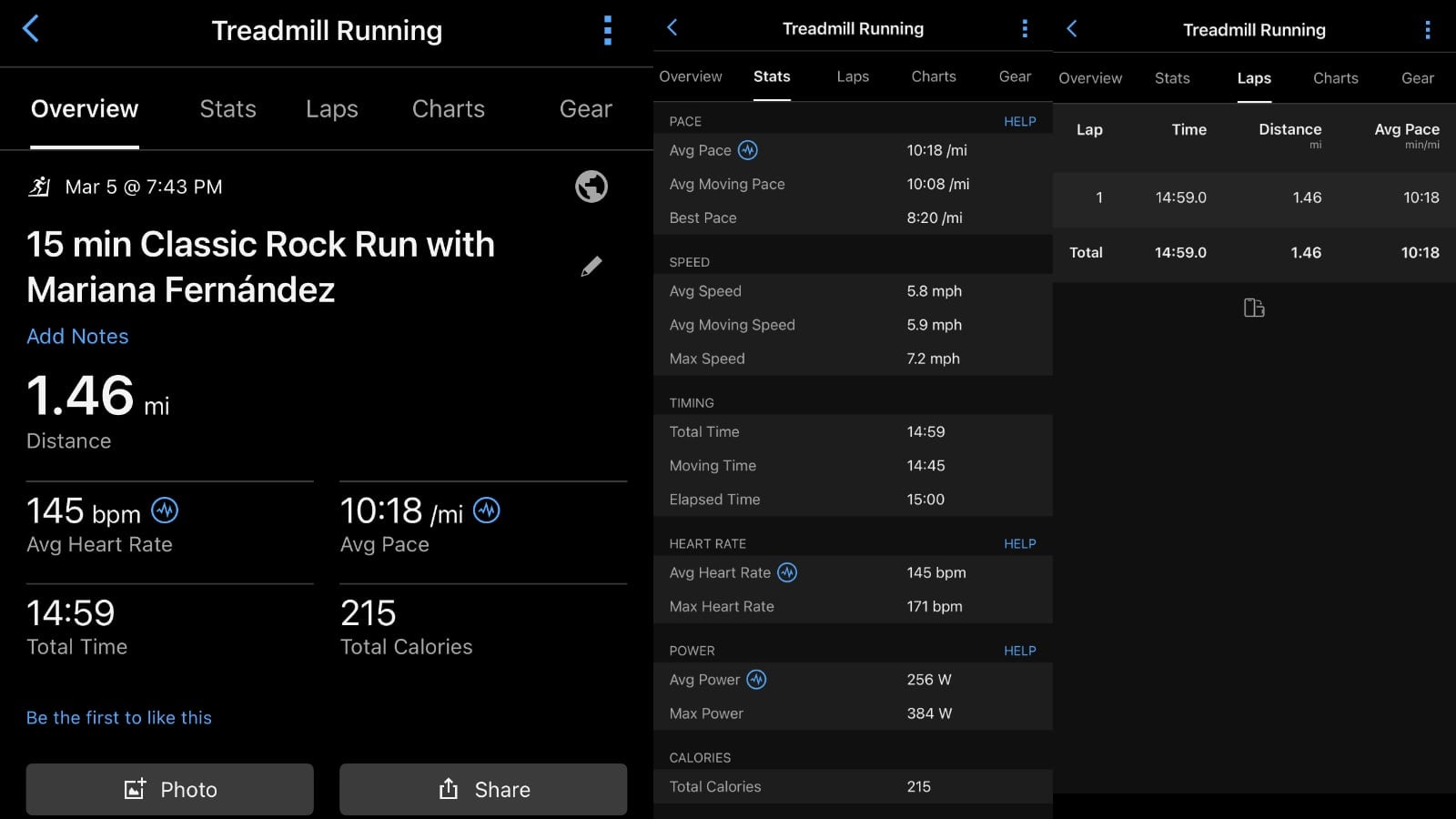
As the Peloton Tread does not track a users’ running cadence, that data is not included in what is exported Garmin Connect data.
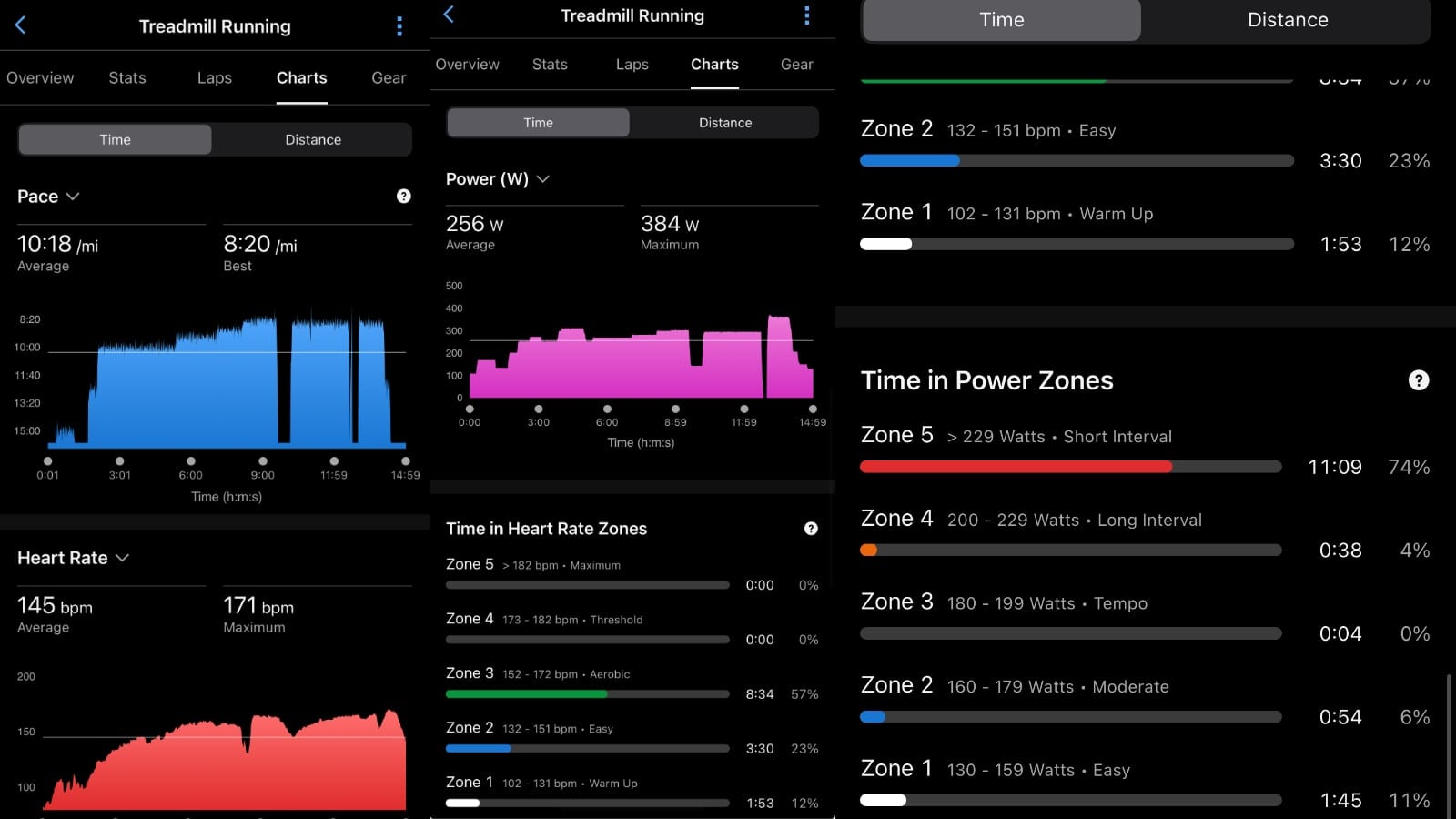
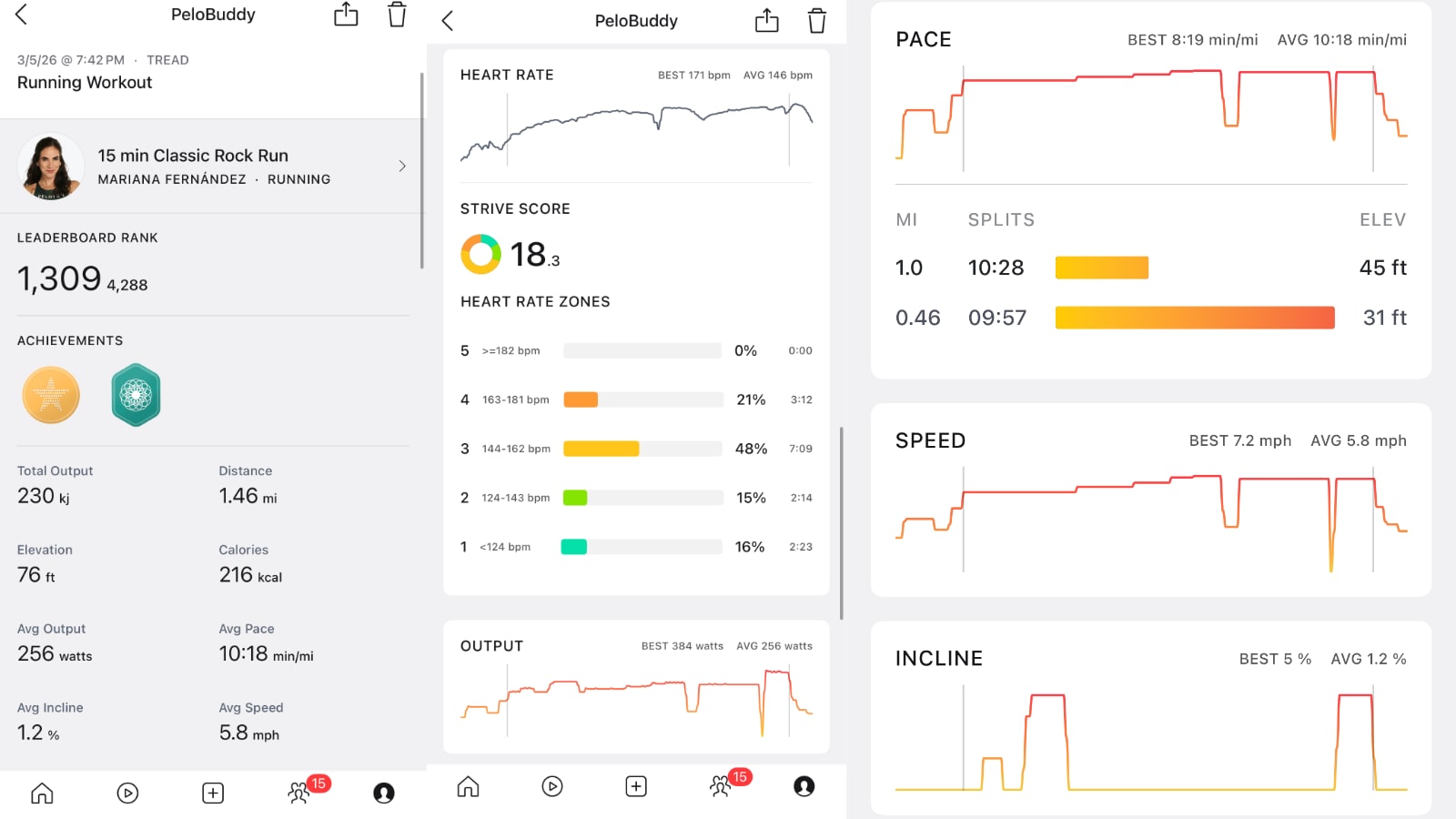
Notably, the Incline value from the Peloton Tread is not exported over or mapped to anything in Garmin Connect (besides how it factors into your power). In addition, although a workout on Peloton Tread does end up showing an Elevation value in Peloton, no elevation data is transmitted over to Garmin at this time.
As with cycling, if you are used to running outdoors with a Garmin watch (or other GPS watch), you will not see the same full suite of metrics you might otherwise expect. As far as stats goes, these stats are included in a Garmin Connect workout with some watches for runs that are not on Peloton-exported workouts:
- Running Dynamics
- Average Run Cadence
- Max Run Cadence
- Average Stride Length
- Average Vertical Ratio
- Average Vertical Oscillation
- Average Vertical Ratio
- Average GC Time Balance/li>
- Average Ground Contact Time
- Elevation
- Total Ascent
- Total Descent
- Min Elevation
- Max Elevation
- Temperature
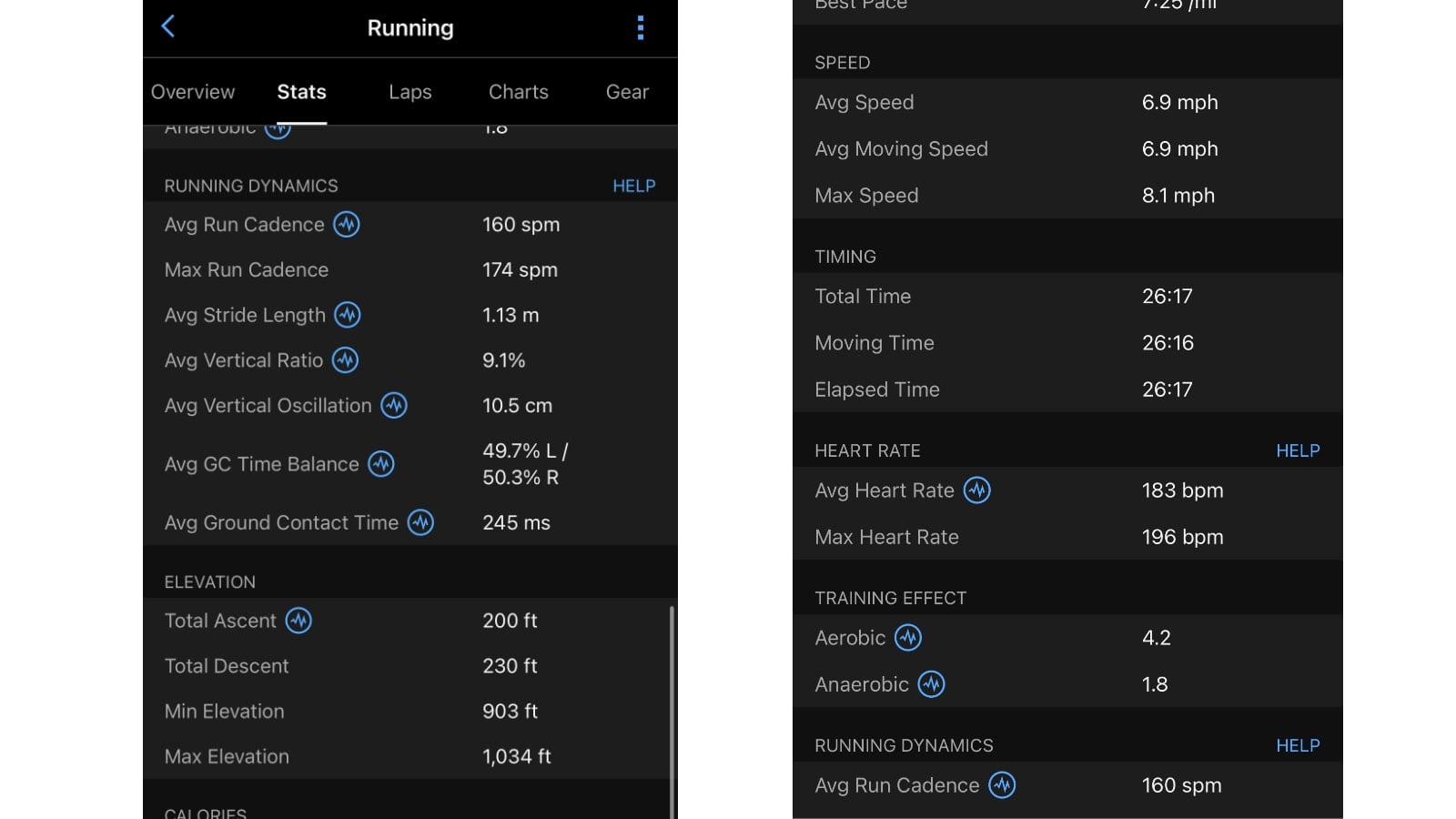
This translates over to charts as well that are included in outdoor runs with GPS watches vs workouts on a Peloton Tread.
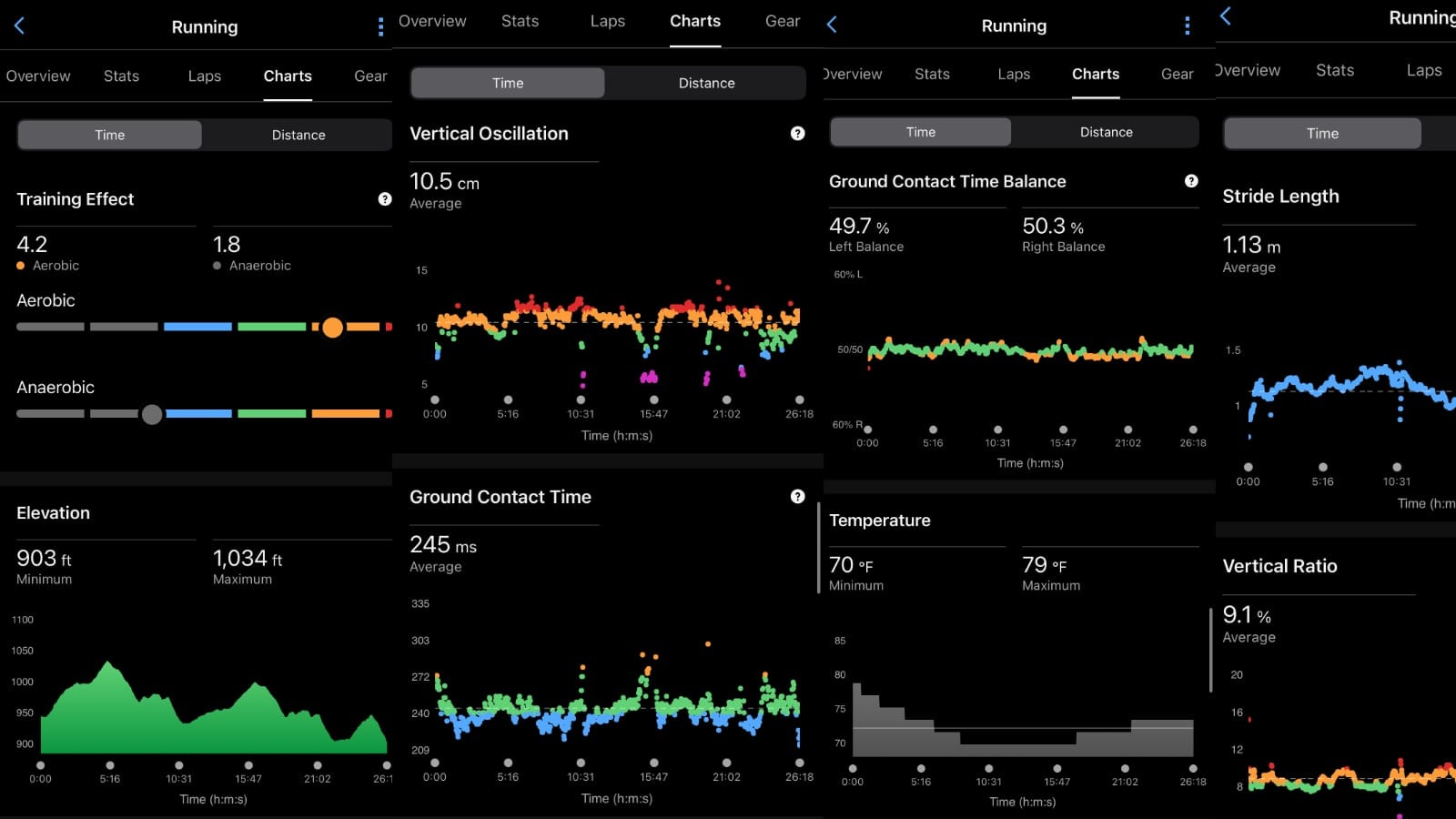
Training Effect will also be calculated and shown in running workouts exported to GC (not shown in images above).
The following metrics are included in rowing workouts exported from Peloton to Garmin Connect:
- Distance
- Time
- Pace
- Speed
- Strokes & Stroke Rate
- Heart Rate
- Calories
- Training Effect
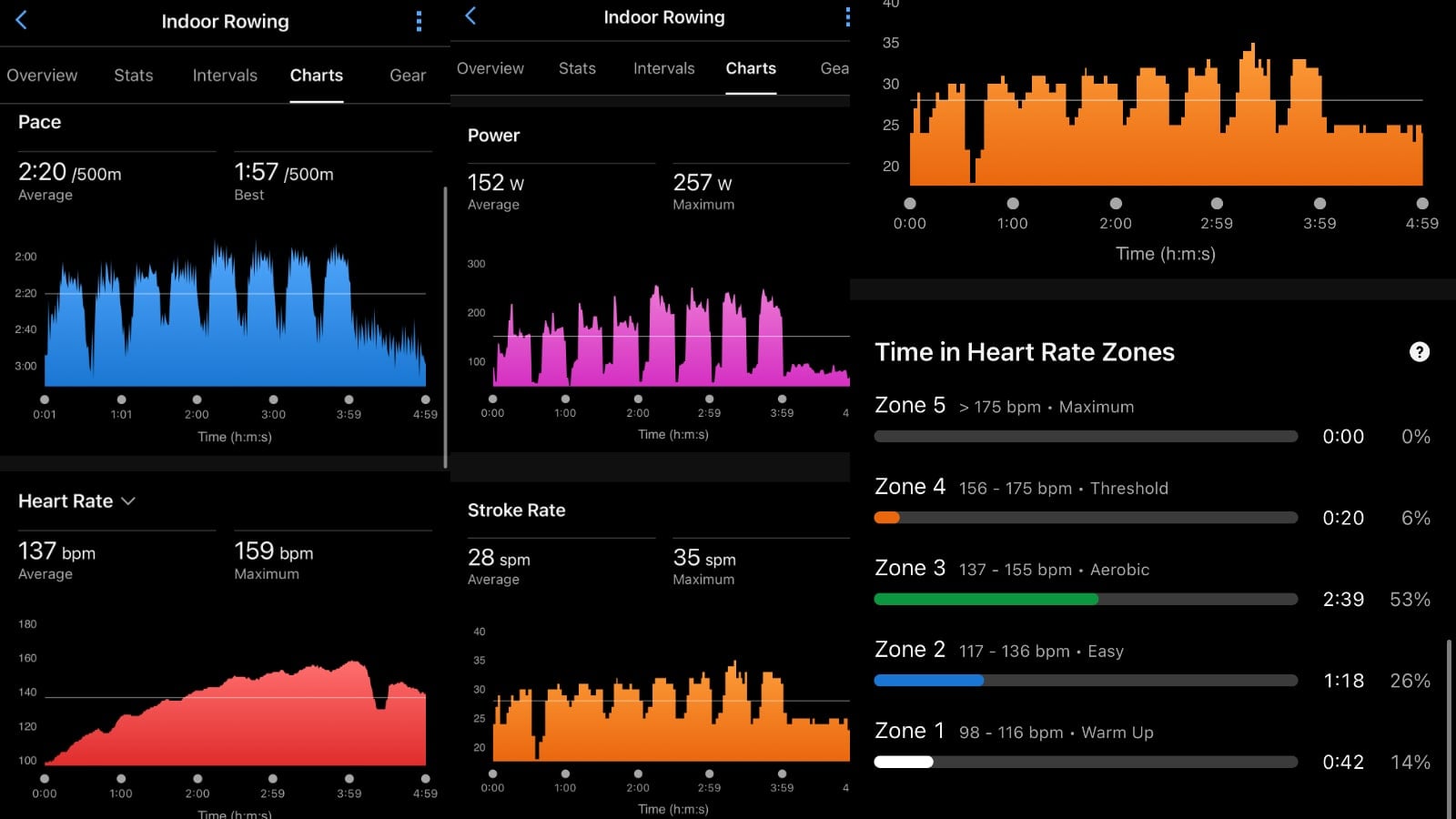
The graphs will look similar to other modalities.
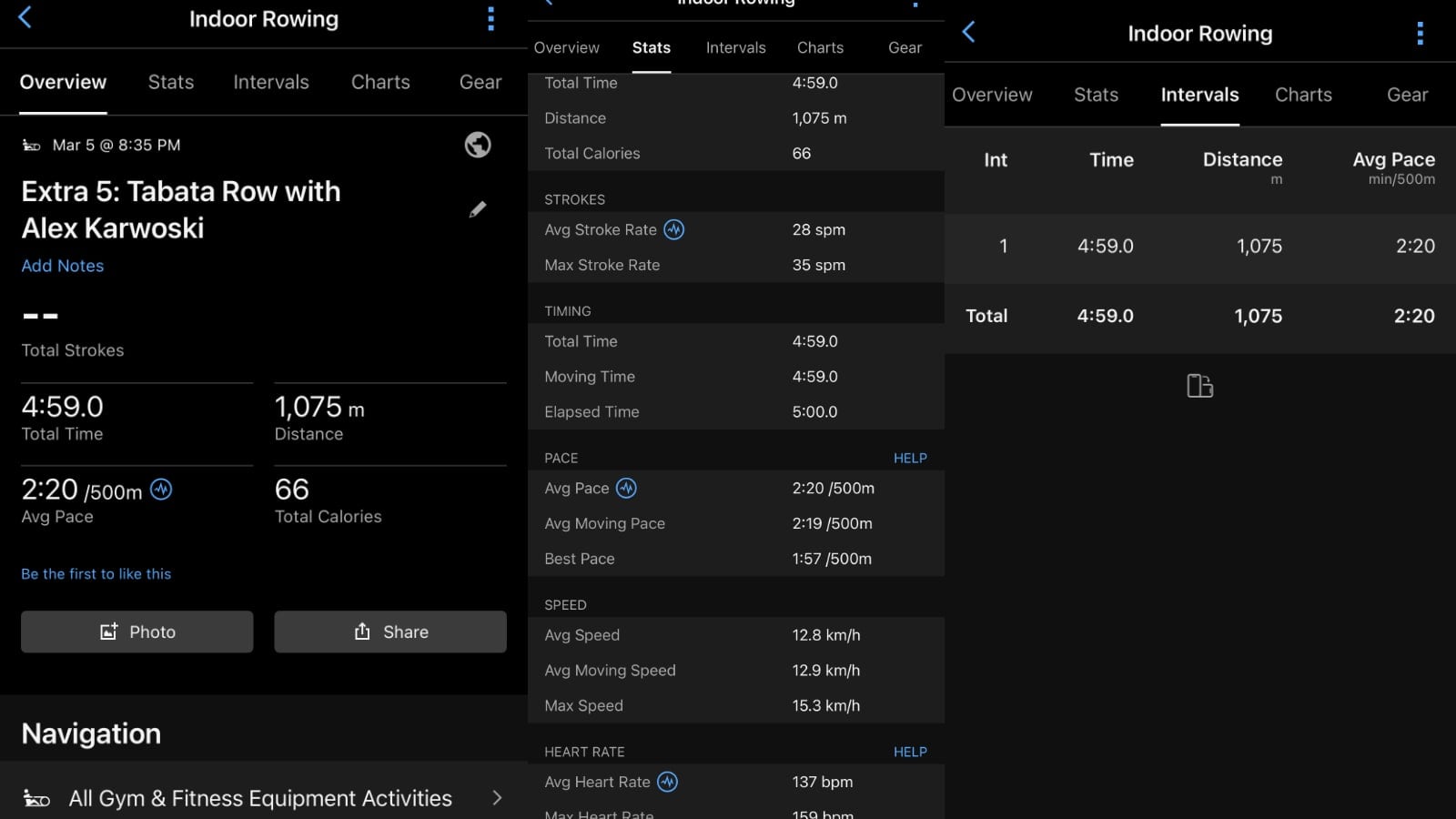
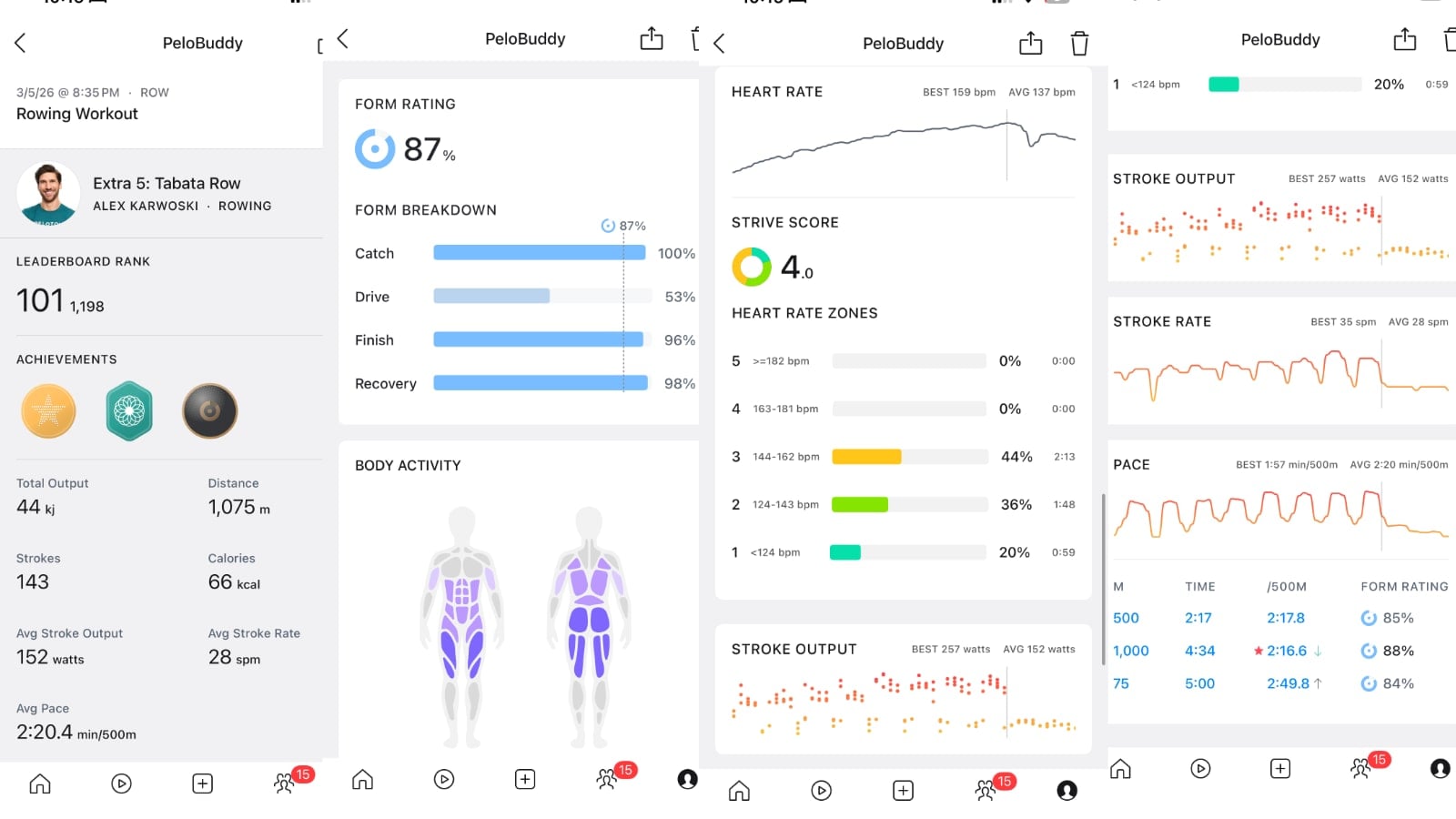
Although initially there was a bug that resulted in overall stroke count not being exported to Garmin Connect, that has now been fixed, and that value will be synced as well, as seen in the image below.
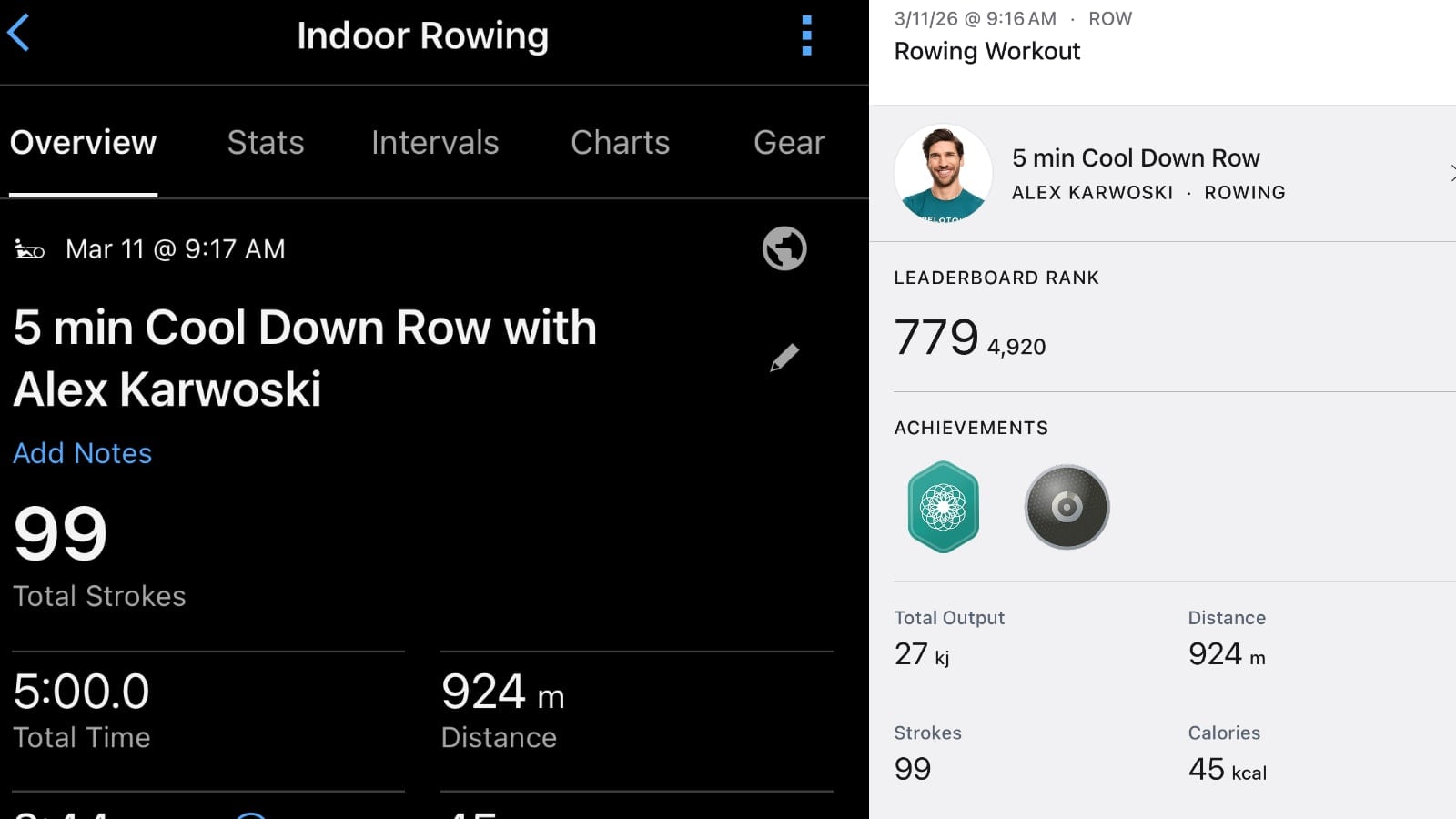
Form rating and form breakdown are proprietary Peloton values, so those are not transmitted or displayed anywhere in Garmin Connect.
Floor-based workouts, such as yoga/stretching/strength and more are able to be sent as well. The main data transmitted to Garmin Connect for these are heart rate and length of the workout.
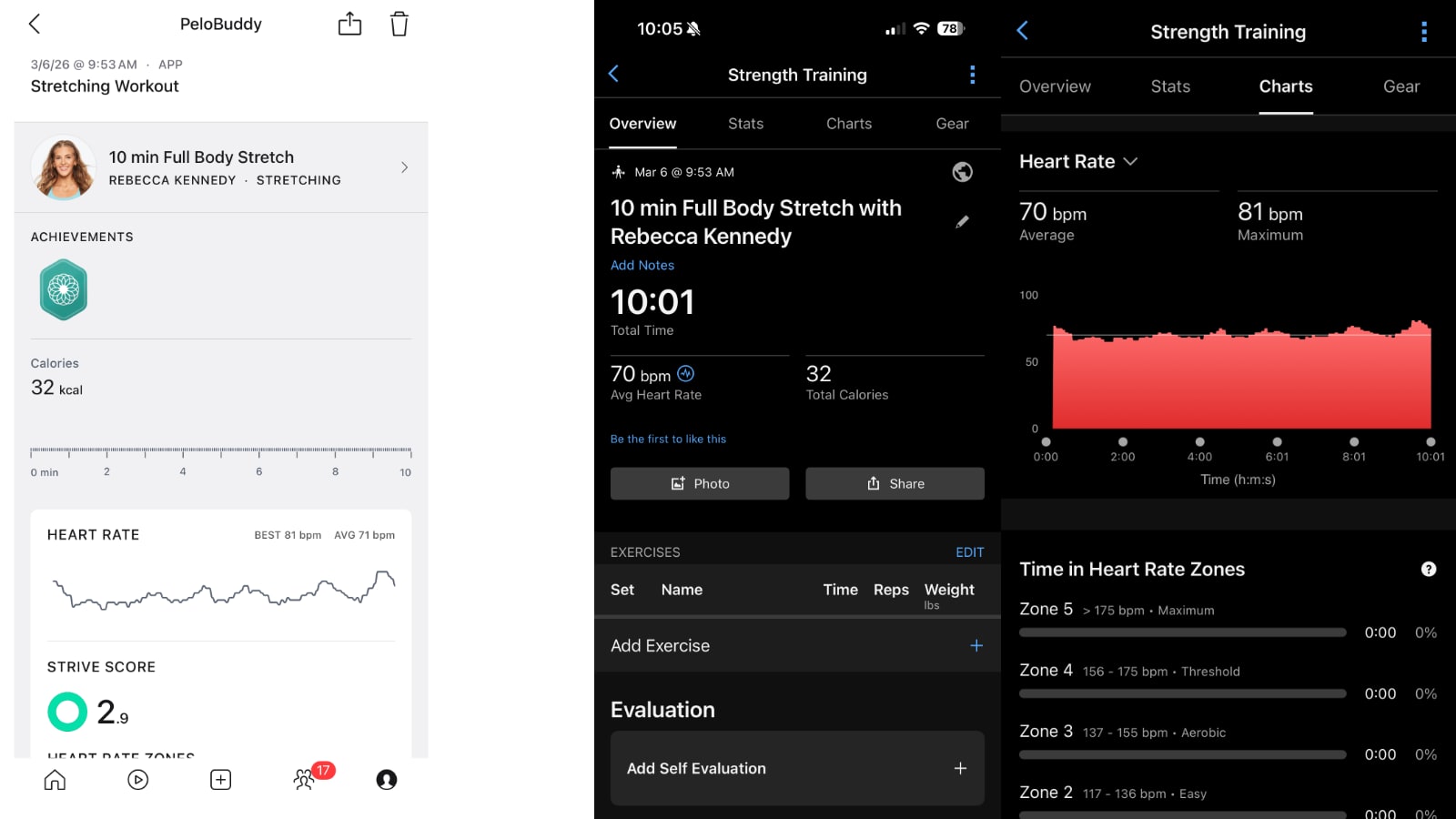
All of the workouts, across all workout types, are tagged as “Peloton Connected App” in the Devices & Apps section of the workout.
There is one small way in which exports to Garmin Connect differ from Peloton’s other major syncing partner – Strava. Peloton has had the ability to sync workouts to Strava and export data there for a number of years.
On workouts exported to Strava, your place on the leaderboard will be inserted as a note on that workout description. That data is not currently sent to Garmin Connect.
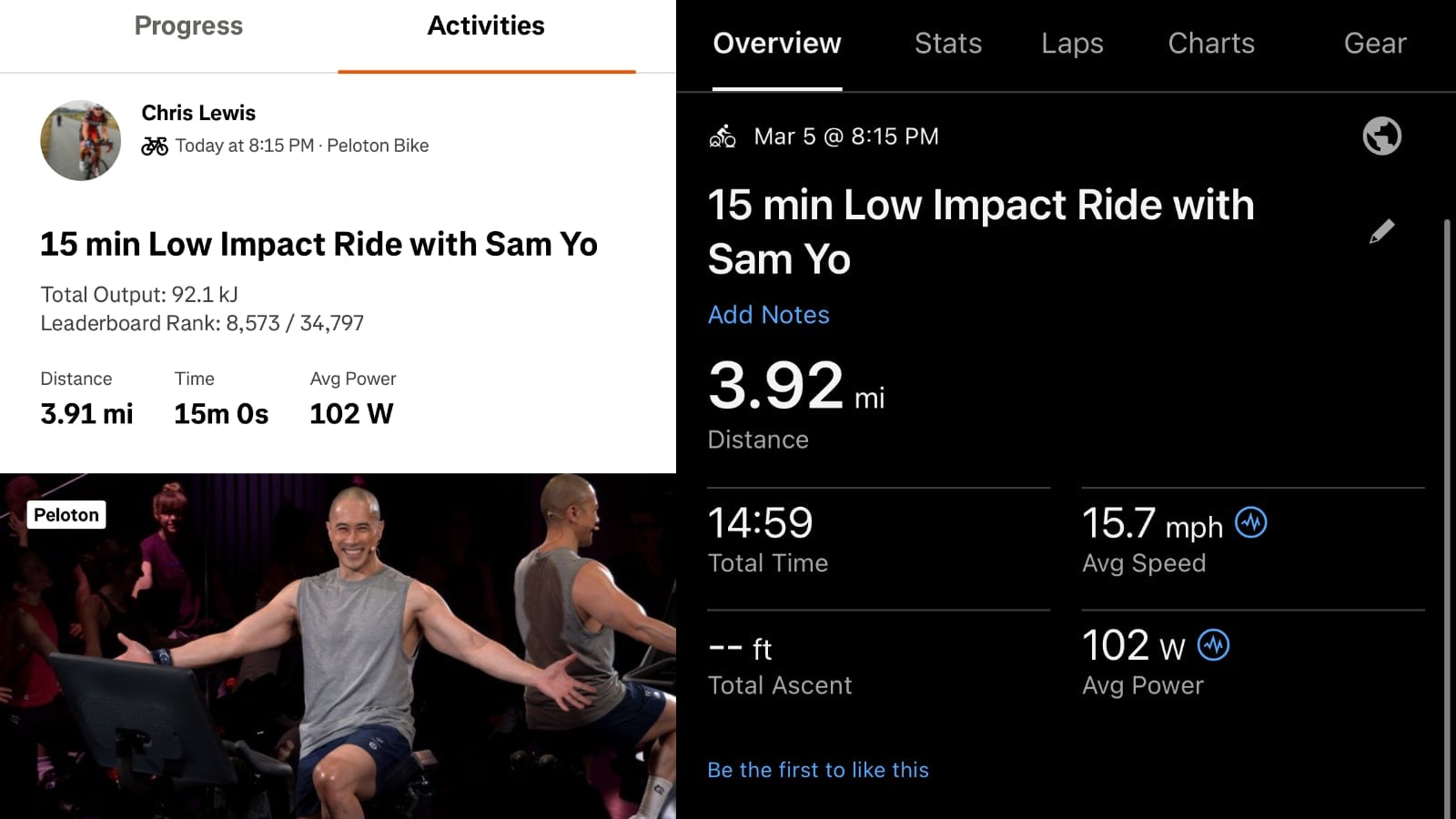
One thing that is consistent across all the exports is that any badges you earn are only shown in Peloton. There is no concept of milestones, PRs, or other achievements that are sent to either Strava or Garmin Connect.
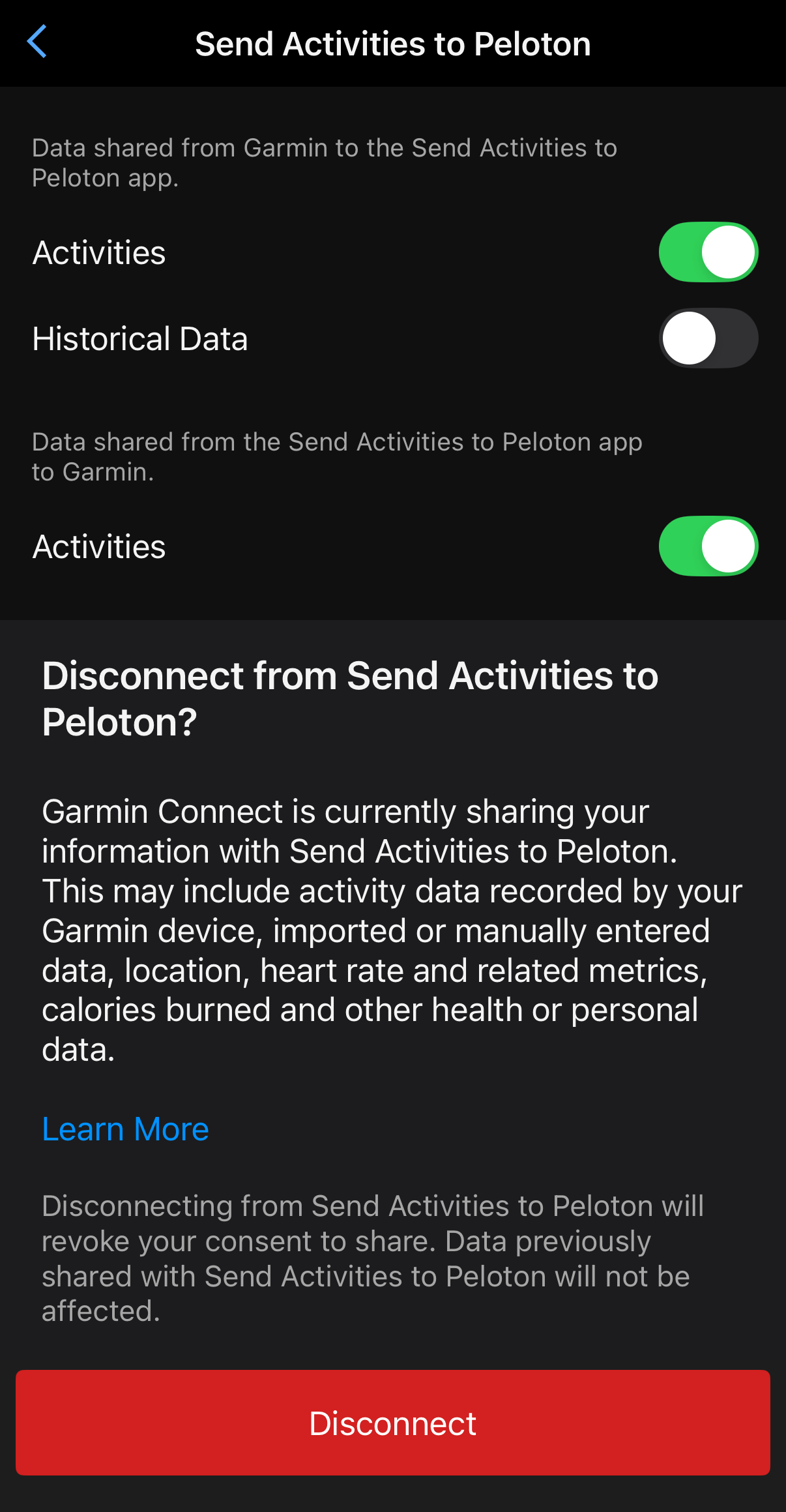
Users who no longer wish to utilize this feature may turn it off in the same area it was enabled in the settings section of the Peloton app. Alternatively – users can disable the sync feature within Garmin Connect.
In the Garmin Connect app, Select More -> Settings -> Connected Apps -> Send Activities To Peloton. On that page, there are settings for disabling both directions of the sync, as well as disconnecting your Peloton & Garmin accounts entirely.
With this updated sync feature that is rolling out to the Peloton app, users now have the full integration between Garmin Connect and Peloton that many had hoped for when the feature first rolled out last fall.
Update – This article was updated to note training effects are calculated for individual workouts that are sent to Garmin Connect from Peloton, as well as note that a bug related to stroke count not syncing has been fixed
Support the site! Enjoy the news & guides we provide? Help us keep bringing you the news. Pelo Buddy is completely free, but you can help support the site with a one-time or monthly donation that will go to our writers, editors, and more. Find out more details here.
Get Our Newsletter Want to be sure to never miss any Peloton news? Sign up for our newsletter and get all the latest Peloton updates & Peloton rumors sent directly to your inbox.

Are there any bugs/issues with using a non-peloton treadmill with peloton app during a running class? For example, it moved everything over as far as I can tell except the overall distance.
Nevermind, must have been a one time issue for me. My next run synced fine. However, i just did a stretch class on my TV and nowhere is it appeared in GC. Any issues known there?